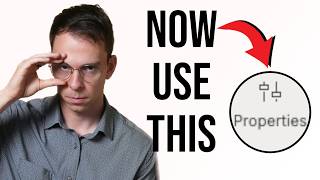
A short YouTube tutorial explaining Descript’s UI change that merges the former Scene and Layer buttons into a single Properties button. The presenter demonstrates how Properties shows scene properties when no layer is selected and switches to layer properties when a layer is selected, and briefly recaps usage and next steps for viewers unfamiliar with scenes/layers.
Over the weekend, my inbox was flooded with panicked messages from students who were asking what happened to the Scene button and the Layer button. Well, they got combined into one new button called Properties. So in this video, I'm going to show you how to use this new button. So here I am inside of a Descript project. And notice, this is what I'm talking about right here. This is the brand new Properties button. There used to be a button that said scene, and then below it was a button called Layer. And it would show you the currently selected layer or the scene that your playhead, this gray bar right here, was currently in. It still works similar, but now if I click into this white space right here. So in other words, I have no layer currently selected. And then I go to Properties. This is the scene properties for the scene that my playhead is currently in. Again, the playhead is this blue line that moves wherever you click with your mouse. Now watch what happens with this Properties menu still open if I click on a particular layer. So I click on this title layer right here. Now that Properties menu turns into the layer Properties for just this currently selected layer. And then inside of here I can do all this stuff I could do before, which is things like changing the type of layer, in this case changing the opacity, the size and position, and so on. To recap, if I click on a layer, it takes on the layer properties. If I click out of a layer into the white space above the layers into the timeline, it takes on the properties of this scene. And you can also click on the scene rail up above. So this one that says number six, that is my sixth scene in this video. I click on it and now the Properties menu reflects the properties for the currently selected scene. So what do you think? Good change, bad change? Let me know in the comments. Like a lot of things, at first it's a little confusing, but over time you get used to it and it becomes intuitive. And if all this talk of scenes and layers is Greek to you, you're not alone. Check out this video next where I tell you how and when to use layers in your videos.