Descript Made This Youtube Thumbnail for Me (w/ Nano Banana)
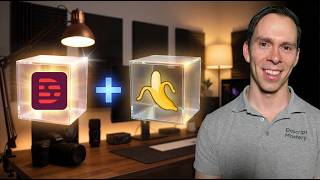
Ross Zeiger uses Descript's AI image generator with the Nanobanana Pro model to create YouTube thumbnails from scratch. He uploads his portrait and logos, writes a detailed prompt for layout and lighting, generates four variations, refines them, then A/B tests the winners in YouTube Studio.
Chapters
I'm gonna show you how I use Descript to make all of my thumbnails. Now, first of all, I made a project that is just called Thumbnail Generations, and this is my project where I put everything that I'm generating in one place. You don't have to do it like that. You can generate these in any video project at all, but I'm gonna click on it and I'm gonna go to AI tools. I'm gonna scroll down. And Generate Media is where all the generation actually happens. You click on that. And if I scroll through here, you can see these are prompts that I've used, and then these are the actual results. So I've generated backgrounds. Here actually is some of the thumbnails I generated for one of my most recent videos. It put in an image of me, it put in some text and a screenshot that I provided it. Mm-hmm. So I'm gonna show you all these steps in a moment. And by the way, these previews, they look low resolution here, but when you download 'em, they're, they actually look a lot sharper and better. But I'll talk about that in a moment. And then I've also generated something like this where it's got an image of me, it's got some nodes from a project I was working on, and it generated a YouTube Studio in the background. So I'm gonna show you exactly how to do that. So at the very top, You're on the image tab by default, which is what we want. Below that, you can choose your model. My favorite model at the time of recording is Nanobanana Pro. And with all of these, you can see how much they cost in Descript AI credits. So this one costs 5 AI credits per generation, which is actually the most expensive one on here. Some of the rest of these cost 4, 3, et cetera. But I do think Nanabanana Pro is well worth the cost. And then next to that, you can choose the resolution. So it can be 720p, 1080p, or 2160. For YouTube thumbnails, I like to go as high as possible, so I go to the 2160. And then you have a text box where you describe how you want the thumbnail to look. Below that, you can upload images that you want to go into your thumbnail. So that's how I got the image of myself in there. Mm-hmm. And that's how I got the screenshot in this particular thumbnail. So what I'm gonna do to get my source images in there is click on this paperclip. I'm gonna choose computer. I created a folder called thumbnail photos, and what I put in here is a Nano Banana logo, a Descript logo, and a photo of myself. And for some reason I can't select all 3 at once, so I have to select these one at a time. So I'm gonna— I'm gonna select the first one. I'm gonna say open, and you can see it's now in there. I'm gonna click on the paperclip again, computer. I'm gonna select my photo. I'm gonna say open. I'm gonna click on the paperclip again, computer, and I'm gonna select the Descript logo. I'm gonna say open. So these are the 3 source files that Nanobanana has to work with, and I'm gonna tell it, Create a YouTube thumbnail. That gives it the context of like, where is this going? What kind of style generally should we use? On the right third, place the man with the background from the attached image removed. His likeness should be identical. I don't want it to make any changes to my face. I can, if I want, you could tell it, make me brighter, make me look younger, whatever you want, you could do that. But I don't want it to. I want it to be the real undoctored image. And then I said, on the left two-thirds, place the Descript logo in a shining 3-dimensional cube with a plus sign followed by the Nano Banana logo. And I made a little typo there. Also in a glowing 3-dimensional cube. And then the last instruction I gave it is the background of the whole thumbnail is a softly lit home YouTube Studio. So that is it for my, my version 1 prompt. I'm gonna refine this based on the results I get, or maybe it, it does a good job the first time. We'll see. But the other things I can do is I can choose a style. So I click on that little wand looking icon and if I wanted to do 3D animation or cinematic or marker or studio lighting, I can choose to do that here. Okay. I personally don't ever touch those, but they're there as an option. Next to that is the aspect ratio. So 16:9 is what we need for YouTube thumbnails. So I'm going to leave it on that. And then this is how many variations you want. You can have it just make one or you can have it make 4. Again, they only cost 5 AI credits per generation. So I like to do 4 and just get as many options as possible. And I'm going to hit submit. And I'll be back with you in about a minute. Okay, and it is done. You can see them coming through one at a time. And if I click on it, I can see a big preview pop up. And I, right off the bat, I don't love the outline that it put around me. I'm gonna probably have to change that in the prompt, but we'll see how the other 3 look. But the 3D cubes, those look cool. The background looks cool. I have no problem with that, that part of it. Um, the next one, this one looks great. Honestly, I look untouched and it's got the Descript logo and the Nano Banana logo and the nice background. This might be the one you see on this video cuz that looks just about right. The next one. Um, same thing. I actually, I like the 3D cubes there a little bit better. So this is the point, like you get options. By generating 4 different versions. And then this one, both of the cubes are facing off to the left and I look good there. So that any of those 3, it's gonna be a toss-up. I might do an A/B test with all of those. And then you can see there's the prompt that I gave it up above. And with any of these 4 options, aside from clicking on it, if I just hover over it, there's a turn into video button. So I can actually use this as the starting frame of a video if I wanted, which doesn't make sense for this, but you could reuse prompt. If I click on that, that puts the exact same prompt and the 3 source files that I used up above to do it again. So I could, I can modify my prompt and like I said, I could, I could be specific, like do not add an outline to the man or change the colors, make him brighter, things like that. You can modify your prompt and then run it again. So again, that was the, the little fork looking icon there. And then the plus button would actually add this image to the video. So if I click on that, it is now inside of my Descript editor as a layer in the video. But what I need to do to actually put this on YouTube is download these and then put it into this thing. Videos thumbnail. So I'm going to click on these videos one at a time. I'm going to get this popup again in the bottom right corner. I have these three dots. So click on that. And then right there, there's a download button. And by clicking on that, it saves it to my computer's hard drive and I can give it a name. So I'll just call this thumbnail A, and this is going to be for my A/B test. So I'm going to have a thumbnail A. Mm-hmm. I'm gonna go to the next one, three dots, download. I'm gonna call this one thumbnail B. And then rinse and repeat for the third one, three dots, download, thumbnail C. I hit save. And then I'm gonna go to video details. This is the video that you are watching right now. I'm gonna click on A/B test. I'm gonna say— A/B test. Add thumbnail. There's thumbnail A. Open. I'll go to the next one. Thumbnail B. Open. Scroll down. Add thumbnail. Thumbnail C. Open. And now these 3 thumbnails are going to be my A/B test for the YouTube video you're watching right now. I'm gonna click set test. And the title of this video, as you already know, is Descript made this thumbnail for me. I'll hit save. And that A/B test is going to automatically run on my behalf. And it was completely made using Nanobanana inside of Descript. So now it's your turn. Go into your Descript project, go to AI tools, and then generate media and practice actually making a YouTube thumbnail using Descript.








