Descript Video Editing Q&A
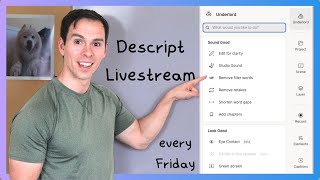
Descript founder walks through video editing workflows: adding music, using layers and scenes, ducking audio, and speed controls. Also announces a new $29 email course for beginners and answers questions about stock assets, third-party integrations, and AI features like Overdub.
Okay, let's see if we're live. Okay, we're live today. I'm going to start by talking about, okay, music, adding music. So as always, please drop your questions in the chat if they come up. But otherwise I'm going to go through a couple pre planned topics here. And before I do that, because it usually takes people a few minutes to join, I'm gonna go into a new thing I released yesterday, I think it was, which is I have my Descript mastery course. But a lot of people are intimidated by that. They're like, I don't need to know all, I don't need to know how to use every single feature. So there was a lot of demand, a lot of requests for something simpler. And that's what this is. So I've. This is a beginner's course. It's seven days long and it's done over email. So it's not a traditional, like go at your own pace, watch the videos, that kind of thing. This is a email that comes every single day, starting the moment you sign up and then every day in the following days in the morning, and then 24 hours after that for seven days. And each one is just a small lesson that takes no more than 60 to 90 minutes to complete. So there's text instructions, there's video instructions, and then there's a project that's assigned. So you're practicing what you're learning as you go. And so the idea isn't that it's not the full mastery course that I have, which some people take months going through, this is just something that will take seven days. Everything's dictated how long you'll spend doing it and just very bite sized. And then by the end you'll know the basics, like maybe 60 to 80% of what you need to know. So if all the ins and outs of like mastering audio and transitions and all that kind of stuff isn't what you need, you just need to make a podcast or you're just making something simple, then this is the course for you. And also I haven't set this up yet, but I'm going to have some sort of bridge where if you complete the beginners course, then there's a discount for the mastery course, that type of thing. But yeah, so, and it's a lot lower price point. So this is something you can sign up for if that's of interest. And here's the topic. So day one is just creating your project, like literally downloading Descript, setting up your account for the first time, creating your first project. Day two is understanding layers and scenes, which is like the most core thing in descript. Day three is editing audio like applying studio sound compressor, how to adjust the volume, mute different tracks. Day four is the basics of video editing. So adjusting the colors, just like how to cut layers, how to change where the layers begin and end, that type of thing zooms in and out. Day five is transitions, animations and effects. So this is the transitions between scenes. Animations are custom animations like zooming in and out or moving text off the screen or into the screen, things like that. And then applying effects as well. Day six is the advanced skills like templates and sequences. Sequences of course are when you have multiple tracks inside of one layer. And then templates are reusable elements that you can create so that you only have to do things that you're doing in the software. You only have to do it once and then you can apply it multiple times across projects. And then on the last day publishing and exporting how once you've gotten your video all edited, how to then publish it to the Internet or export it to your hard drive. So again, this is descriptmastery.com it's e course is for email course. But the idea is that this is a beginner course. Like this is. It's not the full mastery course. It's just a seven day everything's delivered for you, tells you step by step how to create your first project. And it's $29. Okay, so please got a few people joining across the different streams. Please drop your questions in the chat. Otherwise what I'm going to start talking about is adding music to projects. So let's say that you have a project, doesn't matter what it is and you want to add music to it. If you have your own music, you can take it off of your hard drive, off your desktop and then just drag it into descript. Or the way I want to show you right now is using descripts music. So if I go to this music button. Oh, and can you see this on the screen? Let me just. Okay, I'm looking at the live stream and I think it's a little bit cut off. So I'm just going to adjust this a little bit. That should be better. And so at the bottom right is the music thing. Oh, and let me turn on my screen, my cursor things here, highlighter. So bottom right, music. You click on that, you have this box up top that says music and then below that you have sound effects. So if I go to show all on the music. I have a default list here and they're always in this order. Reggae is the answer. Island melodies, this is the default order. To play one of these, you can hit this play button and that's a little preview of what that song is. If I want to add this to my project, I can hit that plus button and that'll put it into my project. Or I can use this search to look through the entire library of descripts music. So there's one that I like a lot. I've been using it a lot. You might have heard it on my videos. This one right here, I always type in orchestral and then this first one. String arpeggio. This is really great for shorts. It's very epic sounding and so I'm just going to apply it by hitting the plus button. And it's importing audio. So it's just going to take a moment here. Shouldn't take too terribly long. And there we go. And It's a minute 21. So it says up here in the top right, minute 21, that's, that's the length. And because my project is longer than that, it ends and then it's just gonna be silent or there's gonna be no music after it ends. Obviously it's this green layer here. So my music is now in here. Now if I want to make this intro music so that it's plays before the speaking starts, the easiest way to do that because I got this question multiple times this week. I don't know why, but if I put my curse, my playhead, this vertical blue line right here at the very beginning, right at the 0.00 second mark and I hit forward slash, that creates an empty scene. Anytime you have two of these forward slashes, you see on my, my transcript here, next to each other with nothing in between, it creates a blank 5 second scene. And I can take that scene and I'm going to zoom in here, holding command and using my scroll wheel to scroll in and out. And so with that five second scene I can leave it as is or I could adjust it. So I put my mouse on the border there. So I get that bracket that's open to the left and then if I drag it to the left, click and drag, I'm shortening it. If I drag to the right, I'm lengthening it. But let's make this like three seconds right there, that's fine. So now that I have this empty scene here, I have more space to the left to work with that. I could put my Intro music into. So to do that, I can just grab my music layer that I just made and simply drag it and slide it to the left and there it is. And now it's going to play. It's important to understand what composition. Like that. And so. And then inside of that blank space, I could add a title. I could say, well, let me just move this one here. I'll just move. So that's a text layer. And. And it's that thing that says regenerate demo. Let me just make it big, just for demonstration purposes. Put that in the middle. It's too big. Let's do like 1:50, something like that. And then the music's gonna play. Let me just adjust that title so it doesn't overlap in the next scene. It's important to understand. Okay, you get the idea. Now if I click on this, this music layer, so that's adding an intro. If I click on the music layer, I can make more adjustments to it. For example, with it selected, it's green, so I know it's selected darker green. That is, if it's not selected, it's that light green. So I select it. Come to layer on the right side. And the layer property is how you're going to adjust the properties of an individual layer. In this case, it's an audio layer. So. So our properties are the audio level, this audio box right here. And right now it's at 0.0 decibels. You can make it negative. So for like really soft background music, I often do negative 20 to negative 25 decibels, something like that. Positions versus projects are in descript. And now it's like, it's just barely there to just kind of get rid of that, that empty space. But it's, it's, it's not drowning on my voice. I'm gonna put that back to zero, though. And you can see when I change it, the size of the sound waves change. So as I go down, sound waves get smaller as I raise it. If I go to like positive five, sound waves get bigger and the volume's louder as well, obviously. So that's kind of the. I don't know, the universal way to change it is by selecting the entire track and then changing the volume. There's a more elegant way to do it, and that is if I click on the script layer. Remember, the script layer is our bottom layer. It's the layer that gets transcribed. And so if I click on the script layer and I come over here still with the layer option open on the right side there's this audio effects box and if I hit this plus button, go to Dynamics and then ducking, what ducking is going to do is it's going to lower all of the tracks other than the one I'm applying it to. So in this case, if I'm applying it to the script layer, nothing's going to happen to the script layer, but all of the other sounds stacked on top of it are going to get reduced at a level that I tell it to. So, so if I click on these icon, this little icon here of the gears right now, it says amount 10%. That's the default. And so what that's telling me is it's going to reduce the music layer in this case to 10% of its full volume. And so that's going to be a nice, nice level where it's not going to drown out my voice. Now because there's no script layer here at the beginning, there's no audio there, there's no sound waves. Um, that music at that 3 second opening part is not going to be affected. So here's what that sounds like. It's important to understand what compositions versus so for the, for those three seconds, the volume is full blast. And then as soon as I start talking and saying it's important to understand what, yada, yada, yada, then the music tapers off as that ducking goes into effect. And if there was a pause, like, let's just say, let me just create a gap clip. You can create a gap clip by just clicking on a word down here and dragging to the right. And that just opened up this, this area where there's going to be no talking. Let me make it just a little bit bigger. So what's going to happen there is, because there's no talking, there's nothing in the script layer, the ducking is going to go away again and that music's going to get loud again like so descript. And hopefully you can hear this okay through the, the live stream. But that's the idea. So ducking is, is a really cool way to, to do that. If you have a soundtrack where you have an opening and then you have an outro or maybe even some parts in the middle where, like for example, if, if I was making a travel vlog and I created this gap clip and then in there I put some B roll of my trip, I put me biking through the streets and then I put a video of me in a park and then I put a video of me at the beach, then that music and there's no speaking during those parts. The music would just smoothly go up and it would just, it would look and sound really nice and then as soon as I started talking again, it would fade out. Okay, I think you understand that. So those are the, the music options. The other thing is if I click on this layer again and you have duration here. So by default it's at 1x. 1x is normal, normal speed. And so this is going to be 1 minute and 21 seconds long is what that's telling me. If I make this like a 1.5, it's going to play at 150% speed. And. And now this music layer is only 54 seconds long. On top of that there's. You can just choose to play it just once where it goes through the whole track and then it stops. Or I can select Loop where it'll continue to play until the project ends. So you can specify that there and you can even choose where it starts. The easier. I very rarely use this because it's just easier to drag it here on the timeline than to mess with that. Um, but yeah, that's, that's the gist of it. And also I very rarely use this. But this is an interesting thing. The solo track, which will mute everything else. This is more for playback than it is for exporting. I mean you may be in your workflow, you can. But the idea with this is you could solo a track and, and it's only gonna play that one. And you can see now, now my audio voice isn't audible. Okay, got some questions in the chat coming in. So for those who have purchased the Mastery Course but haven't yet started going through the materials, planning to begin next week. Should we complete the seven day email course first before the mastery? Uh, no. So the Mastery course has everything deeper. So yeah, if you have that, that's gonna be even more in depth and more the same content. So yeah, there's, it's, it's worth, it's worth going through that without, without needing to go through the. The seven day one and then. Next question. It's very cinematic. Would you recommend it for short form content? Are you asking Frank about the. This music in particular or which. Which what's very cinematic. I'm assuming you're talking about the music. If. So this. I do love this song for shorts. That's, that's like been a really good use case for it. Ah, ducking. Yeah, so. So ducking. Yeah, you can use it for anything. I mean anything that you want background music on or back or even just quieting sound effects or things like that, it can be useful. So I'm trying to think of like specific examples or like things where you wouldn't want it from. Okay, so ducking is kind of the automatic method. Let me return this to 1x and then I'm going to go to ducking and turn it off. And then. So ducking is like the automated, automated way to do it, where it's just going to use AI to lower and raise the volume. There's a manual way, which is to set volume keyframes. So if I put my playhead somewhere, I right click and I say add volume keyframe. Then if I hover over, I get this little. I have this new little white dot here. And right now when I only have one, it's not gonna do anything yet. I can raise and lower the volume with it, but it's gonna raise and lower the whole track. If I add a second volume keyframe. This is where it gets interesting. Now I have two white dots and if I lower this one, it's the volume's gonna play at a certain level up to that first white dot. And then it's going to gradually taper off to the second dot here, which is. If you click on it, it's negative 13.6 decibels. And it's going to continue to play at that level until I add another volume keyframe. And then let's add even a fourth one and I'm going to raise the volume again. And so now I've effectively manually created ducking. It's going to taper off and as I start speaking, it's going to remain low and then it's going to get loud again over this, this gap clip that I created. Yeah, like that. Yeah, yeah. So, yeah, volume key frames are super handy for that. And then, and you can like, if I drag this out, it increases the distance or how long this ramp up is going to be. So yeah, so the, the closer these are, the quicker that is going to be all the way to like it just jumps at. If it's vertical like this, it's just going to jump straight to. Hopefully you can see this in the live stream, but that's positive 8 decibels from negative 13 or whatever it was. And then if I drag this to the right, it's going to be a gradual incline. And keyframes are a really important concept to understand in editing in general because we also use them for animations. So when you go to apply an animation, if I click on this frame I hit animation, I hit plus button custom. Then I have this diamond right here at the beginning of the that animation and a diamond here at the end of that animation. So key frames are not only for the audio, but also for the visual component. And so in the case of an animation, your first key frame is where your animation begins and then your second animation is where your image is going to end up. And then what happens between those two points is your animation. So yeah, let me know if, if any questions about that and let me see what else can I tell you about music? So, so question in the chat is how do you search for music in Descript by category. For example, if I'm looking for corporate style background music, I wouldn't know how to find it beyond randomly stumbling on the right title. Yeah, so it's, I don't know, I haven't really experimented with it deeply to tell you have a really strong answer for you. But I generally type in like genre. So jazz, for example. You type in jazz, hit show all. And then again hitting this play button gets you, allows you to preview it. So you could just see if that's something you want. You mentioned corporate. So I know for a fact I've seen songs in here with corporate in the title. Inspiring corporate business background. There's one, yeah, that sounds like a training, like a corporate training video. So, so that's kind of. It is really just what, typing in words. If, if corporate is something you corporate style, type that in and it might come up. If not, maybe try business. Oops. Or try. And when I type in business, the first one is corporate. So in the metadata of all this music, I'm sure there's a bunch of different keywords like business. What else can I say? Professional uplifting. Corporate. Again. So, yeah, I, I'd say just think of like anything related to what you're, what you have in mind. And this is especially tricky with sound effects. Like if you're looking for a, like a certain type of sound, like you're like, I want that laser sound from Star Wars. It's, it's really hard to say. Like it might be laser or it might be like ray gun or I don't know, something crazy like some, something related to laser or let's see, what else could I say? Like light gun or I don't know, you know, like it's. You got to kind of just get creative with it and type in related sounds and play through these until you find one that you like. So a little bit of an art to that science yeah, so hopefully that helps. And then. And also you could. Another way to get creative with it is to ask Chad GPT, like, what should I type in to find. What should I type into a music search engine to find the sound from this particular movie or, you know, something like that, and then it could help you out in that way. I did a video this morning, released it this morning about using Chat GPT to analyze YouTube comments. So if you have a YouTube video where you have a bunch of comments, you, you can just copy and paste. You can copy all of them, paste it into Chat GPT and then say, look at all these comments and tell me what people liked about it, what people didn't like about it, what feedback I could use for future videos. And then. Yeah, it's just, it's really cool. Like, so I've been leaning more and more on AI for, for stuff like, um. And I suppose you, you could maybe ask Underlord. Let me see. So what I just did. Sorry, I'm not explaining. I went to Underlord. And then if you type in Ask Underlord and click that first one, oops, click that second one rather, then it says, how can I assist you today? And this is basically just like a Chat GPT prompt. And so then you could say follow up. And this is where you could type in your prompt and you could say, I'm looking for some corporate appropriate music, something like that. You could say for a training video, whatever it is you're making. Please suggest some keywords to search for the right tracks and then hit enter. And here's what it came up with. Inspiring, upbeat, motivational, professional, uplifting background. So you can just take these, these keywords and then search these and then find the music you want. Okay, I think I've said enough about that. Unrelated question. I have made banners and lower thirds in Canva, but whenever I import into descript, they look very pixelated. So Canva is great. And probably what's happening is I can show you this because I love Canva too. This is my most recent thumbnail. Um, if it's looking pixelated and if you're already doing this, then I'll maybe have other suggestions for you. But I always do png and this is the key right here. Crank up the. The quality. So I'm. If it's pixelated, probably, and it looks fine in Canva, probably you're exporting it at too low of a quality and you just need to bump up the. The resolution and within limits like 1920 by 1080p is probably what you need for a thumbnail depends what you're making. So. Okay, you said for. For descript. So if you're making a regular HD video, 1080p video, then this is what you need. If you're making 4K, then you'd want to do. I think it's this 3840 by 2160. Yeah. So yeah, that's, that's. Just make sure you're doing that on the export part when you go to save and then, yeah, download it. Experimenting with Adobe Express, which is similar to Canva. I'm not sure, I haven't used that one. I'm. I'm learning the last few days. Typically exporting in 7:20. Okay, yeah, yeah, check it. And if not, it could be the resolution of the, the elements you're using. But most thing, if it's like, if it's text that should be. It's. I don't know what the word is, like SVG type of files where they can be infinitely stretched out and it should remain sharp. It's just you need to export it at the, the highest quality you can. So what I started to say is I've been learning a new tool called Affinity, which is like a competitor to Photoshop. So it's a lot more complex. It's kind of like a professional level tool. But that's been fun. That's been a new. A new learning curve for me. I've been mostly on Canva up until now. And yeah, Canva. Canva is just awesome. You can be so fast with it. It does a lot. But there are limits. There's definitely limits. Yeah. If there's. If you have any more Canva or graphic questions, happy to talk about that as well. One thing I do in Canva, descript is very limited on animations and different types of graphics. So I'll use Canva to achieve certain effects that I can't do in descript or even like. Let me show you something I've made. I'm just looking at my Canva thing real quick here. Okay, here's a good example. So this is a little Canva video I made. And it's got that typewriter effect which you can't do in descript. So what I'll do is make this in Canva, export it, and then pop it into my Descript video and then just something simple like this makes for a nice little supplemental thing to my video. So if I'm. I suppose it's. You could call it B roll. So if I'm talking About in this case, what was I even saying? Aim to get better with each video. So as I'm saying I can pop this screen on and it's got that motion of the typing in one letter at a time which, which looks nice. And you can't do it in descript. And also you could do this for. If you go to Elements or Design actually and say like YouTube intro, then you have all these templates. You can hover over these, see what they look like. Let me just add one. And if I do like something like this, hit plus. So like that explosion of color and the like butterfly looking thing, you can't really do that in descript. So what you could do is download this, make it a template and then this could be your, your YouTube int. Yeah, Frank. Yeah, mixing the tools. Maybe a new descript course based on everything you can do. Yeah, I do have a module in the course about, about this canva, like how I use canva. And yeah, it's definitely, definitely cool. And then you can even do whole videos in canva. Like so it, it's kind of like descript. Like these are my scenes down here. And then between the scenes you can, you can add transitions. You just click on that button and then you can just do like some like a dissolve effect or slide. And Canva has a really cool thing with music where you can time the, the scene changes to the beat of the music and it does it automatically. So that's pretty cool. And yeah, there's, there's a lot of different stuff that you can do in this tool that you can't do in descript. Oh, you know, After Effects. Yeah, After Effects is the gold standard. If you know that then that's great. And then question is, would you say descript has all the tools you need for B roll titles, music and animation or are there recommended third party tools? For example, is Canva worth it? So descript is the. Depends what you're doing. Of course descripts the 80% solution. Like it's you, you could use this for everything. And I, I do for most things. But if in the case of this, these typewriter effect or if I wanted some other fancy animation, then I'd have to go to another tool and to really succeed on YouTube. I mean there's people who, there's people who do YouTube with zero editing, like that's, that's actually pretty popular right now is there's a lot of people taking off with minimal editing. And so descript is great for that. You can just use descript for the editing, the sound and just doing basic stuff. But if you wanted to shoot in like log, if you know what that is, then you wouldn't want to use Descript because you can't color grade well on it. So you'd want to use something like Resolve or Premiere to do color grading. So. Sorry, it's a long answer, but it depends on what you're trying to achieve because yes, there are, there are quite a bit of limits with description and so if you wanted to get really cinematic, you'd have to use something else. Where Descript shines is for podcasts, courses, spoken head stuff. Spoken talking head stuff. So yeah, it's just very limited on the fancy dynamic transitions and things envato elements where you can subscribe and download music tracks, video templates and graphics. I haven't used that, but that's. That's awesome. Is that. I think you, I think were we. We were chatting earlier this week, James, and I think you mentioned that. I looked it up. It's like it's just a stock library subscription service. Is that right? Because those are great. I mean people I know, like people who really know sound are like, oh, Descripts music library sucks. And I'm, I'm not like a audio file to, to have a strong opinion about it. But if you are, then yeah, you probably want to use something better. And I have bought. I have like on. Oh yeah, yeah. If you're on a budget, then yeah, stick with Descript. It's. I've. I've always used it and it's got. I, I don't know how many songs, but more. I'm always finding new ones. Like there's at least hundreds, maybe thousands. And then the, the Giphy GIFs are always changing. The stock videos, stock images come from Unsplash or here's Unsplash down here. So giant, giant library of video images and gifs and then that's pretty much it. Sound effects, music, videos and images. Yeah, that's pretty much. That's pretty much it. For the stock media, I have bought what I was going to say on Appsumo you can buy lifetime deals. So I have the music I use for my outro. Let me just create a new scene. I'm going to go to Scene Layout Drive, Descript Mastery. This outro thing here, that music called Ad Tracks, I bought that. It was like a, a pack of 15 different songs and each song has a 5 second version, a 10 second version and a 30 second version. And so it's great for like a 5 second outro like that. And then it was like 20 bucks or something. And so, so check ads, Appsumo or other services like that. I'm sure there's, there must be a bunch of indie artists too. Like, I'm sure if you got on Patreon or something like that, you could find indie artists that you like. But yeah, I'm, I just use Descript for everything now. Humble bumble. I'm not familiar with that. Is that like, is that like appsumo? Is it like lifetime deals on software and stuff? Yeah, and, and with everything, like the, the way I approach upgrading or spending more on software, software and tools is like, as I can afford it, I do. But I started for the first year and a half just using Descript for everything. And then I started to get into other softwares. Like I started to use Camtasia a little bit for screen recording and you know, spent 150 on that. Then now affinity for, for photo editing, that's 100. And that's like $80 for a lifetime deal. And Canva too is like 150 bucks a year. So all these things add up. And then. And gear as well. I have this, this Osmo Pocket 3. This thing was like 800. And so it's always, you know, you don't want to be the, the gear guy who like goes out and buys a bunch of gear or software and then never uses it. So I try to upgrade when I need it, when it's going to really like take my content to the next level, and then it's a business expense for me. So it's my, my passion and my, my profession. Humble bumble. Cheap access to bundles of books, software, resources. Cool. Yeah, I haven't heard of that. I'm gonna check that out. Humble bumble, huh? A humble bundle. Okay. Yeah. Yeah. Cool. Looks interesting. I'm gonna dive into that after the call. Yeah, so this has been, this has been good conversation, talking about other stuff than just descript today. And so question in the chat. Is there a significant difference between the hobbyist and creator plans in descript? So the main thing with the plans, especially now as of a month and a half ago, is AI limits. So this is descript.com pricing. And if you were a member before July 2, then you'll be grandfathered into the legacy version of whatever plan you're on. But if you're starting a subscription for the first time today, then these are the limits you're going to have. And the big one with the hobbyist plan is you only get 20 uses per month of the basic AI suite. So that means filler word. If you apply it, it uses one of your AI uses, Studio, sound, Draft, Social, post, et cetera. Every time you click apply to one of those, it's going to eat up one of your uses. And then Once you hit 20, you can't apply anymore. On top of that, if you're shooting in 4K, you won't be able to export above 10, 1080 in hobbyist plan. And if you're doing more than 10 hours per month and you're using transcription, then you're going to hit your limit on Hobbyist. So those are the big ones. Creator, you get 30 hours per month, you can export it 4K and then you get unlimited use of AI. So it really depends. And the way I, I have the same approach with this is like start on the free plan and maybe you only are making one video a month and then you're like, this is fine, I can do everything I need to. So with, with the free plan, you get one hour of transcription per month and you can only export at, I believe it's 7:20. Yeah, you can only export at 7:20 and you can only use five uses of regenerate and overdub. So pretty restrictive. And. But maybe you're only making one video and that's fine. Then you don't pay anything. But as you find yourself making more videos, then use Hobbyist and then from there go up to Creator. And probably pretty soon, I'm currently on Creator, but I'm probably going to have to upgrade to business soon. And I'll tell you why. The biggest, one of the really cool things about these plans is Creator gives you one terabyte of cloud storage. And somehow I haven't hit that yet with the thousands of projects I've made. But yeah, someday I'm gonna hit that and I'm gonna have to either upgrade to business or else delete a bunch of projects. But pretty generous, I'd say, with all the stuff that you get. And yeah, it's a lot of, a lot of AI tools, a lot of things in one. And obviously like if you, if you debundled all of these different things like the text to speech, and you went over to a tool like 11 labs, like 11 labs is probably $19 a month or something like that. And it might be a little bit better than descript, but you get that with Descript for the same price as like an entire 11 lab subscription. So. And ChatGPT and the Cloud storage. And so when you bundle all those things. I think descript is very, very reasonably priced for all the different features you get in one tool and the stock media as well. It saves you from a subscription to Shutterstock or one of those other platforms. So long answer. But I'd say start at the smallest plan as you find yourself using Descript a lot, upgrade when you need to and as you can see here, unlimited access to the royalty free stock library. If you're not on the creator plan, then you can only see. I think it's 12. Let me see where that is. So on the stock library, if you make a search like I go to the music and actually I didn't even think about this because I'm on the creator plan, so I can see every song here. But if you're not on the creator plan, then you'll only see on the free plan you'll only see the first five results. So I'd only see 1, 2, 3, 4, 5 and then everything else would be grayed out and then it's 12 results on hobbyist and then with creator and business you can see everything. So yeah, factor that into your consideration as well. Like what would you pay for Envato? And in addition to using descript versus just being able to have it all in one place here. Yeah. And again, this is descript.com pricing. So yeah, in the chat I use 11 labs for a podcast I created and imported into descript but I noticed there were a lot of unnatural gaps between words. Had to manually shorten those gaps in descript which ended up being quite time consuming. Yeah, I have. I've used 11 labs a little bit early on, but haven't lately. And I know it's supposed to be better. Like probably what it's doing is trying to sound more natural. Like well, you said unnatural gaps, but it's probably trying to sound more like a human, like it's thinking or something. Maybe. But yeah, that sounds. That sounds frustrating to have to get rid of all those. You could also use the shortened Word gaps tool to find anything over a certain amount of time, like 3 second gaps, 5 second gaps and then get rid of them with that tool. But yeah, and honestly I don't use AI speaker and regenerate that much. So my main use case with AI speaker is when I mess up a number. Like I say July 10th and I meant to say July 15th, then I'll just use AI speaker on the word 10th and replace it with 15th and that usually works pretty well cause it's just one word. It comes Quick and so maybe the listener doesn't even recognize it, but anything longer than that and yeah, it just, it doesn't sound natural. So it's, it's unusable for me. But it's crazy how fast it's getting better if, if you've been using this tool for a while. Like, I think it was about a year ago that the current version of AI speaker came out. You used to have to train it with 15 minutes or more of data. So you had to, you had to feed it 15 minutes or the more you could give it, the better. Like, I think I put in a 45 minute thing of me talking and then it took 24 hours to like train it. Now you read one paragraph and it takes 30 seconds and it's better. So yeah, it's crazy how fast that technology is getting better and the next version is probably going to be like no training time at all. And you can just. It sounds perfect. It sounds natural. Yeah, it's. It's amazing how fast all this is happening with Regenerate. The thing that's coming with that is regenerate video. So you'll be able to regenerate not only the, the sounds you're making, but the, the video along with it. So if you completely change what it's saying, your, your voice or your mouth will change to look like you're actually saying those words. In the chat, I was editing a video and the speaker said 84,900 instead of 849,000. I couldn't figure out how to fix it. So, okay, yeah, so in order to use AI speaker, you have to have the AI speaker trained for that person and then you have to label it. So like, okay, let me just go to AI speaker. So back to the workspace view. I hit AI speaker. You can see I have several for myself and then I have one for other people. And you need to give it a new speaker. You can label it, hit confirm, and what you could do if, if it was really critical to fix that error, then. Oh, okay, okay. So it's already trained, so I won't go into all this. So then what you can do is. Yeah, you, you already selected it, so you gotta label it. And so let me just label myself and then let me see if there's any numbers in here. Okay, I say one composition. Let's say I meant to say two compositions. I can highlight it, hit replace overdub. And then I could just type in 84,900 compositions, hit overdub. And then you see it's pulsing. That lets me know it's. It's processing it. And oh, and this, this brings up a good point. A new change. So you see that right where I applied it, 84,900 compositions. It put these two layers above it. So that's a sequence with two layers in it. That's why it put those two right there. And that's new. Up until a couple weeks ago, if you applied AI speaker to a sequence, it would just black it out in that area. But now it actually behaves the same way that a single track layer behaves where it, it puts it up here. Um, and again, if you change it drastically, the. The video isn't going to match up with the audio, but at least it shows the previous video so it's not just a blank space. Okay, so let's hear how this sounds. You might have 84,900 compositions. That is like your draft. So that's how to do it again. That was to just highlight the word. So you could highlight 84,900, hit replace, hit overdub and then just type in the correct number and then hit overdub and it'll swap that out. Okay, I have the same setup as you have right now. Screen share and then my camera in the bottom left corner. I assume you're probably still typing the question and hey, X, thank you for joining as always. Yeah, yeah, so that's, that's the overdub. Regenerate is. The idea with regenerate is if like your guest mumbles a word or they trail off at the end of a sentence. Like, let's say the word here, right here is inaudible. It just doesn't sound right. I can hit replace and regenerate and it's going to keep that same word, but it's going to make it sound better. Using my AI voice. It's going to recreate that word using AI. And then someday soon descript is going to also regenerate the video along with that. So three dots right here. So it sounds a little bit weird, a little bit obviously AI, but that's because it is. So, yeah, very. I've had hit or miss results with, with regenerate. Some people, I mean, a ton of people use these tools, use AI speaker for everything. They just completely and maybe not even using their own voice they might use. If you click on the speaker, you can come down to these, browse stock AI speakers and you have all these different ones. Like there's British life is like a camera. Just focus on what's Important where it sounds like narrators or professional voiceover artists. And so, yeah, so then you could select one of these and you can make a whole video using AI speaker. That's you. Or one of these stock ones or somebody else that you've trained on. On AI speaker is. So sorry, X. You're saying the link above is a split screen. What is that in relation to? The same sort of. Right. If you're, if you're sending a link, it's not going through to the, through the, to the chat. Let me see. YouTube might be filtering it out. Trying to create a YouTube short. You're trying to create a YouTube short with a screen share. Like this, with a portion of the screen I'm sharing is the top half okay? Yeah, yeah, yeah. So a really easy way to do that. Let me see if there's any. I don't think there's any layouts. Well, actually this would work. So these. Let me explain what I'm doing. If I go to underlord and then you go to create clips. These layouts are templates that would. When it creates a vertical or a portrait. Yeah, vertical as well. Version of your video makes a clip out of it. It's going to apply it into this template. And in the case of this one, it would take one of your layers in your sequence and put it on top and it would take your other one and put it on bottom. So if I select one like this and you can say how many clips you want? I'll just say one how long you want it to be and then you hit submit. It's going to look through your project using the transcript to create a clip. And here's one that I created. So if I go to my compositions here, you can see it created a folder, this toggle list here where it put my short. If I had multiple shorts, they'd all be stacked right there. But if I click on it. Let's see how this did. So there it is. There's my screen and then there's me on top. And if you wanted to reverse that, so you said camera is on the bottom half, then what you could do is go into your edit sequence. So right click on the sequence to edit sequence and then swap these. Hit done. And actually that's not going to do it because it's already been applied. So what you'd have to do is just swap these. You'd have to just click on it, put your, your screen on top and your webcam on bottom just like that. This like a YouTube short. And so yeah, and ideally like the best way would be to just make your own template and then, and then every time you apply it, it'll be consistently yours. It'll be the captions you want, it'll be the. If you want yourself to be smaller, maybe you're like that and your screen is like that. And let me just change the layer order there so I'm. My webcam is like that and maybe you're a circle, stuff like that. Then you could have your own layout and then when you use underlord to find your clip, you could just apply this layout and automatically happen. Um, yeah, so that's, hopefully that answers that. If you wanted to create it manually, then you would have to have a new sequence, which you already do because you did a screen recording from Descript. And then you would just take your two layers and just reposition them how you saw me do it. Just take your, your screen, adjust it, make it bigger or smaller using the edges and then same thing, just select your webcam layer, move that around the screen to wherever you want it and yeah, that's, that's the gist of it. And then I could using, using descripts built in template that I started this from, I could then right click on this entire scene, scene one and say save to template and then create a template out of the adjustments that I've already made to this. And then when I apply that in the future, it'll already be done already ready. Okay, so got a few minutes left here. Anything, any other last minute questions? If not, I'll give one other quick shout out to my, my new course. This is like the Descript beginners course. It's a much shorter, much, much condensed version of the Descript Mastery course. And this one's delivered by email. It's a seven day course where every day you just get a small 60 to 90 minute exercise. And yeah, the idea is by the end of your first seven days, you're already creating projects with most of the most important skills. Random question. Would you say it's okay to edit a 30 minute video entirely on a single laptop screen or is it much better to use multiple screens, have a desktop at a shared workspace? So again, that's, that's just like a matter of preference. I have two screens. I have one right now where my live stream is open and I have Descript open on this one and I like doing that. To me, to me that's, that's a huge luxury to be able to have multiple screens. I'd love to have bigger screens, like two or three 32 inch monitors would be amazing. But again, I'll get someday when I have the budget for it. But I also heard kind of a tangent, somebody just having a conversation about this. If you guys have ever heard of this guy, Peter Levels, he's this kind of Twitter famous indie programmer and he was just on the Lex Friedman show, so he's kind of getting a lot of press right now and. See you, Frank. Thanks for joining. And so he was talking about how he just uses one screen and it, it helps him. He says it keeps him focused. Like he, he only has one window open up at a time. And so yeah, it's, it's a personal preference thing. Some people will say, you know, just focus on one thing. I like to have descript open on one screen, a browser open on the other so that I can, if I need to like look up something, like maybe I'm doing a podcast edit and I need to look up some photos. You know, people are mentioning their business or their, you know, some. They're telling a story and I want to like put in photos from their Facebook or something. Then it helps to have a browser open and then I can just bring that into descript really easily. So yeah, another. It depends answer and it depends on your personal preference and your budget. But for me, I like to have two screens. It's. It's really helpful. And the bigger the screen too, the better. Um, yeah. And concerning. Concerning laptop editing, one of my biggest tips, if you're talking about prioritizing, like, okay, I only have a hundred dollars to spend on editing, then I recommend get a mouse. Because I can't tell you how many clients I've had who I'm trying to teach them how to use descript and they can't click on something. They're just like so frustrated cause something's not working. And I come to realize it's because they're using their trackpad and they're. You just have no dexterity on your trackpad. It's just like you're trying to use your finger, like trying to scroll with two fingers. And it's just so much easier if you have a right button, a left button, a scroll wheel. This one even has a horizontal scroll wheel so you can go left and right in your timeline and you. Yeah, to me that's like, that's like step number one, like get a nice mouse, external mouse, and editing will be way easier for you. Even more than like a new computer. Like, man, it's just, it's such a rabbit hole right like you can, you can make great videos on your phone get a, get like a cap cut or something on your phone and use your built in camera and and that's it. But every little piece of gear you add adds complexity and then you need to like get more and more gear. Like I, I just got a, a Sony camera DSLR and now I need like a cam link to connect it to my computer and I need like tripods and mounts and it's just like it's a snowball of of gear and complexity but you can do a lot with just a smartphone nowadays. Okay so I'm already over time a little bit. Thank you so much for the questions. This was awesome. This is one of the most interactive ones yet which I really appreciate and hope to see you next week and always feel free to reach out. I love helping, I love helping with Descript so. All right have a good weekend.








