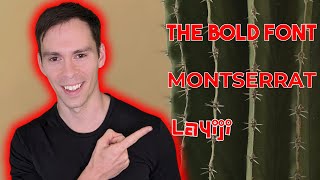
Add custom fonts to Descript by searching Google Fonts like Montserrat or uploading TTF files from sites like Dafont. Fonts you upload live at the drive level and are shared with collaborators, but they need to download into each project before you can use them.
In this lesson, you're going to learn how to add custom fonts to the existing descript library of fonts. So descript comes with a few, not many fonts. If you go into your text and then you click on the font, it always defaults to Roboto. But you can see the other ones that are here. They're pretty standard ones. Arial, some of these I've added myself already, like Cabin. But that's how you can change your font. But if you want to add your own fonts or fonts from Google Library, you want this button right here. It's the cloud with the little up arrow. Click on that and you can click into this search bar to search through Google's fonts. So my favorite font is Montserrat. You can type that in. And they have Montserrat alternatives, Montserrat, Subrayada and Montserrat. If you click out of there, you can see this link that says, browse Google Fonts. And when you click on that, it automatically opens up a new browser window, which I'm going to bring onto my screen here. And you can see it's got a really clean layout where you can, you can see a demonstration of that particular font. And so there's a whole bunch Google. Google Fonts has a giant selection, including other languages. So you got Alexandria, you have that looks like Thai or Cambodian. So all sorts of different options here. And it gives you this nice preview. And then if you click on one, you can see it in different sizes, in different styles, from light, which is a weight of 300, all the way up to bold, which is a weight of 700. And then you can even change the text that it displays. So you could say test font, and then it shows you that exact phrase in those fonts. So that's a way that you could test out if you have a logo that you want to try a certain font on. You could do that here. Okay, so that's, that's the Google Font library and how to sample it the other way. And the Google Font library, I believe, I believe all users can do this. Even if you're on a free plan, if you're on the creator or pro plan, then you have even more options available to you. You can go into Google and you could type in a really popular one is the bold font. You'll see those on a lot of TikToks and YouTube shorts, and it's just called the bold font. Dafont. Com is a popular one. And you can download just any font as a TTF file and then you can put that onto your computer, upload it into descript using the choose a file, browse to your computer, find that file, upload it, and then it'll be in your drive. And the fonts on that note are at a drive level. So if you have editors or people that you're sharing your drive with, then they will also be able to access those fonts. And then once you've gotten it added. So in the case of the bold font, I can just click on it, and it'll take a moment. It has to download on every single project. So it'll say downloading font, the bold font, and then it's been downloaded successfully to project, and there it is. And from there, you can make any of your normal customizations. You can change the size, you can change the alignment, and so on.