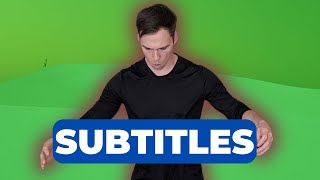
Learn how to add captions to videos in Descript using the T icon after transcribing. The tutorial covers styling options like fonts, colors, alignment, and two caption styles: karaoke, which highlights words as they're spoken, and clean, which shows all text at once.
Questions this video answers
21
50%
These are subtitles, also known in Descript as captions. They can also be over here or even over here. Here's how to apply them. So the first thing is you have to have a file that's been transcribed in order for this feature to work. So I'm going to drag in a video and drop it into my project. I get this transcribe notification. It's asking me what language I want to transcribe it in and the number of speakers. I'm not too worried about that right now. I just want it transcribed. So I'm going to hit done and it's 50%. And there we go. The transcription has finished. So now that that is done, the feature we're looking for to apply these subtitles, AKA captions in descript is right here at the top, this T logo in the middle, this T icon. Click on that. Come down to captions and the difference between captions and titles. Titles are static. They do not move once you set them. Captions read your transcript. So watch what happens when I click play. Descript has 21 built in AI voices. They have a variety of. So the captions are moving with my transcript. They're displaying exactly what is here in in my transcript. And the captions. If I open up my timeline with the Show Timeline button in the bottom left and I click on it, I see my timeline and here is the Captions layer. It's titled Captions and it right now spans my entire video. But if this was broken up into scenes, it would only fill the scene that you applied it to. So you'd have to expand the caption to fill as much area as you want if you want it to span across multiple scenes or even your entire project. And if I want to make changes to these captions like I want to change the font, I can click on the layer down here in the timeline, or I can click on it here on my screen on my canvas and I can come over here on the right side in my properties bar. And if you can't see your properties bar, toggle this on at the top and you find this text section and you can change the font and let's go to the bold font. And I've made videos before about how to add a custom font. If the font that you want isn't here, you can add a custom font using this button right here. Add fonts to drive, but I'm going to use the bold font. I could change it between bold, italics, et cetera if I wanted to. And it's not even an option with this particular font. I could make it left aligned, center right. I can make it top aligned, center bottom. I can change the size of the font. Let's make it 200 now. It's enormous. Um, let me shrink that down to 60. I can change it between all caps, which again, with this particular font, it's always all caps. But if you switch to this one, it's camel case, meaning proper sentences, where the beginning of sentences are capitalized and the rest of the words are not. And then the very last thing is the corners here on this box, these white corners. You can drag them to make it bigger, to make it skinnier, to make it longer. Or you can reposition it around the screen. You can put it at the top of the screen. You can make it bigger like that. You can do whatever you want with the position of that layer. And then there is the style. So you can change the karaoke effect is what you saw where the active word has a background. In this case a blue background. If I click on it again, you can change it to clean, where the words don't show up until I speak. Anyone built in AI voices, like, so you can change the color of that word. You can change the opacity of the unshown word or excuse me, that's the background of the active word. And then you can add a shadow to the whole thing so you can make it pop a little bit. So that's it. There's a lot you can do with captions, and they're a very useful way to add the ability to read what you're saying while you're saying it.