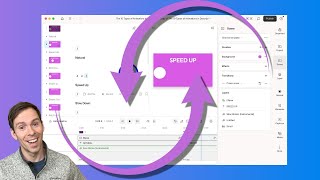
A short tutorial explaining how to add and customize scene transitions in Descript. It covers where to find the Scene → Transitions controls, how to add 'in' or 'out' transitions, examples of transition types (fade, blur, cross zoom, crossfade, dip to color, wipe, star), and adjustable settings such as duration and intensity.
Transitions in Descript can be applied at the beginning of your project, at the end of your project, or between scenes. To apply a transition, go to this thing that says Scene. On the right side, there's a section that says Transitions. Hit the plus button, and with transitions, you can either choose in or out, and that refers to applying this transition to the beginning of the scene that you're currently in or the exit of the scene that you're currently in. So if we do in I'm currently in scene one, this is going to be how the video starts. You can choose Fade, which will be a fade from black into full opacity of your layers. You can do blur, cross zoom, crossfade, dip to color, star, wipe, Wipe. I'm not going to go into all of these, but to apply it, you just select one. So I'll click on Cross Zoom, and now if I play it, they zoom in the text and the colors and. And then the only thing I can do with this is click on the transition settings icon here and I can change the duration of it. It defaults to 0.4 seconds. I can change how dramatic that blur is. It's currently 200% by default, but I can type in a different number there. 100% up to. I think it goes up to 500%. And then you can change what it is. So if you click on the Cross Zoom, you can change it to Blur, you can change it to crossfade. Let's try that. That's what it looks like. And then if I add another one, since I've already added an in, I can only add an out now. So let's add a Cross Zoom once again. It's going to be the same default settings. And then here's what it looks like when I play it just like that. If you found this useful, I recommend watching this video next.