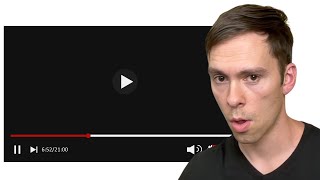
Walk through recording a reaction video in Descript from start to finish. Find the D logo, set up your camera and microphone, choose whether to edit after recording, then hit record while your source video plays. Descript transcribes and cleans up audio automatically.
Here's the fastest and simplest way to film a reaction video using descript. First, find the D logo at the top, the descript logo at the top of your computer. Click on that and click on the one that says screen. As soon as you do that, you'll get this little preview that you can move around anywhere in your screen. And if you don't see it, make sure that you toggle your camera on. If you have a different camera, you can select that here, display screen, don't do anything there, and choose the microphone that you want to record to. And then as soon as you do that, you'll have two options here. You can do record and share. You can do that if you don't need to edit it, but if you do, do record and edit, and that's going to open up in a descript project as soon as you're done recording. You also have this little gear icon here where you can set further settings, such as if you want to record, minimize the recording doc. That'd be the little thing that has the timer and the stop button, play button, all that highlight clicks when recording. That's gonna be if you wanted to do a little animation every time you click something. And then above that, whether you want it to automatically transcribe as soon as you're done, and whether you want to automatically apply studio sound as soon as you're done with that recording. So once you got all your settings set up, then you can move, like I said, you can move this around the screen, you can grab the corners to make it smaller, make it bigger, and these little buttons right here, that'll toggle it between a square and a circle. So you can do that. And then once you're ready, you start recording. You select the portion of the screen you want to record. You hit start recording, and then you could play whatever video that you're reacting to right there in the middle. So maybe that's a YouTube video like this. You can play it, you can move this around while you're reacting, you could change the size of it, change the shape, and, and so on. And then once you finish it, once you finish the recording, it automatically will open up in your descript project. And from here you can edit it just like any other project.