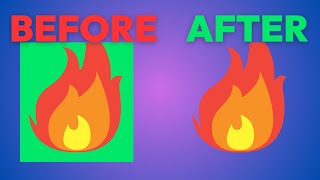
Learn to make videos with transparent backgrounds by designing a green-screen in Canva, exporting as MP4 or GIF, then using Descript's chroma key effect to remove the green. The walkthrough uses an 800×800 canvas with neon green and shows tuning similarity to around 37 for clean results.
Questions this video answers
800×800 (square video).
MP4 and GIF (GIF chosen in example for speed; GIFs have no sound).
About 37.
To create a movie or a GIF with a transparent background in canva, using descript, we're going to, first of all create a new project by hitting Create a design from our Canva homepage. It's going to prompt us for the size of the video we want to create. You can do a custom size or you can take one of the templates. I'm just going to use the square video on here, 800 by 800, click it and it opens up a blank design. The first thing I'm going to do is make the background a shade of green. And I want it to be a very bright neon green, like a green screen. So just find a green in that range somewhere in the middle there, and then all the way up to the top right, and you'll get a hex code like this. And then the next thing we're going to do is go to Elements, and you could find any element you want in here, something animated or something else moving that you want to create. I've already recently used this. Fire one. I'm just going to use that, drag it onto our project, get it centered up, and that's fine like that. So next thing we're going to do is save it. Go to the share button, download. You can save it as an MP4 or a GIF, both will work. For the sake of speed, I'm going to do a GIF. GIFs don't have sound and they're small files. You can change the size of it and hit download. Give it a second and it's done. So back in our descript project, I'm going to go into my downloads, find the file that I just made, drag it and drop it into my project, find the scene where I have it, and you can see it's there with my green background. Now, the way we get rid of it is we go to the effects heading in the Properties bar, hit the plus button and hit chroma key, and it's gone. And what I can do is click outside of that layer, hit background, and I can change the background color. But what I'm going to do to tune this up a little bit is I'm going to hit the chroma key thing again with the layer selected and change the similarity. And if I go too far, it brings back the green. If I go too far in the opposite direction, it gets rid of it. So I want to find something about 37 looks pretty good. And you can change the smoothness and the spill as well. But that is how you remove the background on Canva.