Descript projects can hog your hard drive. Sort by size in Workspace → Projects, then use "Remove download" to delete local files while keeping cloud copies. Don't use "Delete Project" unless you want to remove everything.
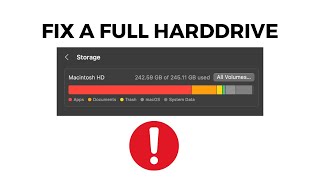
One common problem that people run into with descript is that when you're editing videos, all these files accumulate over time. And videos, of course, take up a lot of space on your hard drive. So over time, your computer will look like this. As you can see, I have a 250 gig hard drive and it's almost full. And it causes a lot of problems. Not, not just with your computer in general, things can slow down. But with descript specifically, for example, a common problem is when your hard drive is close to full, descript screen recording won't work. It'll cut off randomly and abruptly if you're running close to the edge of your hard drive. So the way we can fix that is by coming here to our workspace view and then going to projects in the top left. And this will list every single project that is in your drive. And you can sort in here by size. So if you hit that, it goes all the way from files with nothing, zero bytes or empty in some cases, all the way up to this one. That is almost 20 gigabytes in size. So what I recommend you do is sort by size and eliminate your biggest files first. And the way we do this without deleting it completely is we come over here on the right to these three dots, click it, and actually, it's not going to show it on this one because I've already removed it. And I can tell it's removed because there's this cloud with a down arrow, and this is telling me it's not on my hard drive, but it is on descript's cloud drive. So it's asking me if I want to download it to my hard drive, and I would click that button to do so. So I've already eliminated all the big files in my drive. If I come all the way down here, here's one that is still on my computer and it's taking up 6.6 gigabytes of space and there's no cloud. So I know it's on my hard drive. I can come to the three dots and now I can see an option that says Remove download. So if I click this, it removes it from my computer. It's removing those files, the source files, from my local hard drive, but it's retaining it on descripts cloud. And there's the cloud logo now. And then the other option is Delete Project. Now be very careful with this because this will delete it off of your computer and it will delete it off of descripts cloud. So be careful with using delete versus remove. But I recommend doing this if you're hard drive constrained to go through and do this periodically, just to make sure that everything's working as it should be. And, you know, some of these files, they might be from like this. This biggest file I have, that's 20 gigabytes is from February. Don't really need it anymore. It's done. So I don't need it on my computer now. Descript gives me one terabyte cloud drive, so. So I don't mind storing it there. That's almost. That's. I'm probably not going to hit that for a long time. You can come up with your own system on how you want to organize this, but that is the quick way to eliminate files from your hard drive.