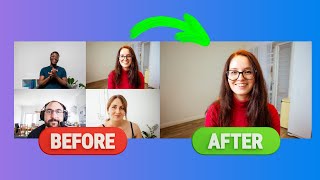
Learn to isolate one speaker in a multi-speaker video by splitting the timeline into scenes, then scaling and repositioning their layer to fill the frame. Use the forward-slash key to cut scenes and corner handles to resize.
Let's say we have a scene like this where there's two speakers in one frame. It could be that they're both in the same room like this. Or it could be zoom windows where there's speaker A and speaker B in their own windows on the left and right side of the screen. To make it where one individual is filling the entire screen. Find a part in your video where you want that to happen. So let me just scroll forward here to five seconds. I'm going to add a scene by hitting the forward slash on my keyboard. You can now see I have seen two and scene one. And then if I go to where I want that part, where it's just one individual to end, let's say I go to 10 seconds here, I hit slash. I now have this scene two isolated to make it so that this guy on the left fills the whole screen. I just need to select the layer inside of that scene and then drag the corners to resize him so he fills the whole thing. And then I can double click and reposition him up and down just like so. So I'm going to do it so his head's not quite touching the border, just like that. And then if I go into scene three, it's back to how it originally was. Scene one never changed.