How to Get Started with Descript (June 2026)
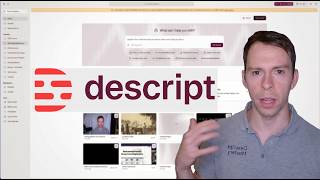
Ross Zeiger walks beginners through Descript's core features: organizing projects in Drive, recording or importing media, editing via transcript to trim silence and remove filler words, and using the built-in AI assistant. The next session is June 17.
Chapters
We can go ahead and get started. So good morning everyone. My name is Ross. I am the person behind the Descript Made Easy YouTube channel. I think that's where y'all found this, uh, this link to sign up for this webinar. And if you're watching the recording of this, this is all being recorded and I'm gonna post it on YouTube later. Then I'm gonna do these every 2 weeks, sometimes every 4 weeks if I have to travel or something. But if you wanna catch the next one, um, this link that I'm gonna leave below, descriptmastery.com. Gettingstartedwithdescript. The next one will be June 17th. This is the inaugural one on June 3rd. So thank you all for, uh, being my guinea pigs on this. I really appreciate you being here. And this is our agenda for today. Um, if you're on the Zoom meeting, then I also have the timers going for each of these agenda items. It's not going to be a strict agenda. And if you want to leave questions in the chat as we go. Feel free to do that, but I'm going to go over— I'm assuming first of all that you have not used Descript at all. I'm assuming you maybe haven't even signed up for an account yet and you just want to see how this thing works, or you are, uh, an absolute beginner and you're looking to create your very first project. So we're going to start with is a familiarization with Descript. I'm going to show you the Descript Drive, as it's called, and then I'm going to show you how to create your very first project. And then inside of that blank new project, how to either record into Descript— that is, Descript has a native capability where you can record your webcam like I'm doing right now. I'm gonna show you that, how to choose your microphone, that kind of stuff. And then alternatively to that, you can import media that you've recorded somewhere else. So maybe you recorded it on your iPhone or you've recorded on an external camera. Somewhere else, how to take those files, bring it into Descript. And then that leads into the next thing we're gonna talk about, which is actually basic editing techniques. So how to take that video that you've either recorded or imported and then start cutting out the filler words, start cutting out the, uh, you know, spaces that you don't need in there, ums and uhs, things like that. And lastly, we're gonna do a little bit of Q&A. Um, and I'm gonna stop the recording so that part's not gonna make it into the YouTube video. Um, and then lastly, and then after the Q&A, we're gonna talk about some resources. So things like my Descript Made Easy resources, my YouTube channel, things like that, because we also have a few people on this call from the Eventbrite page. So, uh, you may not have seen my YouTube channel yet. Okay, so let's get into it. If we go to Descript, uh, there's, there's a few ways you can use it. You can use it on the browser, which is what I'm showing you right now. This is on a Chrome browser and it's the website is web.descript.com. And when you go there, you're going to have to either create your account for the first time, or assuming you've already set up your account, then you'll see this page. This is called your Drive View. So just to familiarize you with what we have going on here, from top to bottom, I'm just going to quickly— again, we only got a couple minutes to go into each of these topics, but I'm going to familiarize you. At the top here is a search bar where you can search through all of the projects that you've ever created and are currently storing inside of Descript. On the top left is the name of the drive. If you have a lot of drives, like if you ever edit for clients and they invite you into their drives, or you have different drives within your business, then this is how you can switch between them. I'm not going to show you all my drives there, but that is what that is for. And that's also how you access the settings. Um, the top one is the Home tab. That's what we're currently on. So if you haven't switched it yet, this is the view that you see. Recents is going to show you a list of your most recently opened videos. Shared with me is if somebody external to your drive has shared individual Descript video projects with you, then this is where they're all kept in one place and you can see them and access them there. Below that is a favorite section, so you can create folders that you mark as your favorites. These are things that you want to be able to quickly access for, uh, quick and easy, easy access to those particular types of projects. For example, I have a podcast folder where I put in my audio podcasts. I have a YouTube folder where I put in videos that I'm making for YouTube, those types of things. Then you have workspaces, personal and general. Personal means it's sort of private to you, only you can access this. And that, that is if, to be clear on that, that is if you're sharing your Drive with other people. So maybe you have a team of 4 people in a marketing department in your business, and you all have— you all share this Descript Drive. Well, personal means only you as a creator of that project can access that, as opposed to general, where you and those other editors in your Drive all have access to it. Um, I'm going to skip over the tools because it's a little bit beyond the scope of this beginner topic right here where it says popular features. These are sort of quick start methods, so you can actually have AI make videos for you, and it's extremely powerful and it's getting better every day. And I've got recently, a lot of my videos have been about that. So if you're interested in the AI-specific workflows, feel free to jump ahead to those. But I always recommend start by learning the basics yourself because it's still very useful to know, first of all, what is good editing, and then be able to, if AI does edits in your project on your behalf, to know how to fix them if it messes something up, or if it misses something, how to do it yourself. And there's all sorts of reasons why you still want to know how to edit as a human. Now that might not be true a year from now as AI continues to get better and better, but the state of the technology as it is, it's still important to know the basics, which is why we're here talking. So, uh, this right here is an AI, um, access to an AI Underlord. It's called Underlord is their name for the, uh, AI assistant that's built into the tool. And you can use, you can talk to this in plain English. If you click on this thing right here, These are the leading models at the time I record this on June 3rd, 2026. So you have Claude, which is the leading model from Anthropic. It's personally my favorite. You can see that check mark. I have my default set to Claude Sonnet 4.6, so it's, it's a great model at the time I record this. And then you have GPT-5.5, Gemini 3.5 Flash. And more models. You have all sorts of different ones. Um, so choose your favorite. They have different costs. There's a little coin icon next to each one. So the one I use, Claude Sonnet 4.6, is a medium cost. If you use the ones that have the little new flags next to them, those are going to be high cost. Those are usually the state of the art. Um, so just pick, just, you know, experiment with these and see the ones you like. Okay, so moving on in our agenda here, that is a very basic familiarization with the Drive view. We'll talk a little bit more about the specifics in a project, but we're going to move on to actually creating your first project. So to do that, let's go back to Descript, and right here in the top right corner, you're going to click on this button that says New Project, and you could start with an audio project if that's what you're making. I exclusively make videos these days. Um, it's been a long time since I've done an audio-only project. So we're going to click on video project and that opens up this page right here at the top. You can name your creation by default. It's just called untitled. Um, but I'm going to call this Getting Started with Descript. And then below that, you can upload a file. So you can click and browse and you can find media to work with. We're gonna talk about that in a moment. You can have your AI speaker, which is where you type in your script or paste it in if you've already got it written somewhere else, and then you have it converted into a voice, into an audio voice. So that's one way you can, uh, do all this. You can import from the media library. I'm gonna talk about that later. Import from Zoom, or what we're going to start with is recording directly into Descript. Before I do that, I'm just going to familiarize you with— actually, no, you know what, we will go there next because we need some content to work with in order to— for me to show you everything else. So let's go ahead and do that. I'm going to click on record and this pops down. What you can do with the recording options is you can record your camera. You can record your screen, you can record audio only, or you can record with others. That's beyond the scope of this, but that is sort of like the Zoom call that we're on right now. It's a call functionality built into Descript where you and your guests can get together over the browser and you can have a conversation, record it, and as soon as you're done recording, it'll automatically be a project that you can edit here inside of Descript. And with all of these, the, the top 3, the ones that's not the Descript Rooms, the top 3 here, these are just different starting points. So I can click on camera and I can choose— oh, you can see my background there. Let me just put my, my curtain, my fake background one away. Um, so you can choose your different Camera inputs. I've already got my camera chosen. That's, that's good. You can choose your mic input. I'd recommend use an external mic. It's gonna sound a lot better than the mic that's built into your computer. Um, you can choose that there, and then you can choose to share your screen if you want. Now, oops, it closed out of that. Let's start over. Alternatively to that record button there, there's always a record button in the bottom middle. So that's, that's also an option for you. You can click camera and there we are again. Um, so the screen share button, you can choose a tab on your browser. You can choose to share your entire screen. You can choose an entire window. There's all sorts of different ways that you can share, but the important thing is even though I started with the camera, I can customize. I can, I can choose to have no microphone and just have my camera. I can choose to turn off my camera, which I'm gonna— no, actually, I'm gonna leave that on. Sorry. Let's go back and we're gonna choose my mic again. Okay. And then, uh, so yeah, choose your best input sources. And then over here on the right, you can see this, this white line bouncing up and down with my voice. I want that to be hitting the yellow sometimes, but never the red. The red means it's too loud. Yellow means it's, it's about right. But, uh, always check that, make sure that your mic is picking up audio. And then of course, check your video. How do you look? Quick tip for you up here in the top right corner, this little button right there that adds this, uh, outline where you can actually center yourself up. And a really good look for YouTube is having your eyes on that top third line, body centered, and that's a really safe. Common popular view for a YouTube look. Okay. There's also a teleprompter and there's different things you can do with the settings. I don't have time to go into all those right now. So let's go, let's, it's recording already. And I can say what I need to say. This is my practice recording that I'm making for all these people who've joined the webinar this morning. And in a second, when I hit stop, we're going to actually edit this together. So then I'm going to hit the big red button again, and that stops the recording. And you can see right here, it says uploaded. Now it says processing. It's going to do a few things to finish processing the video that I just recorded, including it's gonna transcribe it, which is one of the key things that makes Descript unique and makes it really easy to use is This is actually the things that I just said in the video you watched me make, and I can edit from this. So just like a Word doc or a Google, uh, Google Doc, anything like that, you can edit from the text. So you can highlight some stuff and you can make edits. I'm going to come back to that when we talk about the editing, but I just want to round out on ways that you can import the media. So Everything that we've done so far has been in a project and a composition. Let me, let me talk about those terms. So this is a project called Getting Started with Descript, and it's also the only composition as of now. So I have a project called Getting Started with Descript and a composition called Getting Started with Descript. If I click new composition. And I click on this dropdown. Now I have two compositions inside of this project. So this next one I'll call Importing Media. And this time, instead of recording into it— and actually, let me click on this dropdown again. In there, our first one called Getting Started with Descript, I'm going to click on the three dots. I'm going to click Rename, and I'm going to call this one Recording into Descript just to keep them straight. Okay. So Getting Started with Descript is the name of our project. It's kind of like a folder. And then inside of those two, inside of that folder, there's two compositions, one called Recording into Descript, one called Importing Media. And each of these compositions are separate from each other, so I can export this as its own video, or if I come into importing media, this will become its own video to push out to YouTube or wherever it needs to end up. Okay, so to import media into this composition, I can click on this upload file button, and I know you can't see it through the, the Zoom share right now, but this is open up a window where I'm browsing through my computer Hopefully everyone's familiar with that process. Let me know if you're not and I could show this in a different way, but I'm gonna go browse through my computer and I recorded a video right before we got on today. So I'm gonna open that up and that imports it in. It's 35 seconds long and it's gonna take a second to process here. And it is a 35-second video. I can see that down there in the bottom left. And a few things are happening. This right here is the editing window, so I can see a preview of the video that I actually imported. It's already transcribed it, so these are the words that I said in that video. And then down here on the bottom— by the way, if you haven't opened this before, it's going to look like this— and there's a little gray line right there, which if you put your mouse on it, it turns into an up and down arrow. And if you click and drag that up, That opens up the timeline, and this thing across the top is a preview of your video at different moments in time. So if I click somewhere, you can see my, my video, my face is moving, my video is changing, and this corresponds to a timestamp in my video. And this blue bar is called the playhead. So wherever the playhead is, is the exact moment in time that I am seeing in this video. So if I click back a little bit, I slide around, I can scrub through and see different times in my video. Below that, these are sound waves associated with my video. So as my voice modulates up and down, or I, I pause for a second, that is what I'm seeing down here, as well as the words correspond with the words up here. And if I highlight a sentence up here, like, I'm gonna remove my background, I highlighted those words here, it also highlights it down here. And yeah, I think that's good enough familiarization for now. So let's actually start editing this. So returning to the timeline down here, you can see this thing that says 1.0s. That tells me that there is 1 second of silence before the speaking actually starts. So what I can do is put my mouse on the leading edge of that video clip, and you can see my mouse cursor turned into a bracket, and that bracket is open to the right. So what I can do is click and slide to the right. And I'm trimming out that silence. And now the video is going to start right where I start speaking, which is what I want. Now, an important thing to mention in Descript, nothing is destructive. What does that mean? It means any edit you make, you can always undo it in a variety of ways. The first is to hit Command+Z. So I'm going to do that right now. Control+Z on Windows, Command+Z on Mac. And that undid my edit. So it brought back the video to how it looked before that last move I made. And you can do that multiple times in a row until your video's all the way back to how it looked when you started. There's also an undo button here in the top left corner. So that's the same as, uh, the hotkeys that I just did, the Command+Z or Control+Z. And, uh, I'm gonna make that edit one more time. Okay, so now I trimmed out that silence again, and now I can actually do the opposite. So I trimmed out that silence, but if I put my mouse on that, on that, uh, boundary, the leading edge of my video, I can click and slide to the left and it's bringing back what I trimmed out. So you can always do that in Descript. Everything is non-destructive. Okay, I'm gonna one more time. Make that cut. Another way you can make edits is by actually grabbing words on the timeline. So if I zoom in— and by the way, I'm zooming in by holding Command on a Mac keyboard and scrolling with my mouse wheel. On Windows, it's Control and scrolling with your mouse wheel. If you're on a laptop, it's a two-finger scroll up and down, just like you're scrolling on a web page. And when I say zoom in, I'm seeing more detail in my video. So my video starts at 0:00. I can see the numbers here on the left side of my timeline, and it goes to 14 seconds. That was the sort of default view that, that Descript gave me. If I zoom in, I'm seeing a smaller subsection of my video. So now it goes from 2 seconds to 6 seconds. I'm seeing like a 4-second window of my entire video. And if I scroll all the way out, I'm seeing my entire video in one shot, which goes from 0 to 34 seconds. So I highly, highly, highly recommend spend some time playing around with that, zooming in and out, getting familiar with the view of the timeline, cuz that's gonna be really, really important, um, to getting comfortable with Descript. And the other thing is scrolling left and right in the timeline. So right now I'm looking at a 2.5-second. Start of my video to 9 seconds. And if I hold Shift and scroll, my video is scrolling further to the right. I'm scrolling to the right, deeper into my video. And if I scroll down, I'm scrolling closer to the beginning of my video. And so, um, I'm going to zoom in next on this little second pause, and you can see the number once again, just like we saw at the beginning of my video, this 1.0s indicates that this is a 1-second silent part of my video. So I can grab the word "the" and slide it towards the previous word, and that is another way to trim out the silence. So If then, if I, let me back up a second. With everything in video editing, I never know, even after years of doing this, if that was a good edit. And what do I mean by a good edit? I mean that it's not choppy, it's not distracting, it's not, um, going to add friction to the viewing experience of this video. You never know upfront what a change is gonna look like. So in video editing, you always have to make a change that you think will be directionally correct, you back up a second, you play it, you assess it. Is it— was that a good edit or did that make my video worse? If it made your video worse, then back up again, undo it if you have to, make a different edit, and you repeat that cycle. So it's just, it's always a matter of looking at the edit that you just made. Did you like it? Yes or no? If yes, keep it. If no, keep changing it. Until it's a good edit. So when I say back up, I mean there is the edit that I made. I'm going to click about a second backwards. I'm going to hit play for the Getting Started with Descript webinar. And it's okay. It's okay. I would, I would refine it. But the important thing here is I want you to develop the cycle, what I call the editing cycle of make a change, assess it. Keep change, keep, keep doing that cycle until it looks how you want. And that is what you do throughout the entire video. Okay, so now in here I said some filler words and I, I want you to divert your focus to the transcript now. So up here I said, uh, you know, and it highlighted that in blue or underlined it in blue. And there are AI ways to look for that. That's a little bit beyond what we have time for today. We're already. Almost all the way through this session. I want to get to Q&A, so, um, I'm just going to go a couple more minutes here before I open the floor up. But it highlighted those filler words, and so that's how you can detect it here on the transcript. And to edit from the transcript, you can just highlight a word or a paragraph or even your entire video, and once again, it highlights it there and it highlights it down there on the corresponding part of the timeline. And I can just press delete, and now it's gone from my video, it's gone from the transcript, and it's gone from the timeline. It is gone. I can restore it in the ways that I told you about. I can undo, I can get that, uh, bracket and restore it a little bit if I want. But just to show you, that is how you start trimming from the, the transcript. Okay, uh, just to quickly make sure I'm on track, yeah, we're already halfway through, so I'm going to wrap it there with the, um, with the basic editing techniques, and then let's go ahead and jump into Q&A. So I'm going to cut the recording, the part that I'm going to put onto YouTube, um, I'm going to cut it here so So protect the privacy of those who are on this call and also to incentivize you to come to the next one. So again, next one will be in 2 weeks. That'd be June 17th, 2026. The website is descriptmastery.com/gettingstartedwithdescript. I'll leave that in the description of what gets posted on YouTube. And I hope to see you at the next webinar. Now, for those of you who are here on the call, we can get into Q&A.








