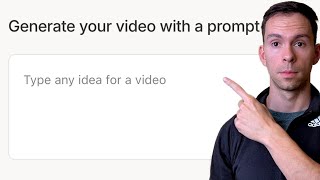
Ross Zeiger creates a full video in Descript by typing one prompt: "create a video with five steps on how to become a self educated polymath." The AI generates a script, splits it into 10 scenes, adds motion and transitions, and produces a 1:10 video ready to edit.
Questions this video answers
"create a video with five steps on how to become a self educated polymath."
Generate from a prompt (the middle option).
AI-generated watercolor style.
16:9.
About 1 minute 10 seconds (1:10).
What if you can make videos without actually making them yourself? The idea of generating content might sound futuristic, but it's here. I'm going to show you an incredible AI tool that does exactly that. It generates the video from your ideas based only on a text prompt. This tool, of course, is descript. That's all I teach here and over at the Descript Mastery School, check the link in the description for more about that. But here in your homepage, when you first log into description, click on this thing that says AI video Maker. When you click on that, there's three different ways you can generate videos. So the first is to upload a video of your own. And it tells you we'll cut the filler, add visuals, and even throw in some B roll. So basically it's going to polish up your video for you. The middle one is generate from a prompt.
So this is what we're going to.
Focus on in this video where I'm just going to feed it a text prompt and it's going to make the video for us. And the last one is to just paste in a text script and then it's going to go off of exactly that script. It's going to apply an AI voice to the text and it's going to build out the video, adding its own AI generated B roll. So click on the middle one and you get a big text prompt box here where you can tell it exactly what you want it to make. Or there's also these three generic starting points where if you click on one of these, it'll just populate it there in the text box. I'm going to delete that and add my own. What I typed in is create a video with five steps on how to become a self educated polymath. And then I hit continue. It says opening project and it wants me to assign an avatar which will be just a talking head. And you can see they got kind of these cartoon looking ones. I also made a video, click it up here in the top right, showing you how you can use your own face or somebody else's face to do a talking head. But I'm going to click no avatar for now and you can choose a voice. So if you've trained your own AI voice as I have, you can select that or you can choose one of the stock voices here and that's what's going to actually read the script that it comes up with. And you can see in the background it's already made that script that the blue text back there. So then hit continue and Then choose your B roll so you can have it use its own stock media which is real videos and real images. Or you can do AI generated and if you do AI generated you can choose a style. So you can have this claymation looking style, you can have this polygon style, whiteboard doodle looking stuff or watercolor. I'm going to go with this watercolor one. I think it looks cool. You can also choose an aspect ratio. So where is this going to go? If it's going on YouTube then select 16 by 9. I'm going to hit continue. And it's now generating and so it tells me what it's working on. It's first is generating the title, dividing the script into scenes and so far this is real time. I haven't sped it up. So let's see how long this actually takes. You can see on the bottom it says a minute 10 is how long the final video will be. And it's Moving pretty quick. 50%, 65%. Adding finishing touches. Hang tight, we're creating your video. Don't refresh or leave the page. Adding finishing touches 93%. We're almost done. You can see in the background it's created scenes. There's now 10 scenes and it's dropping in those watercolor looking B roll. Okay, video generation complete. Your video is ready. We took your idea, added visuals and B roll, included a voiceover and pulled it all together into a polished video. And then from here it's time to edit it. Apply our human judgment, our human eye to this and make it better. And keep in mind this is my AI voice that I've trained it on. So let's see how this flows.
Welcome to our guide on becoming a self educated polymath. Today you'll discover five key steps to mastering various disciplines on your own. Step 1. Cultivate curiosity. Start by embracing an insatiable desire to learn. Explore topics that pique your interest and let curiosity guide your learning journey. Step two, Embrace diverse learning resources. Don't limit yourself to textbooks. Utilize online courses, podcasts, documentaries and networking with experts to broaden your horizon. Step three, Develop a self learning strategy.
So you get the idea, every single scene has been has added a AI generated watercolor looking image related to what I'm talking about in that scene. And each one has, if I go to layer has Ken Burns applied. So it's doing that little panning in or panning out on each scene to add that little bit of movement. And it's also got the smart transitions applied. So as it goes between scenes it fades to black and then it fades into the next scene, like so. And with very minimal effort on my part, it's created a decent video. And if you're ready to move on to the next step, check out the Descript Mastery School where you'll learn how to become a one person media company using description.