Important Settings For Using Descript's AI Tools
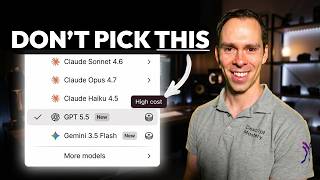
Ross Zeiger shows how to configure Descript's AI tools, from chat and transcription to image and video generation. He walks through Settings > AI Models and shares his preferred defaults: Claude Opus 4.6 for chat, ElevenLabs V3 for speech, SeedDance 2.0 for video. Using Descript's built-in AI can replace separate subscriptions like ChatGPT or Gemini.
Chapters
Something you need to understand about Descript is it's a video editor. Yes, but it also relies on a lot of third-party tools. What does that mean? Well, the tools like generating video, generating images, even transcribing your audio or video uses a third-party tool. And Descript gives you the option to choose those tools, which of those third-party tools you are using for a given feature, and they give you different results. So sometimes. Some of them are faster. Some of them, importantly, use different amounts of AI credits. Some of them cost more, some of them cost less. So today I'm going to show you how to set that, and I'm going to briefly touch on some of my favorites. Now, on the homepage of Descript, the first option you have is right here with your first Underlord chat. You can click on this button right here, and you can choose auto, where Descript is going to decide for you. Which model to use, or you can manually choose one of Claude, one of the Claude options. This is ChatGPT, GPT-5.5, or Gemini 3.5 Flash, or more models, and you get even more options. These tend to be older ones, and these tend to be the latest frontier models. The higher the number, the newer this model is. So at the time of recording this, 4.7 Opus is the best model from Claude, GPT-5.5 is the best from ChatGPT, et cetera. Now you might be thinking, shouldn't you just use the latest and greatest? You can. The downside with that is if you hover over to the right of any of these names, this little coin stack, if you hover over it, you can see it says high cost. That is referring to how many AI credits running this model will burn. So by running the latest and greatest, you're going to burn more credits than if you go to, say, 4.6, which has a medium cost. Or if you go to the previous generation of 4.5, that's going to be a low cost. So for me, I like to do the middle ground and go with 4.6 at the time of recording this. And that tends to be a good trade-off of giving me good results, but also not running through my credits just immediately. Let's close out of that. And come up to your settings in the top left and go to settings and then come over to this tab that says AI models. And here in this tab are the AI models for every single feature in Descript that relies on a third-party AI tool. So starting with Underlord, which I just showed you, so I won't go over that again. And then transcription. So this is extremely important. You can leave it on automatic if you want, or if you choose ElevenLabs Scribe— ElevenLabs is another AI company, and Scribe V2 is the name of one of their models that provides and does transcription. And if you hover over this little i, it tells you that it's more accurate. It's better at proper names and technical terms. Better with accents and unclear speech. The downside of this is it's going to be a little bit slower than Rev AI. Rev AI, if you hover over it, it says required for British English spelling, good overall performance, but it's going to be a little bit faster than ElevenLabs. So I prioritize accuracy, so I go with that. If you go with automatic, it's going to decide between those two for you every time that you run it. And remember, the transcription doesn't use AI credits, so you don't have to worry about the cost with either of these models. Next, we have a media generation section. These are going to be the underlying models that actually create something for you using AI, starting with images. If you click on this dropdown, you can see we have a lot of models, and next to each one is the credits it uses. And in the lighter gray text below the name of the model, so this one's called Flux Dev. The lighter gray text tells you what the pros and cons are. So again, with all of these, there's trade-offs between speed, quality. When we get into the video, how long the video is that it generates. So you got to consider based on what you're making, what is the best for you. Now, personally, I think there's no contest here. I think the best image generation at the time of making this is Nanobanana Pro. It's also the highest costing in AI credits on this entire list. But for me, that is the model that I like to use. But with image generation, they're pretty light on the credit use compared to video and avatars. So I just leave it on Nanobanana Pro and I get really great results. With video, you have a bunch of choices here as well. And once again, you have the cost. And these vary, these aren't as clean as it's just always 10 per. It depends on how long the video is that you're generating. Currently, my favorite one is SeedDance 2.0. Once again, it's one of the more expensive ones. The most expensive is VO3.1, but SeedDance is a good mix of, it's not too costly, it's quick, it's highly capable. You can generate video with audio. Not all of these have audio with them. And it can be up to 15 seconds per generation. Each of these different models, some of them, they're only 4 seconds or 5 seconds. Some of them are 10 seconds. So I just think SeedDance is currently one of the best models out there. AI speech. If you click on this dropdown, you have ElevenLabs, an AI voice company, and they have a Multilingual V2 or ElevenLabs V3. I opt for ElevenLabs V3. For the avatar, I don't use avatars as much in Descript, but Kaling Avatar V2 is the lower cost one at the time of making this. And they have a V2 Pro, which costs a lot. So be careful with this one. You could burn through a lot of credits very quickly. Um, but that is an option for you for the highest possible quality. If you want to return to the defaults that, that Descript assigns, you can click that reset button and all of those will go back to Descript's recommended defaults. Now, inside of a project, you can change those settings as well at the point of your generation. So if you come to Underlord in the bottom right corner, you can click on this thing that says Sonnet 4.6, and there's the exact same options that we saw on the homepage where you can choose your different Underlord models. So because my default was set to 4.6, That is what is currently selected. But if I wanted this to bring all of its capabilities to bear, I wanted the, the latest and greatest model, then even though it's going to cost a little bit more, I could choose Claude Opus 4.7 Thinking. And now whatever queries I give to Underlord, it's going to be using this model to handle my, my queries. And then if you come up to AI Tools, down to Generate Media, this First tab is the Generate Images tab, and right below that is your model choices for just the images. Once again, I set my default as Nano Banana Pro, so that's what I see with the check mark there, but you could always switch it to one of these other models. And one of the really cool things about generating here inside of Descript as opposed to generating it in, say, Gemini, Google's native tool where most people run Nanobanana Pro, is you can actually run one variation where it'll give you one image, or you can select up to 4 where it'll generate 4 images at a time. And then you can also choose the size, the aspect ratio of that image that it generates. And then if you click on the settings next to the model name, you can choose the resolution. Depending on what the model is, you'll see different options here. So not every model will support 2160p. That's a, that's a high-resolution sharp image, and not every model on here will support that. So if I switch to Flux, you can see it's grayed out and there's no extra options available for this particular model. Okay, let's move on to the video tab. Once again, Down here you have the different video models that are available to produce video generations. Mine defaulted to Seed Dance, but you can choose your favorite. And then next to that you have your resolution based on the model. You'll have different resolution options. Seed Dance currently gives you 480p or 720p. And with Seed Dance, you can add an image that will be the starting frame. So how this video looks on the very first frame of it and how it looks on the very end frame. And then this is your prompt box where you can describe what you want it to do. And then the aspect ratio of the dimensions of this video. 16:9 is a standard YouTube video, so that's where I usually leave it. And then you can choose the duration from 4 seconds all the way up to 15 seconds. And then once you've set that, You would click that button right there and that would generate your video. Now for the other ones, like the transcription models, you don't get to change those in the editor. It's just something that based on the default that you set in your settings will automatically apply once your video or audio is getting transcribed. Now the last thing I want to mention is if you're a light user of AI and you're paying for another tool like Gemini or ChatGPT, whatever, I've had customers actually cancel their subscriptions once I show them that you can do everything you need, mostly everything, everything related to your video. I shouldn't say, you know, general queries, but things related to your videos, like script writing, coming up with YouTube title ideas, things like that. You can do that right here and you're getting the exact same models as if you're paying for Gemini, as Gemini offers. So I've actually had customers cancel their subscriptions and just do everything they need here inside of Descript. What are your favorite models? Let me know in the comments, or let me know if you want me to make another video breaking down the differences between these models, like actually showing results of what you can make and the pros and cons of the different models.








