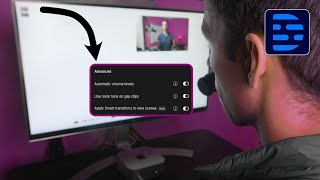
Descript's new Smart Transitions feature automatically adds scene transitions for you. Toggle on "apply smart transitions to new scenes" and they insert when you create a new scene by typing "/". The feature is in beta and saves editing time.
Creating transitions between scenes like this, this and this, and even this used to take a long time and it used to be really hard to make, but now you can do it all with the click of a button. As you know, transitions are what happen between scenes. It's either how the scene begins or it's how the scene ends. So in this particular one, in scene one, if I come over to transitions, I choose in right there at the top, I can choose smart transition. And then for the out, same thing, I hit plus out, smart transition. And now it's going to look like this with that slide over from speaker A. And then now that I'm inside of scene two, I already have my transition in. That was the transition out from scene one. So to transition out of scene two, I'll do the same thing. I'll do out smart transition and then I'll just do that throughout my whole project. Now check this out. If I go to the very end of my video and I type a forward slash to create a new scene, it automatically created a smart transition. It created a smart transition in and a transition out of this scene. How did that happen? Well, if you come up to your settings, you go to settings, and then right here under Advanced, there's this thing that says apply smart transitions to new scenes. Toggle that on. And every time you create a new scene, it's going to automatically apply a smart transition in and a smart transition out. And do note, it does say it's in beta, so there might be some scenarios where it doesn't work right or it doesn't behave how you expect. This is such a time saver and it's been a huge level up for my Descript editing game. If you want more tips like this, check out this video next.