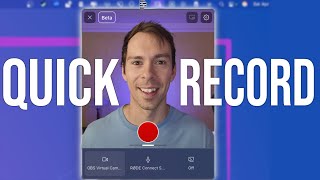
Descript's Quick Recorder is back as a lightweight floating tool for capturing screen, webcam, and audio on Windows and Mac. It's in beta and includes settings for computer audio, resolution, camera shape, transcription, and Studio Sound, with tips on mic levels and pause controls.
It's back. The Quick Recorder is back. If you haven't used it before, it's basically a faster way to start a screen or webcam recording. To start it, it's going to depend on if you're on Windows or Mac. So on Windows, it's going to be on the bottom of your computer, on the bottom of your screen. Click that up arrow and then click on the Descript button. On a Mac, it's going to be on the top of your screen and it's going to be the Descript logo up there. I am using a Mac, so if I come up to that Descript button and I click Open Screen Recorder going to give me this preview. And this is a floating window, so I can drag it around. I can do whatever I want with it. And do note it's in beta, so there might be some issues with it, but it's really cool to have it back right here. You can turn on or off computer audio. So this is going to be the audio that is playing through your computer. For example, if you're showing a YouTube video and you want that YouTube video to be in your video, you would want to turn on the audio so that that audio gets captured from the video. Right next to that, there's settings. These are the same settings, more or less that you have in the app. It's just gonna tell you if everything has been granted permission or not to be able to record. That's gonna be at the computer setting level. You can choose a destination of where these videos are gonna go, the privacy settings, whether or not to have a countdown, and then how this is gonna look on the share page. So if you want your name as the author to show up there, and if you want people to be able to comment or not, on that page below that, you can choose the resolution. And this is of the screen itself. So I have a 4K screen, so I leave it at 4K. And then you can choose a camera shape. This is kind of cool. Like how round is that camera going to be? All the way to the right, you're a full circle all the way to the left. It's squared off audio, whether to transcribe it or not, whether to apply studio sound or not. And then stuff related to how this runs on your system. So run in background allows this to be open separate from the Descript app, the desktop app, and whether or not you want this to launch when you first log into your computer. And if you want to close out of this altogether so it's not running in the background. There's the quit Descript button in the bottom there. But let's go back. So you have your preview of your webcam, obviously, and you also have a preview of your mic audio. This little bouncing bar here, you want that general rule of thumb there. So you want it to go maybe touching yellow a little bit like it just did, never red. That's going to sound blown out and bad. But you also don't want it to be too small that your mic isn't audible. Below that you can choose your cameras. So this is going to be your external camera source or if you're on a laptop, it could be your built in camera. Next to that is your microphone. Choose your microphone input source and then lastly is your screen. So if you click on that, then you can choose to share your entire screen. And if you have multiple screens, you'd be able to choose from those here or a specific app window. So like a specific browser window or your descript window, you could choose that here or leave it off and it's going to be a video only recording. Conversely, you can turn your camera off and now you have an audio only recording. So a lot of flexibility here. And then all you do, when you start, click that red button and you get the countdown and we're in action. And you can see while I'm recording, I can drag this around, I can make it, I can minimize it, get bigger, start my screen share. If I want, I could pause it while I'm recording. So this will be the same video file, but it's just pausing. Whatever I say while it's paused, hit resume again and then when I'm done, I can hit stop and again. You have to have the desktop app to do all of this, but go check it out. It's a great way to record yourself and your screen for Descript projects.