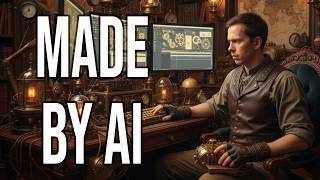
Descript's new AI video generator creates B-roll from text prompts. Type what you want in the underlord box, and clips appear in your AI Assets folder ready to trim, move, and download. Generated videos have minimal movement and no sound, but you can animate still images too.
Questions this video answers
30 frames per second.
Five seconds.
The "underlord" box in the bottom-right.
AI Assets.
The world of video is changing faster than ever before. In this video, I'm going to show you descript's new tool that allows you to generate video using just a prompt or maybe an existing image. So join me in descript and let's get into it. Here I am in a blank new project and what I'm about to show you works the same. Even if you're in the middle of a project, it's an existing project, it doesn't matter. The weird thing about the Generate video feature is they don't have a button for it yet. So you have to come down to underlord in the bottom right corner, click on that, and then we're actually going to prompt it. So I'm going to just tell it in plain English. Generate a video of a guy sitting at a computer editing a video. And then you click on the up arrow. It says thinking, and it's already starting to do stuff and it's done. So it says the video of a guy sitting at a computer editing a video has been generated and added to your current scene. So here we go. It is a five second video. If I look down on the timeline, I expand this a little bit. It's just a layer. It's above my script layer. It's just a video layer. So I can trim it, I can grab the brackets on either side of this layer and I can make it shorter, I can make it start later. Everything you can do with a normal video in descript you can do with this AI generated one, and that includes up here on the canva. You can move it around, you can zoom in on it, all that normal stuff. And if you come to your project files, as soon as you create a video using this tool, it creates a folder called AI Assets. And if you click on the toggle, there is our video. And there's a few things you can do here. Well, first of all, you can hit the little metadata icon and you can do this with all videos in descript, by the way, so you can see what resolution it is, you can see how detailed big it is, all that kind of stuff. And the frame rate of this video is 30 frames per second. Now, the other thing I wanted to show you is if you click on the ellipsis down here, you can actually download this video. So you could download this AI video and send it to a friend or whatever you want to do with it. You can go ahead and do that, but let's play this video and see how it actually looks. So minimal movement. The guy reaches up touches his screen, but you can see the screen moving. And this could be useful. B roll, if you're talking about video editing, but from a prompt perspective, this was not a good prompt. This was very short, very simple, and you can do it. You can get a result like this, and it could be usable. But I want to show you something incredible. If you give this super, super detailed prompt prompts. Now, this isn't. I'm getting away from descript for a second. If you look over here, this is Google VO3, and this is a prompt. I cannot take credit for this. I found this exact prompt on Twitter and then just copied it into here. But check out the result of this prompt. And this is incredibly detailed. So it's telling the AI exactly what to make. But when I go ahead and play this. So the reason I show you that is I want to do an experiment. Let's copy this and let's see if descript can generate this. I'm saying generate the following video, and I'm just going to paste that whole prompt in there. All right? And it's finishing it up. It says, processing scene setup. And there we go. Let's go ahead and play this. See how it looks. Not quite as good as the VO3, but still pretty good. And of course, keep in mind, descript video does not do the sound effects yet, unlike V3, but I'm sure that's coming soon. And the next thing I want to show you is to go off of an image. So I'm dragging and dropping in the thumbnail from my last video. I'm dropping that in just right into that box that says Ask underlord. And then I'm gonna say, animate this image so that the white arrow is bouncing. Also make the red button 3D and animate it, clicking in as if it's pressed. Okay, so I can see right off the bat, it created another arrow. But let's go ahead and play. So it added a second arrow, and both of them are bouncing in at the red dot. And then my hand in the image in the background actually goes up to press it, which is a little bit not quite what I was expecting. Okay, great. You've just generated some AI video, but now what do you do with it? Well, you use it in your project. You don't know how to do that. Check out this video next, where I show you exactly how to implement those videos in your project.