This is a YouTube video titled "Quick Guide to Filler Word Removal" created in June 2025. The content is a tutorial-style presentation by a single speaker explaining how to effectively use the filler word removal tool in Descript for editing audio or video recordings, focusing on avoiding harsh cuts and selectively removing filler words for professional editing results.
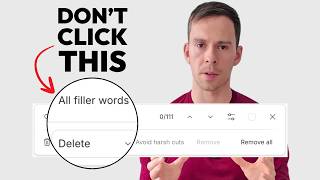
Most beginning Descript editors are using the filler word removal tool too aggressively and it's ruining their videos. But in this video, I'm going to show you how I use it to get the best results. Join me in Descript. So here I am in an unedited rooms call. It's an hour and two minutes long and there's five or six people on this call. So there's a lot of ums and uhs. The way we run the filler word tool is come over to AI actions on the right side of your screen. Click on that. Click Remove filler words. Now notice this thing right here that says avoid harsh cuts and it's currently loading and you can see it found 112. And what this did, the avoid harsh cuts is it's looking for filler words that can be cleanly removed so they have enough separation between the word before it before the filler word and the word after the filler word that it can remove it without sounding choppy. And notice I say sounding choppy because if you cut a piece of your video, you still might have a jump cut. I'm talking about where you're over here when you say one word, all of a sudden you're over here. Avoiding the harsh cuts has to do with the audio. And if I toggle that off. So again, notice it has 112 filler words without harsh cuts. If I toggle that off, there's 148. So about 36 of those it's considering harsh cuts. So that's my first tip for you, is to use that. Avoid harsh filler cuts. Keep that toggled on. Now the next thing I do is I come to this thing that says all filler words and you can click on that and you see it's automatically selected all. So what it's looking for is repeated words. Sometimes that you repeat a word or a phrase. It's looking for that. It's also looking for ums and us. And you can see there's a number next to it on the right side that shows how many instances of that word there are. So there's 98 ums and 50 uhs. And then it's also looking for but you knows, hmm, I guess. And so on. So what I actually do is I unselect all and I'll only select ums and us. Why? Because sometimes these words are excessive. So some of these words I want to leave in like the word. So I just said it and it's meant to be there. So I'll Just leave that unselected because I don't want that. It's too aggressive, Too many cuts are going to be made. But in this particular video, it didn't find anything else. So I'm just going to click on that again to minimize it. And then the next thing you can do is, is over here on the right side, this is a list of all of the filler words that it found. So right there, if I click on it, yeah, it's a pop. As soon as I click on it, it'll play a second before that filler word, the filler word itself, and then a second after. So you have the context of is this a filler word I want to keep in or not? If you do want to keep it, then you can click on this skip button right there and it's going to leave that filler word in. And you can see my list over here has dropped to 111. And then it goes to the next filler word in the list. And if I want to remove just that one instance, that one at the top of my list that has the blue box around it, then I can click remove. And now that filler word is gone and then it immediately bounces to the next filler word. And if I want to remove all, I can just click remove all and it'll do it. Now, for me personally, I very rarely do the remove all because I'm doing professional editing work and remove all is just a little bit too aggressive. So I will actually manually go through and review them one at a time to make sure I do in fact want to remove it. And then there's this thing right here where you can delete, delete and replace with gap, ignore and remove from transcript. So if you want to go into those and the rest of how. I use the filler word removal tool for fast and efficient editing. Click the join button to check out the members only part of this channel.