Stop the Chaos — Organize Your Descript Projects Like This
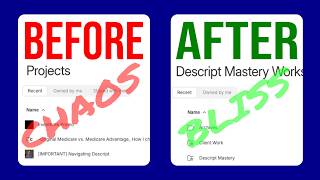
Learn how to organize your Descript projects with folders and a simple hierarchy. The walkthrough covers creating folders, moving projects, starring active work, and a sample structure: Archives, Client Work, Descript Mastery, podcasts, and YouTube by year.
If your Descript drive is a total mess, you're not alone. I have thousands of projects in my drive and I used to waste so much time digging through old projects, unable to find the project I needed when I needed it. But then I created a super simple system to keep everything organized, searchable and fast to work with across my various projects. In this video, I'll show you exactly how I organize my Descript drive so so you can spend less time searching and more time creating. When you first open Descript, you have this view and this is a pretty new look. It's the home view where you could immediately start going into one of these things, like editing a video, making a podcast. Down here you have your three most recent projects and then at the top there's a search project. So this is extremely useful. You could just type in here, if you remember the name of the project, then you could type that in. And then you could search by all the drives you have. Or if you only have one drive, then you'll just be searching in your particular drive. But that's the homepage. The next thing you have is right under that on the left side here is Projects. Projects is a list of all of your projects. You don't have the ability to create folders here. This is just going to be everything sorted by one of these columns which you have name, duration, owner, created date, or last viewed. So if you click on name, for example, it's going to put these all in alphabetically. This one is up top because it starts with a space, this one has a character, and then you can see it starts getting into the number ones, 0, 1, etc. And if I flip that, it starts by z's and then goes in ascending order all the way up to A's, numbers, etc. And then same thing with duration. If I click on that, I have everything from a 3 hour, 33 minute video all the way, if I sort to the lowest to ones that have no time at all. In there you can sort by owner, created, date, last viewed, et cetera. Under the projects header you can see the ones that are owned by you, or ones that are shared with you by other people. And then over here you can see them in different ways. So right now this is list view where everything is just a list of text. But if I click on this one, I can see previews, I can see thumbnail previews of what's in these videos. And this is just a more graphical way to see what's in those videos. And then next to that Little icon. You can change how they're sorted. Right now it's sorted by duration, but I could sort by name or any of the other things we already saw. So again, the Projects tab is a list of everything ungrouped by folders. You cannot create folders in this project tab, as opposed to. If you come down here to your workspace, click on that. Now you can have folders, and I'm still in the graphical view, which maybe you prefer. Personally, I prefer the list view. It's just a little cleaner, a little easier to see a lot of things in one place. So here, under the workspace view, you can create folders. So now there's this new button right here that says new folder. When you click on that, you can give it a name. I'll just leave this as test. I'll hit Create folder. And there's my folder. It says when it was created and the last time that it was opened up, which this one never has been yet. So there's nothing in there. Now, when you create new projects and you haven't assigned them to a folder, they'll get assigned down here. So right here is the video I'm recording right now, the video you're watching. Stop the chaos. Organize your descript projects like this. So that shows up because I haven't assigned it to a folder yet. Right above that is another one that I haven't assigned to a folder. If I want to move it into a folder, there's several ways to do it, but the easiest way is to come over to the right side, click on these three dots, say move to, and it's a little confusing. The UI here, under the starred one, it's only going to show me my most common folders at first. But what I actually want to do is click all locations, select my drive if it's not already, and then scroll through here and find the folder you want to move this to. So I'm going to move this to my YouTube folder, and then inside of my YouTube folder, I'm going to move it to my Descript topic. And then inside of my Descript topic, I'm going to move it to 2025, and I'm going to move it to published, because that video is already published. I'll hit move and I'll talk more about my system in a moment. So that just moved my project out of my unordered list into my folder called YouTube. As for my personal system, I have an Archives folder where I just put everything that I don't need anymore, all the Projects that are done that I'm never going to need to open again. Those are just kind of my. It's kind of a catch all for things that I'm done with. Below that I have client work where I'm not going to show you that, but inside of there I have more folders with all of my clients. So it's got dozens of clients that I've edited for and each one has their own folder where I keep all of their projects for that particular client. Below that is Descript Mastery. And these are all the various things that I do for my business. So I have a folder where I keep ads, promos and website content. And then I also have an archive where I keep all the content for Descript Mastery that I no longer need. I have one called Client Quick Recording. So anytime I make a screen recording for a client to walk them through something, I drop all of those in there. The latest version of my course for this year, I drop in there. Which by the way, if you want to check out the Descript Mastery School, check out the link in the description. It's my program where I do group coaching, private coaching, and on demand lessons where you can learn everything you need to know about creating videos in 2025. I call it film school for the YouTube era. So all of that, those course videos I drop in here for editors that I work with that are part of my team, all the training for them goes into this folder. All the group coaching calls from the Descript Mastery School, they go in here. Live events like webinars and YouTube live streams, I drop those recordings in here. Testimonials that I get from students go in here. And then all my tutoring calls that I am sharing with clients go in here. So of course how you structure your own stuff will matter here. You can come up with your own structure here. But let me go back. So that was the Descript Mastery folder. And you can see it has this little star next to it. That's because I use this a lot. And if you want to star any of the folders that you're often coming into, you can simply click on it and that'll star it or unstar it. So if I click it, I click it again, it puts a star next to it. And when I do that, there's a starred folders list down here in the bottom left. And these get dropped in here alphabetically. So, so you can see I can quickly go into my client work folder, I can quickly go into my Descript Mastery folder, et cetera. Now this is my personal podcast, and I have a folder for that. If I click on it, it's broken down by year. So all the podcasts that I did in 2022 are in here, 2023, all the way up to this year. And then if I go into, there's my test folder that I made. If I go to my YouTube folder, these are all the different YouTube channels and topics that I talk about. So for example, I have a folder for reviews. This is anytime that I'm doing YouTube video reviews about a certain product or software tool, or my entire descript channel is right here. And once again, it's broken down by year. So this is my system. I like to have things where I have 2023 is all my videos from 2023, 2024. I click on that and then I have all the months in there. So I could go into December and there's every video I made in December. I won't get into my naming conventions because that gets. That's a topic for another video. But the thing you need to know is what works for me. Come up with your own system is breaking things down by year. For 2025. My system's a little bit simpler. If I click on this one, all I have in 2025 is a published folder. And then anything that's not in the published folder is in production. So everything that's down here is stuff that I'm still working on. And as soon as I'm done with it, I'll click on those three dots, I'll say move to and drop it in my published folder. Now you can also bulk move stuff. So these little checkboxes next to these videos, I could click multiple videos like that. And then you can see it says three projects selected. The only bulk action you can take is. Is move. You cannot bulk delete. You can't bulk, rename or anything else like that. So what you can do is, with multiple things selected, click on this little icon here. That's the move to icon. Find all locations. And it's already got me under YouTube descript 2025. And then I'll click published. I'll click Move. It asked me to confirm that I want to do that. I'll click move three projects. And now all those projects that I had selected are in my published folder. That's my system. As you start making more and more projects, you'll come up with your own system, whatever makes sense to you and the type of projects you're making. But there's lots of tools at your disposal for keeping things nice and tight and organized in your drive. All this organization does you no good if you don't know what you're doing in the editor. Click on this video next to watch how to edit a video from start to finish.








