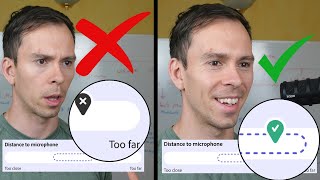
Adobe Mic Check is a free tool that diagnoses microphone problems in seconds. It measures distance, gain, background noise, and echo, then shows you how to fix them. The demo reduces a RØDE mic's gain to 50% and explains how room surfaces like metal and concrete cause echo.
You just got a brand new microphone. That's awesome. Congratulations. But how do you know if you're using it properly? Maybe you're too far away from the microphone or maybe your room is too echoey. In this video, I'm going to show you a simple free tool that will tell you how to set up your mic perfectly so that you can get the best possible sound quality. And it only takes a few seconds. This tool is called Adobe Mic Check, and you can find it on podcast.adobe.com I'll leave a link to it in the description. And you will need a free Adobe account to sign in and use this. But once you're here, simply scroll down, find this part that says mic check. Go to mic check. It says check your mic for free. I'm going to hit start and it takes you to this page and all you do here. These are the things that it's going to show us. The distance to the microphone that is our mouth, distance to the microphone, the gain of our microphone if it's too high or too low, any background noise if it's too high or too low, and any echo. And now to run this tool, all you're going to do is click on this test mike button, read this small sentence here, and then hit stop. And it's going to process it and critique our microphone. So I'm going to go ahead and do that. How is my microphone setup and placement? Stop. Test. And it loads. And it tells me my distance to the microphone is perfect. It tells me my gain is too high, my background noise is fine, my echo is fine. So with something like the gain for this microphone that I have right here, it's a RODE microphone. So there's a software that goes with it called rodeconnect. So I'm going to come in here and I'm going to dial down my gain. Let's knock it down to like 50. And then I'm going to come back and some microphones will have a physical dial on it where you can turn it up or down. Um, other microphones, other manufacturers will have their own software, but yeah, you can just look into it for whatever microphone you're using. But now that I've turned down the gain, let's try this again. How is my microphone setup and placement? And it's telling me my gain is still a little bit high. And now I have echo coming in. That's interesting. That wasn't there before. But let's dial my gain down again and let's run this again. How is my microphone setup and placement. Okay, there we go. My gain is now in the green check mark zone. And also notice that with any deficiency, it tells you here, it gives you little tips on what you can do to improve that. And then you can also play back by clicking on this. Listen to how you sound, and you can actually hear your recording. But I'm going to dial my gain down one more time, and let's see if we can fix that echo, because this might help as well. How is my microphone setup and placement? My echo's still high, and that's a known issue in this room. I have a lot of metal surfaces and a lot of concrete surfaces, so there's a lot of reverb and echo. And sometimes I put towels on things to dampen that, which is one of the suggestions that it has here. But I recommend go ahead and use this tool and kind of dial in your microphone to make it sound even better. And if you're wondering about what microphone to buy, check out this video where I go over a couple options on different microphones on the market.