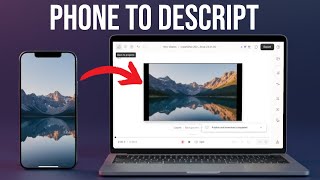
Ross Zeiger shows how to upload videos and photos from your phone to Descript using the Mobile Upload feature. Scan a QR code, sign in, select your files (up to 250 MB each), and drag them onto the timeline to start editing.
Chapters
Getting photos or videos off of your phone and into a video editing software used to be super difficult, but Descript has a feature that makes it really easy and it just takes a couple clicks. Join me in the software and I'll show you how it works. The feature you're gonna learn about is called mobile upload, and if you're starting from a blank project, you'll see this page right here. And there's a button right here that says upload from mobile. But if you're not in a brand new project, you won't see these buttons here. And so we'll come up to Project, come down to the Files section, click on the plus button, and come down to where it says Add from Mobile. Click on that and it pops up a QR code. So what you're going to do is pull out your phone, open up the camera on your phone, and scan that QR code. And it's going to pop up a little link that says descript.com/a-really-big-code. If you're not already signed in on your phone, you'll have to do that. So make sure you use the same username and password as your Descript account. And once you're logged in, you'll see this page. It says upload files from your device to Novvideos. That's the name of my project, November Videos. To upload files larger than 250 megabytes, we recommend using Descript's web or desktop apps. So if you have a very long video, this won't work well for that. So we're going to hit tap to upload. And by the way, I'm on Android, so if you're on iPhone, it's going to look slightly different, but the process is the same. So you have a choice of selecting a camera where you could record or take a brand new photo, or you can click photos and videos, and you can now browse through the storage on your cell phone and find the video that you want to use for this upload. So I found a photo of my dog that I like, so I'm going to tap on it and it says processing files, uploading 0 of 1 file to Novovideos. And once I get that checkmark, the image is now inside of my project. And if I want, I can click upload more files and go through the process again. And upload even more files. And you can also, rather than uploading just one at a time like I demonstrated, you could upload multiple files at once. So just hold down the image or video that you want to upload and then select multiple photos or videos. Returning to Descript, I can close this little X, and down here is the image that I added. So I could now drag this into my project and I could use it just like any other element in Descript. Now your photos and your videos are in your Descript project, but what do you do with them? It's time to edit them. So in this video, I'll take you from start to finish through an entire Descript project.