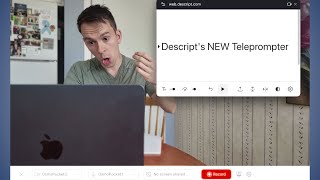
Descript's teleprompter lets you record with a script right in the app. Open it from Record > Camera > Teleprompter, paste or type your script, then adjust text size and scroll speed. Position the window near your camera for the most natural eye contact.
One of the most requested features that I've heard about over the last few years is here, the teleprompter. And it works great. Let me show you how it works in Descript from the home view. If you go to record and then you go to camera, this is going to open up a brand new project where we can record ourselves right here. So you can do your normal screen recording stuff or camera recording stuff, choose your camera, choose your mic, input, all that stuff here I've got other videos about that, about setting up the screen recording and you can check out those videos right up here in the top right corner. But to use the teleprompter, we're going to click on this button right here. It's. That's a brand new icon as of five days ago. So you click on that and then this window pops up. So I'm in dark mode. So it looks black with white text. But you can click on this button and change it to white if you want. And then what you can do is type your script into here. If you want, you can type it in. Or for example, what I like to do is I write it in a note taking, note taking app and then I'll just copy that text. I'll do Command C on a Mac keyboard and then I'll come back to this window and just paste it in. And then your script is now in there. Or the last way is you can click import and you could bring in a word doc or a. Txt file and then bring that in as your transcript. Again, I prefer to do the paste method. So that's what I'm going to do. And then I can scroll up and down in here if I want and I can change it. I can edit it just like a text doc, so I could delete punctuation, I could add new words if I want like that. And I can change how this looks. Now, before I change how it looks, I'm going to show you how it works so you can see what makes sense in terms of how you want this to look. So if you hit play notice, it's just going to scroll through your text. There's going to be one line in the middle of the window that is dark. And then the words that have already been shown are lighter gray and the words that are coming are lighter gray as well. And then when it hits a paragraph, it speeds up, it jumps a little bit to the next paragraph. So you can kind of get a feel for how you want to pace this out. Like you might want to Use line breaks to slow down or speed up your script. And then if you hit this little back arrow that's going to jump you all the way to the top of your script, it's going to restart it. So now that you kind of see how that works when it's actually playing, then you can dial in how it looks. So this first one is the size of the text. So I haven't changed this yet. This is just a default size. But what I can do is slide this to the right and it's going to make that text bigger. So if you're sitting far away from your screen or maybe your vision isn't very good, you can make your text a lot bigger or smaller. Like that next to that is speed. So right now it's at 1x speed. It's at normal speed. It's going to play how you saw it. If I go and drag this to the left, that's going to slow it down. So now it's going to play super slow like that. Maybe I read slowly or maybe I just have bullet points in here and I need a little bit more time to speak, then I can slow that down. I can also speed it up by dragging it to the right. I'm just going to leave that at 1x. I think it's a pretty good pace. Of course, there is the play button right in the bottom center. That's how you can start and stop the teleprompter. There is an upload button where if I didn't have a script in there, that's how I could import a script from, like I said, a word doc or a.txt file. This right here is to mirror the whole thing. So notice that it's now upside down and mirrored. The reason you would do that is if you have something like the Elgato, which is a teleprompter. So if you have another screen that is mirrored using a, like an actual teleprompter, then you could put that, that screen under the teleprompter mirror and when you're reading it off of the teleprompter itself, it'll look right side up. So again, that's only relevant if you have an actual teleprompter with a second screen. The one next to it is just a horizontal mirror. So this was a mirror and flip. This one is a horizontal mirror. Next to that is the dark mode to light mode toggle. So if you have a preference, if one's easier on the eyes, then you can toggle that accordingly. And then lastly, you have settings. So scroll speed can be constant, meaning it's going to move at the same thing from start to finish. Variable is what you saw when I played it, where it kind of speeds up over the line breaks, over the paragraph breaks. So if you like that, then you can leave it on. Variable auto scroll. When recording begins means as soon as the descript recording starts, you hit record. It does the countdown as soon as the recording actually begins. That is when the teleprompter is going to begin scrolling and focus mode. That is, as you can see, I'm playing it in the background when I toggle it on. That is when the current line, the line with this triangle next to it is dark. It's the most focused, if you will. And then everything above it and below it has that gray. It's more grayed out, so it's kind of recedes into the background. So again, if you have auto scroll on with your teleprompter open and you hit record, I have my countdown on. So it's doing my 3, 2, 1. And now that it is actually started, the teleprompter has started. And so the way you could use this is you would just read off of the screen here. I could say over the last five days, I've had dozens of students I've been tutoring with in the past reach out to me about getting up to speed on best practices with underlord. If you noticed, I cannot pause the teleprompter. If I want to pause the teleprompter, I have to stop the recording and then that teleprompter window goes away and the whole recording stops. Now let's go back to record. Let's go back to camera. Let's click on teleprompter once more. The last thing I want to point out is that this is a floating window. So I mentioned the teleprompter. If you have an elgato or similar, you could just drag the teleprompter window onto your other screen and then read it off of there. You could also position this. I recommend that you position this as close to your camera as possible. So I'm here on my. My laptop, my webcam is up here. That's going to be. I'm going to want to look as much as possible like I'm making eye contact with that. So I'm going to want to physically, or rather digitally, I guess, move my teleprompter window as close as possible to the camera at the top of my laptop. That way it minimizes my eye travel. I'm not looking down and then looking up. It's just my eyes are as close as possible to where the camera physically is positioned. You can also resize this window by grabbing the corners.