This AI Edits Your Videos For You, Here’s How It Works
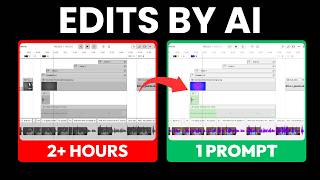
Descript's new AI Agent takes a 14-minute student video and edits it down to 11 minutes based on plain-English commands: removing filler words, varying captions, adding B-roll, and applying effects. It handles most requests but misses the outro music and needs manual fixes for fonts and backgrounds.
Super impressive so far. This is. This is insane, isn't it? Imagine if you could record your video, type in some instructions on how you want it to look, and the editing just happened for you. Descript's new AI agent does the rough cut, it polishes it up, and it even applies layouts. And the only thing you have to do is instruct it in plain English. In this video, I'll give you a demo of how it works and why. This might be the fastest way to to go from raw footage to finished video. I first need to tell you that everything you're about to see is in beta, so you won't have access to it unless you apply on their website. And I'll leave the link below on how to do that. With that said, being in beta, there are things that don't work well yet, so don't expect perfection. Here we have a 14 minute unedited video. I'm using this with permission from a student of the Descript Mastery School. So the first thing you'll notice is up here in the top, right under the normal underlord button, there's a new button that says Agent. Click on that. The things we have here is a delete button, which will delete the history of your conversation with the agent. You can copy the responses and questions to and from the agent, and a dialog box where you can just tell it what you want it to do. And then there's actually an attachment button so you could attach something else, give it more context on what what you want it to do. But I'm going to go ahead and prompt this just in plain English, so I'm going to tell it. Apply Studio Sound to this video. Remove filler words, but only ums and I's. Leave all other filler words in. Apply text and captions throughout the video. Vary the text and captions for variety. If using background, make it blue. Apply B roll where it would help remove tangents. Cut the video so it's only 12 minutes long. Add music on the outro and apply a layout with a subscribe cta. So a lot of stuff. Let's see how it does. I'm going to hit submit. It says thinking, here's my plan to fulfill your request for this video and it's listing the steps that it's going to take. And I gave it, I mean a lot of stuff to do. So it broke it down into seven steps of everything it needs to do. I'll proceed step by step, working on multiple items in parallel while possible. Apply Studio Sound. Remove um, and, uh, filler words, remove tangents, Cut the video to 12 minutes. And then once the script and audio are cleaned up, I'll add varied text and captions with blue backgrounds where applicable. Insert B, roll in helpful spots. Add outro music and a subscribe CTA layout. Let's start by cleaning up the script and audio and then move on to the visual enhancement. And it says thinking. And if you click on the word thinking, it says editing chunks one through six. So I assume it's breaking up the video into smaller, more manageable pieces as it starts to attack all of these different pieces that it. It needs to do. Okay, stuff is happening. So the first thing it did is it struck out this whole first paragraph here. So it just jumps right into. You've probably been thinking about this since you started your business. Way stronger hook. Awesome. And it says edited script. It took 50 seconds to do that. So if I scroll through here, you can see some of this other stuff that is stricken out repeated words. So it ignores stuff so that if you hover over it, you can restore it by clicking that back arrow and then that'll bring it back in case I don't like that edit. So that's. That's cool. And you can see it's starting to break it into scenes over here on the left, it's applying layouts. So it's putting in these captions here, which kind of like indicate a chapter. So it's like selling your business. This is what we're talking about now. And it even has a sub heading there. So super impressive so far. This is. This is just. This is insane, isn't it? And then you can also see like a little bit further down, there's one of these views where it's got some text there and it makes. Puts the image on the right side. Let's see what else it did. So a total so far of 10 scenes. And it's still going. Now we're at 14 scenes. It's applying layouts as it goes. And it's updating me here, so it's giving me little toast notifications every time it's applying layout or making a scene. And it also tells me down here, adding scene boundaries, adding layouts, adding scene text. I saw it drop in a. A layout here and it had the placeholder text and then it replaced it with the text that was relevant to the video. And one problem, I see it right off the bat, or maybe not a problem, but this goes from 7:48 to 7:51. So that's only a three second. Which. That's fine. That's. That's not that short. I was thinking it was like really, really short. But three seconds is okay. And you'll see it needs, it'll need some cleaning up. Like that the word transparent. The title is too big and it's going into a second line which is overlying the subtitle. So I'll have to go through and clean that up as well as I'll have to change the fonts and stuff. But maybe I can have, maybe I can have the AI do that. I'll prompt it as soon as it's done here. Or maybe it will fix that. Let's see what happens. And you can see it's starting to put in placeholders. So this is where I told it to put in B roll or it's deciding to put in B roll. And so I'll go through, find these placeholders and replace it myself. Or again, maybe it'll do it. Let's see what happens here. Okay, so it did it for me. It's actually putting in, it's determining its own B roll and adding it of its own accord. Check that out. And it tells me. So it just finished modified scene layout. So that was the whole second step that it just took here. And that took about 5 minutes 267 seconds. And it just dropped in the end screen. That is way too long though. It goes from 10, 9, 50 to the end of the video at 11:22. So that's, that's way too long. That's going to require some intervention. But one thing it did do too is I told it to. To knock this video down to under 12 minutes. It. It did that. It's now 11 minutes and 20 seconds from our original 14 minute video. And I am getting some, some warning messages. Error loading media. So this, some. This sometimes happens when I apply stock media anyways. So it might just be having some issues with that. Okay. And it just finished. So it took another 85 seconds about on the modified scene layouts. And then it summarizes, here's what I've accomplished for you. Based on your requests. Studio sound is now applied. Filler words, ums and O's have been removed while other filler words remain. Tangents have been cut, keeping the content focused. The video is now 11 minutes 23 seconds which is within 10% of your 12 minute target. So that's cool. Even though it didn't like hit exactly the target, which probably wouldn't make sense based on the content. Then it tells me that Like, I'm within the range. I'm within a close range of your target. Text and captions varied. Text and captions have been applied. B roll footage has been added. And the outro CTA has been added. One note. I was unable to add background music to the outro due to technical issue. Okay. So that's what I saw with the. That error flag that was getting thrown. But then all other requests have been completed successfully. If you'd like, you can try adding background music to the outro later. Okay, cool. So let's try that. Let's see if I say, if I follow up with it and I say yes, please try adding background music again. Submit. And it's throwing another error. There was an error adding. Okay, that's fine. So let's check this out. Let's check its work. And I already did some of it along the way, as we saw. So we got like a 2 second intro scene here. I've been thinking about this. You start. You hadn't. You didn't start with the exit in mind. It's got smart transitions in there, so everything's smoothly flowing. So there we got some. A placeholder. So what I would do in this case, a placeholder that it didn't fill. That is, I would just select it, say add media. Add stock media. What's he talking about there? Chips off the table. You could say like poker chips. And then just drop one of those bad boys in. And then let's see what else we got. Selling your business. So as I pointed out earlier too, it made this headline way too big. And so I could just correct that. Actually, again, let me see if the agent will do that. On all headlines. Change the font to Montserrat and size to 75. Let's see if it'll do that. This is insane. All headline texts throughout your video have been updated. Font changed to Montserrat and size changed to 75. Look at that. It did it. And then if I go to the next one, boom, boom. That's just an image. Okay. That is seriously impressive. Sprinkle in some sound effects. I'm telling it. Okay, it appears that I don't currently have access to a tool for adding sound effects. So it says I can't do that, but I can analyze your video and suggest moments where sound effects would be impactful. Focus on other enhancements or wait until audio related tools become available. Okay, so it's not able to do that yet. That's fine. I'll just ask it. What else do you think this video needs? Let's see what it comes up with. Here's some suggestions to further enhance your video. And it's spitting out quite a lot of stuff. If you'd like, I can implement. I'm not even going to read them. I'm going to say, yes, implement all of those. Let's see what it comes up with. All right. It's coming up with a plan. Wow. Maybe I should have just started with that. Like, just do whatever you think this video needs. And now it's thinking, okay, and it's done. Took 261 seconds. And it says all possible enhancements have been implemented. It says just brief summary of what it did. I won't go into all those. And let's just take a look. It added a bunch of. A bunch more scenes, I can tell. And we still have a problem with the sizing. Oh, and it returned the new ones it added. It made Khalees again instead of Montserrat, as I told it before, and added some captions. So now we kind of have a new problem because half of our stuff is in Montserrat and half is in. All of our new stuff is in Kalis. But it did more of the same in that it just used the generic layouts with the black backgrounds, which. Let's see if I can fix that. On title screens, change the background color to blue. Let's see what it does. So what I wanted to do is turn this black into blue. So it says it did it. It said the background color for the title screen has been updated to blue, but it is in still, in fact, still black. Let's see if it did it anywhere. It doesn't look like it did, but now, like, a lot of the heavy lifting is done. I could go through and just continue to refine it. I could continue to give it instructions, but what I'm going to do is just go through and manually clean this up myself. And for example, on this, this outro scene that's so long, I'm just going to adjust it so it starts later. And I don't want that one to be so long either. So I'll just create a new scene there. Delete that stuff. I'll make him full screen. So now the outro screen is just about 20 seconds. Overlies his outro. But I won't waste your time going through this whole thing. You get the idea. This is super exciting. This is like version one, you know, like, imagine where this is going to be a year from now, five years from now. This is. This is the final nail in the coffin of video editors.








