Video Editing Is Stressful Until You Learn These 3 Tricks
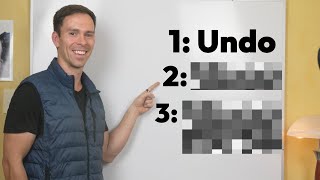
Learn three Descript features that make editing less stressful: Undo to step back through recent changes, Version History to restore entire past project states, and non-destructive editing that keeps your source files safe so deleted segments can always be recovered.
Are you constantly worried that one wrong edit will ruin your entire video project? It doesn't have to be like that. Nothing in Descript is permanent. And there are some very easy ways to undo errors. Whenever I teach these techniques to students and tutoring calls, I can see the relief on their face. In this video, I'm going to show you three tricks that will relieve the anxiety of making mistakes while editing your videos. You're probably already familiar with Undo, maybe from writing emails or working in a word processor. It's that trusty Oops button that lets you step back and fix something right away. What you might not know is that Undo works exactly the same in Descript. Let me show you how you can use it.
Let's say you take an action on your video, you make an edit, and. And you didn't mean to do it, or you don't like how it turned out. So for the sake of demonstration, I'm going to take one of these words and I'm just going to hit Delete on my keyboard. And then in playback, I realize, oh, crap, I actually wanted to keep that in there. So what I can do is come up to this menu in the top left, the Hamburger menu, as some call it. Click on that, come down to Edit, and then this very top one on the list is Undo. Before I click that, I want to point out this icon to the right. It's a Command Z on an Apple keyboard. On a Windows, it'll be Control Z. So that's another way that you can execute the undo functionality, aside from clicking on it. And that goes for every functionality in descript. You can see that they all have the keyboard shortcuts on the right side. But I'm going to go ahead and click on Undo. And there we go. It brought back that word that I deleted, so it undid the immediate last action that I did. But it's not just that. So let me click on Entertain. I deleted it. Let me click on Sell. I deleted it. And I'm going to click on Persuade as well and delete that. So now all three of those are gone, and I'm going to hit Command Z. It undid my last action, which was deleting the word persuade. But watch what I can do. I can do it again. So I undid again. And it undid my second to last action. And yet again and again. And there's my third action.
Undo helps you fix something that you just changed, that you just messed up. But what if you've been making mistakes for an hour or even a Full day. Do you need to hit undo over and over and over until you're back to where you started? You don't. Descript has something called Version History, which takes the idea of undoing a step further. It's like a time machine for your entire project. If you ever realize how I liked how my project looked yesterday, not today, Version History lets you go back to that earlier version with just a few clicks.
Let's take a look to understand version history, let's say I've just been making a series of mistakes and I want to go back to what this project looked like before I started making all those mistakes. Today I can go up to the top hamburger menu once again, come down to file, and the second one on this list is going to be Version History. So go ahead and click on that. And over on the right side, this popped up. And this is a chronological list of all of the different versions of this project. So you can see I started working on this one on October 24th, which is about two months ago, and it gives me the exact time and it goes up from there. So that one was at 12:30, next one was at 1pm and et cetera. So let's say I want to restore to 31 minutes ago to how this project looked at 10:44am I can first of all click View. And then it brings me back to this view and it says at the top in this orange bar, you're viewing an old version from 32 minutes ago to edit this project. Return to latest version. So if I click on that, that'll take me back to the latest version of the project, but I can just take a look at how the project looked and if this is what I was going for, then I can come back to this one that I'm currently viewing. Again, it's December 9th at 10:44am and I can hit Restore and it's going to give me this prompt. It says this the name of the project will be restored from December 9th at 9:44am gives me a couple warnings saying that this could cause conflicts if other people are currently editing this project. So be aware of that if you're sharing this with other editors. And all of the versions can still be accessed through the version history. So all, all of my versions will remain there on the version history. If I decide to restore to those and I can cancel out or I can click Restore version, which I'm going to do, and it happens immediately. I'm now back to how that project looked at 1044, one of the best.
Things about descript is that it's non destructive. What that means is if you cut something out, the original video file is still there in the background. So think of descript like you're watching a movie on a streaming service and let's say you get to a boring part and you skip ahead in the show. You haven't deleted that part from the movie. It's still there if you want to.
Go back and watch it later.
But you've effectively cut it out by skipping it and only choosing to watch the good parts. In the same way, when you cut or edit something in descript, the original content, the original video that you're editing is, is always safely stored in the background. You're just telling the program, skip this part for now, but you can always rewind and bring those parts back later whenever you want. This one's a little harder to get your head around. So let me show you what I mean.
To understand the principle of non destructive editing, I first need to show you here in the project folder on the right side. This is where all the files live that make up your project. So this top line, this.MP4 is, is the video, the RAW video that I'm editing. And then below that is a bunch of other stuff that makes up this video. So there's a gradient, there's a folder called stock media, which if I toggle it open, there's stock media that's being used in my project. So all files that are being used are in here. And no matter what edits I make in the editor, these files will not change. These are just the original source files, completely intact, as they were when I first loaded them in. That's important to understand. And I'm gonna go ahead and close that now. Let's say that I make an edit. So I'm gonna just delete this sentence here, this one that says, and this is not just about learning, I'm gonna delete that. And you can see if you're paying attention, it also disappeared from my timeline. And now there is a cut right there. So if I hover my mouse over here, this right side of that cut, and, and the cut is this vertical gray line right here, the playhead. So the right side of that cut is blue and the left side of that, that cut, when I have my mouse over, it also turns blue. If I put my mouse on the cut itself, notice it turns into a bracket looking thing when it's open to the right like this, it's going to affect the right side, that blue side if I move it slightly to the left, the slightly left side of that cut, it. It opens to the left and now it's going to affect that side. So remember, my cut happened right where that split is. So if I grab the line right there with the bracket open to the left, I can click and drag to the right and it's restoring that part of the video that I deleted. And you can see the words starting to appear again. So the word and this and I can keep going as far as I want. So the video, just like with my streaming analogy, the video is still there in the background. I just told descript to skip it, but it's never actually deleted. So that is how you can restore things that have been deleted, using the timeline.
Now that you've got a handle on undoing mistakes in descript, you are ready to take your skills to the next level. In this next video, I'll show you how to edit videos faster than you thought possible. Click here and I'll see you there.








