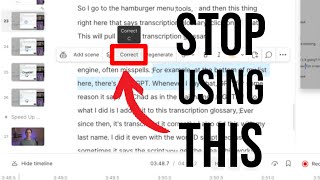
Learn three keyboard shortcuts that cut transcript editing time in half: Z toggles capitalization, X toggles punctuation, and C opens Correct mode. Add frequent misspellings and proper names like ChatGPT to Descript's Transcription Glossary so they transcribe right the first time.
Questions this video answers
Z
X
C
Transcription Glossary (accessed via Settings → Hamburger menu → Transcription Glossary)
Are you editing your Descript transcripts the hard way without even realizing it? Because most creators I talk to are unknowingly wasting hours and missing three key features that could 10x your output. So in this video, I'm going to show you how I went from spending hours fixing transcripts to flawless transcripts in minutes with just a few ridiculously simple Descript tools. One of the top problems that Descript makes with the transcript is if you pause for too long, you'll. It'll put a period and it'll capitalize or not capitalize things in the wrong place. So our first tool is the Z letter. So you hold Z on your keyboard and notice my cursor now has a uppercase and lowercase a. Now, whatever word I click on will cycle through uppercase and lowercase like that. So for example, right there, the word tom, it didn't capitalize it properly. It missed that for some reason. So if I click on it, it capitalizes it, and that saves me from having to go into correct mode to fix that. Next is the X key. So if you hold X now, my cursor has a period and a comma on it. So as I mentioned, sometimes when you pause for too long, Descript will put a period there, like right here. That's not the end of a sentence. But if I click on it once, it turns it into a comma. If I click on it again, it takes away the comma and it uncapitalizes the next word. If I click yet again, it puts a period in there again and it automatically capitalizes the following word. So again, X is your punctuation toggle. And the third tool is the letter C, as in correct. So if you hold letter C now, my cursor turns into that little pencil, and this is going to be correct mode. So I can click on one word and it'll go into correct mode. And I could replace that word bit with anything else I wanted. But I'm going to go deeper on the Correct mode tool in just a moment. For now, I'm going to close that. What I can also do is highlight a sentence or multiple sentences and press the letter C. And that also puts me into correct mode. And from here, I can correct any spelling or punctuation or anything else I want in this selection. And that brings me into the next tool, which is going deeper into the correct tool. If I make a correction here, like, for example, the word tom, this actually wasn't Tom, it's actually Tim. So the transcript engine was just hearing it wrong. And what I can do is go into correct mode by holding C, clicking on that word, and then I can correct it to spell it the correct way by just typing in here. So I'll just type in T, I, M. And what I can do is I can correct just this one instance of it, the one instance that I have selected, or if I hit correct all. Notice over here on the right side, it found nine instances of the word Tom. And I could hit correct all and it would fix all of those instances across my entire project. But there's a problem. Notice that most of these are the word Tom, but there's one instance where it says customers. So Tom is part of the word customer. And so what I can do in this case, since I don't actually want that to be corrected, is I can hit skip. And it's going to skip over that instance. There's another version hit skip, and there's one that says bottom, I'm going to click skip and Tom aro. I'm going to hit skip. And now I'm just left with the actual words Tom that I want to turn into the word Tim. So now I'll go ahead and hit correct all. And now every single instance of the misspelling of Tim is corrected. And you can do that with any word that Descript is misspelling. Which leads me into the next tool that will speed up your transcript editing. If I close out of this correction box, I come up to Settings, I go to the Hamburger menu tools, and then this thing right here that says Transcription Glossary, click on that. This will pull up your transcription glossary. And what these are are words that Descript Transcription Engine often misspells. For example, at the bottom of my list here, there's ChatGPT. Whenever I say Chat GPT, for some reason it says Chad, as in the male name G, B, T. So what I did is I added it to this transcription glossary. Ever since then, it's transcribed it correctly. I also did this with my last name. I did it even with the word descript, because sometimes it says the script. You get the idea. This works really well for business names, last names, first names, all that type of stuff that descript is often misspelling. The other thing I see creators wasting their energy on is transitions. Click on this video next to see how to make transitions super, super fast.