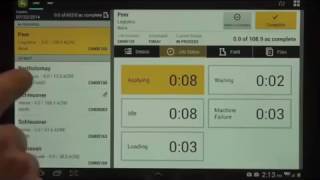
A walkthrough of John Deere's AgLogic mobile app for operators. The app shows map views, job management, file transfers, and driving directions. It connects to tablets and tracks job status in real time during fieldwork.
Alright, like to take a little time today, go over the Android egglogic mobile app and understand what the operator is going to experience in the cab. So looking at here we have the map view we're looking at currently. We also have a jobs view we'll look at in a moment. The maps view shows an overview of the current locations of all the work orders as well as the landmarks associated with that operator. We can toggle the landmarks off and clean up the map view. One thing to also note here, in the right hand side there you see a blue dot. That's the current location of the operator. So they can view that in reference to all their work orders. From there the operator can go in and choose the first work order on their list and then from there we can go in and check on that work order and see the details view of it. So this takes us automatically takes the operator into the jobs view. From there the operator can see a list of the details associated with that job. Any comments that come through the individual products that are associated with that job are included in that work order. From there let's take a look at the job status. This is the timer to keep track of all the statuses of the operator when they're working a job. We also have a field view tab that shows the field and if the operator were in the field or in this vicinity, the operator would be indicated by that blue dot again. So it provides a positive recognition for that operator that they are in the right field. From here, if the field entrance is incorrect, the operator could change that field entrance by choosing change that field entrance, pressing and holding and then dragging over to a new field entrance and then releasing. That's how you can update a field entrance. From there if there's files associated with the work order they would be in here. We'll just skip down and take a look at this work order and the files in there. We look at the files, if they haven't been transferred yet, there's going to be indication to the operator up here to transfer files. In order to transfer files an operator may need, depending on the tablet that they have, they may need an adapter. So this is a Samsung tablet with a 30 pin cord on the bottom of it. And so they need this 30 pin Samsung adapter with a USB that can plug into there. The those files are then transferred to that USB and the operator can then transfer them to the display of their choice. Let's go back to our work order here. So we've taken you through all the different tabs here. Now the operator is essentially ready to start their day and they want to get driving directions to this field. They would go up here and choose driving directions that's going to open up Google Maps or a default driving directions navigation that they have and provide that operator with a route to their location there. Operator can easily get back into aglogic and they're at the field right now ready to start their job. So let's go ahead and start this job. It's going to automatically start calculating time in the idle bucket. From there the operator can choose if they want to be loading, waiting machine failure or applying and these times go back in for a time calculation to be able to run reports based off of machines as well as operators in the website. From there we'll say that we're done applying and the operator is ready to complete the work order. One thing to note, the operator can decide if this work should be incomplete. They can mark it incomplete. Also, we're going to go ahead and complete this job that's going to pop up a completion form from here. If we have any as applied files we'd like to send back into EggLogic, we can do so. Otherwise we'll go ahead and complete the amount of acres that we have completed here. So acres done 100%. We can add in details here for crop stage, field, moisture, field surface and crop conditions. We've got weather conditions, specific applicator information. Then we got pest additional comments free form field for the operator to be able to enter comments in there and then ultimately the operator has to sign the job from a legal requirement in order to be done. From there simply hit the submit button and submit that work order at the bottom down here is the completed work orders. Also at the top you can see completed acres out of how many acres we have total left to do so. 108.9 of 603 acres complete. So that really takes you through the operator's operation here. Other things to note on the tablet they got the menu in the upper right hand corner. From there we got the jobs and map that also correspond with the same jobs and map tabs up in the upper left hand corner. Be able to change the user and the machine information, device info ability for the user to log out, privacy and legal. And at the bottom down here we have the help menu. So if there's any questions on the tablet and the functionality we can use the help menu to understand that a little bit better. This little blue line here indicates connectivity with the tablet. So when it's blue it tells you that it's connected. When it turns red, that means it's not connected. This provides some diagnostics capability to be able to understand the GPS queue. Sending information in status queue and then as applied queue is the prescription file data coming in and out.