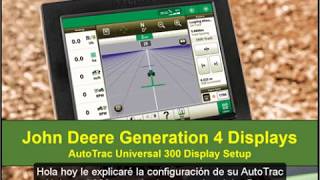
This is a YouTube video titled "Configuración de AutoTrac™ Universal 300 | John Deere" created on March 24, 2020. The content is a detailed instructional walkthrough by a single speaker explaining how to set up and calibrate the AutoTrack Universal 300 system using the John Deere Generation 4 display, covering menu navigation, system diagnostics, motor readings, and calibration procedures.
Hello. Today I will walk you through the setup of your AutoTrack Universal 300 through your John Deere Generation 4 display. We will start by selecting Isobus VT button at the bottom of the page and then the menu button on the bottom right hand screen. Selecting Universal Steering Controller this page is our Auto Track Settings page where we can adjust our steering sensitivity and also select Advanced Settings which we will do. This page gives us more options to adjust our steering sensitivities. Now let's click on the setup arrow on the right side of the screen. On this machine configuration page we will start by selecting the top option of the page which is identifying what piece of equipment we are currently using. The rest of this page consists of entering measurements of your machine such as wheelbase and GPS to axle measurements. Please see the operator's manual for explanations if you have confusion on the required measurements. Now let's click on the Diagnostics tab where we will see the current status and information of our AutoTrack universal system. Now let's click on the Motor Readings tab where we can see the current readings from our AutoTrack Universal system. If it is installed correctly, we can see that the number on the encoder line will change if we turn our steering wheel. On this page we we can also test our resume switches and our seat switch by toggling them on and off. By doing so the values will change between 0 and 1, meaning that they are working. We can also check the temperature of our AutoTrac universal motor. The bottom line reads the motor voltage in which if this reads 0 then we currently have no power to the system and should look to reinstall. The Motor Information tab shows you the software and hardware version of your specific display as well as the AutoTrack Universal Motor Hours and activity. When we go back to the Setup arrow under the Calibrations tab we will notice the red dot. That means we need to calibrate our AutoTrac universal system. We will select Calibrate System. We will read through the warning and accept it. Please note when you are calibrating your autotrack universal system you can you must be traveling between 3 and 5 miles per hour as well as using an area that is 300ft in length and 30ft wide. When our machine is done calibrating we will click Accept and notice the green dot meaning our autotrac Universal system is calibrated and we are ready to run. Thank you for watching this video.