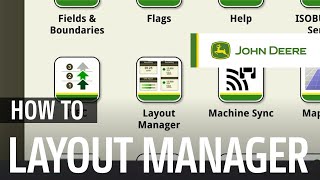
This is a YouTube video titled "G5 Display | How to use the G5 Layout Manager" created in February 2024. The content is an instructional tutorial explaining step-by-step how to customize the shortcut bar in the Command Center's Layout Manager, guiding users through the interface and options available for assigning and editing shortcut icons.
In this video we'll show you how to customize the shortcut bar of your Command Center. From your main run page, navigate to the main menu on the left hand side. You find Machine Settings, Applications and System Settings. Click on Applications. Select the Layout Manager icon. In the Layout Manager pop up. Click on the shortcut bar button on the left side to edit a shortcut bar. Click on the pencil icon of the shortcut bar you want to adjust. In the pop up window you see the layout of the shortcut bar you want to edit. Empty shortcut fields can be assigned by clicking on the yellow plus. Click on it and you can choose between all icons we've got in the Applications and System segment. Choose the application you want to assign to the empty shortcut field. A pop up window appears where you can select the icon that you prefer. Here you can also see information about the functionality of the single shortcuts. Click on Add. The icon is now assigned to the shortcut field. You can repeat this process until all empty shortcut fields are assigned and the shortcut bar meets your requirements and field operation. When you're done, click on Save at the bottom of the right hand corner. Close the Layout Manager by clicking on the X. Leave the Applications overview to get back to your main run PA where you can see the applications you chose in your shortcut bar.