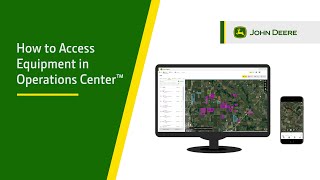
A walkthrough of John Deere Operations Center, the farm management software. Learn how to find equipment on the map, filter by machine type, check alerts and maintenance schedules, and access remote displays for your machines.
John Deere Operations center is a farm management software that connects you to your field, crop and data. In this video, we will demonstrate how to access equipment from the new map in Operations Center. We will also demonstrate how to access different features from the Equipment panel. To access equipment, select Map in the upper left corner of the screen and select Equipment. If users know the equipment name or serial number, they can search directly from the top of the page. Equipment that needs to be added can be added by selecting the plus or Add button. Users will need to give the equipment a name, select a My John Deere organization, enter the serial number and then add Make, Type and Model. Finally, select Add. Filters are also available if users want to toggle what is being viewed on the map. Make, type, model and tags. Users can select the distance from me they would like equipment to show on the map. If the user wants to view equipment that is not activated, they can toggle this on. Sort by functions are also available. Users can sort by distance and name. Once the machine is located, select the machine from the list. Users will see the Machine panel. After selecting the machine, users can select to collapse the equipment list by selecting the collapse button and just view the machine panel. When looking at the machine panel, users will see the equipment name at the top followed by the equipment serial number and the current work, working, idle and transport along with the last time the equipment has been communicated. Engine hours, fuel and def will also be visible. Combines will show separator hours, star and tag options will be available. Directions to the equipment will be available. There will be a share or export option for location history, hours of operation, engine hours, alert history, share location and share. Equipment. Users can also initiate a remote display access session from the equipment panel. As we move down the equipment panel, users will be able to toggle the time period for the data that is being displayed. The time period will default to today, but custom rolling 7 days and last 30 days are options the user can choose from. The time period that is chosen will reflect the values shown in each of the tabs. Summary alerts, Maintenance and Setup summary, display utilization, hours of operation and performance data. View all Open an expanded view of additional machine usage and fuel data for the selected equipment. The Alert tab will give the user a view of the current stop codes or red alerts that match the current filter criteria. Users will also see service codes or yellow alerts along with the information codes or blue alerts that match the current filter criteria from the Alerts tab. Maintenance will also be available from the Equipment panel. Users can view and track equipment maintenance and create a maintenance plan directly from the Maintenance tab. Setup will give the user the ability to view JDLink modem information along with display information. Users will be able to view additional JDLink modem information by selecting the arrow. Thanks for watching.