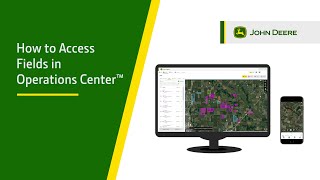
This is a YouTube video titled "How To Access Fields | John Deere Operations Center™" created in January 2023. It is an instructional video explaining how to use the John Deere Operations Center farm management software, specifically demonstrating how to access and navigate the field list and related features within the software's map interface.
John Deere Operations center is a farm management software that connects you to your field, crop and data anytime, anywhere. In this video, we will demonstrate how to access the field list from the new Operations center map. We will also demonstrate how to access different features from the field and field list. To access the field list, select Map in the upper left hand corner of the screen, then select Fields. Users can search for their field by name, scroll through the list to find their field or click on the map to access their field. Filters are available for users to simplify their search. Filter by Client, Farm and Work Sort by is also available. Users can sort by field name, client name, farm name, last updated, or by field area. Users will see a small image of their field to the left of the field name if they have an active boundary. Once the user has found the field, they can select it from the list. After the field is selected, the user can toggle how they want to view the field information. Users can select to view the field with the field list still available to the left, or they can select to collapse the field list and just view the selected field. The field name will show at the top with the client and farm name along with when the last known work was completed on this field. Directions to the field will also be available. Users can also jump to Field Analyzer, Work Planner, Agrian, Prescription and land for the field they selected. We hope you enjoyed this short how to video on how to access fields from the new map in Operations Center. Thanks for watching.