Nathan from John Deere shows how to customize run page sets and shortcut bars on a Generation 4 display using the Layout Manager. The demo covers saving different page configurations for specific field operations, plus new features added in software version 22.
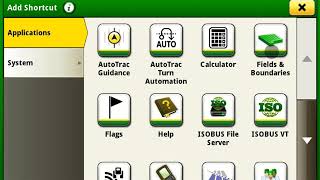
Hi everyone, it's Nathan from John Deere Customer and Product Support. Today I will be showing how an operator can customize and save run page sets and shortcut bars for specific field operations in Layout Manager on a Generation 4 display. Once created, these can be exported or imported to other Generation 4 displays via File Manager and USB transfer. New to 22 software is the ability to have multiple sets and shortcut bars. To begin a run page set, we will enter a name and then add our desired run pages that have already been created. A shortcut bar must be selected for the run page set. The default one will be selected. Now we will create a new one. Next lets create a new shortcut bar. We will select desired shortcuts and enter a name. I have shortened this process for this video. Now let's go back and assign our newly created shortcut bar to our spraying run set. Finally, to make our newly created set active, we will need to change the active set. Now you are ready to use your newly created run page set and shortcut bar. Notice the differences between our old screen at the top and our new one at the bottom. Thanks for watching.