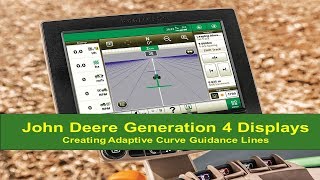
Nathan from John Deere Customer Product Support walks through setting up adaptive guidance tracks on a Gen 4 display. Learn how to record curved paths, engage autotrack, and handle obstacles while the system guides your machine.
Hi everyone, it's Nathan from John Deere Customer Product Support. Today I will be going over adaptive guidance tracks on a Gen 4 display. Adaptive curve track allows an operator to record a manually driven curved path. Once the first curved pass has been recorded and the machine has been turned around, the propagated path appears and the operator can use parallel tracking or activate autotrack. Adaptive curve track recording can be triggered manually with the Record button or based on Autotrack or Workstate. Go to autotrac Guidance Application Advanced Settings to select Recording trigger. To record a new adaptive curve, go to Set Track, New Track Curve Track and select Adaptive Curve. Select Record button to start recording. Adaptive curve curve mode is automatically selected at beginning of recording session. With this button selected while recording, a line follows the machine. AutoTrack is not available on the first pass. After the initial pass is recorded, each additional pass is generated from the previous pass. To ensure that steering errors are not propagated throughout the entire field, the operator can manually drive on the generated GANS lines using parallel tracking or activate autotrack. Generated passes are not identical copies of the original pass. When necessary, the operator can change the curved path anywhere in the field by steering the machine off the propagated path. Curvature of the pass changes to maintain pass to pass accuracy when approaching and navigating around an obstacle, select the Straight button. This button creates a straight line between when the button was selected until it is switched. This allows the next pass to be propagated without a deviation or gap. The dashed line will show when you are snapping a line between two points. The longest segment created can be a distance of 0.8 km or 0.5 miles. If recording is left on in the curb mode while driving around an obstacle, that deviation to the propagated path will be recorded and become part of the path on the next pass. The propagated path will have the incorporated deviation if recording is turned off when the obstacle is approached and steered around and then the recording is turned back on. Once the obstacle has been navigated around, there will be a gap in the recording path where the obstacle is ending. A recording session saves all recorded curve segments within the session as a single track. Additional segments can be added to the existing track by selecting the Add segment button. The operator is able to use previously recorded adaptive curve track for parallel tracking or auto track. Thanks for watching.