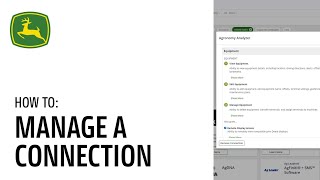
This is a YouTube video titled "How To Manage a Connection l John Deere Operations Center™" created in May 2024. The content is an instructional tutorial explaining how to manage and remove connected software company connections within the John Deere Operations Center platform, including steps to adjust access levels and control data sharing with partners and dealers.
In this video we will walk through how to manage and Remove a Connected Software company Connection In John Deere Operations center, you can view your organization's connections in one of two ways. The first is to click on Setup in the header, then navigate to Connections here. All companies you are connected to will be listed at the top of the screen under Organization Connections. If you are not connected with any existing company, you can view additional companies that are part of the John Deere ecosystem under the header Available Connections. The second way is to again click on Setup and navigate to Team. Once here, select Connections. Each connected software company you are connected to will be listed along with what access levels they are granted for your organizations in each category. If you wish to change the access levels for a particular company, you can do so here by clicking on the name of the company or you can do so from Connections. To Demonstrate, I will navigate us back to Connections, find the software company you would like to manage and click Manage Next. Click on Edit and you can adjust the access levels as you see fit. Click on Save to save any changes. If you'd like to remove the connection, you can click Remove from the bottom of the pop up window. The connected software company will now be listed under Available Connections and data will stop flowing to that company. You can also view who made the connection by clicking on Connected Organizations to see which staff member or organization partner made the connection along with the date. To control partner access to the data from your connections, navigate to Team, select Partners, select the desired Partner, select Access Granted, click Edit. Expand the drop down. Organization Management Check the Share Organization data with Connected Software box, select Save and the desired partner will now be able to receive shared data. To control dealer access, select Dealer, select the desired Dealer, select Access Granted, click Edit, click the Data Sharing disabled toggle sharing has to be on and the box has to be checked and access to connection data can be removed without removing any other sharing the customer may want to have with the dealer by unchecking the box. Click Next, select Done and the desired dealer will now be able to receive shared data. Thanks for watching.