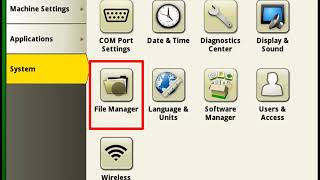
This is a YouTube video titled "How To Register | John Deere Generation 4 Display" created on July 21, 2020. It features Nathan from John Deere Customer and Product Support providing a step-by-step tutorial on how to register the Generation 4 display with the Operations Center account, including instructions on wireless file transfer setup and display unregistration.
Hi everyone, it's Nathan from John Deere Customer and Product Support. Today I will be showing you how you can register your Generation 4 display with your Operations center account. To send files wirelessly without an mtg, first you will need to be connected to WI FI on your display. We will then need to go into File Manager and the Operations center tab. Here you can see that our Operations center connection is not ready. Click on Display Registration to get started on another device, you will need to go to the website shown on the screen. To continue the registration process, log into your MyGender profile and enter the code that is shown on your display. Be sure to select your correct organization. Once we get back into File Manager on the display, you will see that our Operations center connection is now showing as ready. You are now ready to send files wirelessly without an mtg. If you want to unregister your display from your Operations center account, click on Display Registration and then unregister Display. The process will complete after reboot. Thanks for watching.





