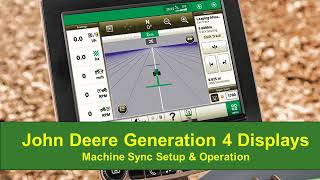
Nathan from John Deere Customer Product Support walks through setting up Machine Sync on Generation 4 displays. The video covers hardware requirements, software updates, and configuration settings you need to get the feature working on your equipment.
Hi everyone, it's Nathan from John Deere Customer Product Support. Today I am going to show you how to set up and optimize the use of Machine Sync on a John Deere Generation 4 display. Machine sync is a product that allows for automated unloading on the go between a harvester or leader and a tractor towing a cart or a follower. Both the leader and follower have a list of required hardware in addition to required activations to operate Machine Sync. Ensure that software on all displays, receivers and MTGs are up to date. 23 or newer is required on all Generation 4 displays to take full advantage of Machine Sync features that will be discussed in this video. In addition to the required hardware and activations, all leader machines must install the supplemental MTG Antenna Kit. In the case of harvesting with a machine other than a combine, all follower machines will also be required to install the supplemental MTG Antenna Kit. In order to take full advantage of Machine Sync features, the use and setup of in field data sharing is highly recommended. When sharing is set up correctly, the operators can take advantage of typical sharing features such as coverage, map sharing, Operator Name on map, and guidance line sharing. In addition to these features, there are certain Machine Sync features that require the use of sharing to work, such as Wireless Network, Password Sharing, Bin fill level unloading, augur status icons, and the ability for the machines in a Multi leader or Multi follower operation to automatically select which network a follower is connected to. To get all machines in the same workgroup, all machines will have to have sharing turned on and have the same operation type. To set up the operation type for your tractor machines, they will need to have a virtual implement defined. You can do this through work setup. After all the appropriate hardware is installed and sharing is set up, the user may want to further adjust their settings to optimize their Machine Sync performance. One way to adjust the sensitivity of the follower's ability to match the speed and direction of the follower is to adjust the Auto Track setting line sensitivity heading. We recommend setting this value to 50 to reduce essing in IVT and PST equipped tractors. Another way to adjust the follower speed sensitivity is through the Machine Sync application. Navigate to the follower settings in the app to adjust the value up or down. It is recommended for 6 to 8 series PST equipped tractors to adjust their value to 1 to reduce speed surging with the 23 update based on your operation, there may be additional settings you need to adjust prior to using Machine Sync. After setting up your equipment in Equipment Manager, if the default settings are not what you desire, the user can Adjust the type of operational zone and size of the U shape operational zone as well as define how many home points they want to be able to set in the follower settings. The user also has the ability to turn on or off the option for nudges to save after disconnecting from the leader, and the ability to turn on or off Controlled Traffic Mode Once all Machine sync requirements are met and the follower is in the operational zone, the follower is able to select autotrack Resume to acquire a home point. A home point can be set by either the leader or follower at any point in time that the follower is in the operational zone. To acquire to the set home point quickly and avoid seeing increase Set speed messages, it is recommended to run full throttle and set the maximum set speed on the follower to approximately double the expected harvest speed or able to. When using up to three home points, both the leader and follower have the ability to engage the follower to a new home point. Simply select the Engage button and then select the home point you desire the follower to move to. Both the leader and follower also have the ability to nudge the home point in line and laterally. The nudge increments can be adjusted in settings. Also in settings, the user is able to decide whether or not they want nudges to save to a new home point at that location. Once the follower leaves the operational zone or have the home point go back to its original position. When in Controlled Traffic mode, it's important to understand that the follower will not stray from the guidance line unless the operator manually grabs the steering wheel. This means that if a home point is set not on the guidance line, the follower will acquire to the home point until it is parallel, but it will never reach it. The operator can also not nudge the follower off the guidance line in order to track on an actual home point while remaining on the guidance line, a new home point can be set once guidance lines are set up. When disengaging Machine Sync, by manually turning the steering wheel, the tractor will override the set speed to the last known tracking speed. This requires the operator to manually adjust the set speed for transportation across the field to reduce the need for frequent adjustments to set speed. Machine sync can also be disengaged through the following In a PST tractor, bump the shift lever up or down or select Set Speed 1 or Set Speed 2 buttons to disengage Machine sync in an IVT tractor, manually move the speed control lever from the full F1 position to F2 or use set Speed Adjuster to increase the set speed thanks for watching.