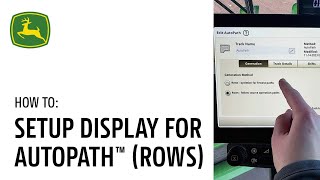
Step-by-step guide to configuring your CAB display for AutoPath on John Deere equipment. Learn how to enable autopath recording, run calibrations, and set up autopath lines for secondary operations like spraying or fertilizing.
In this video we will demonstrate how to perform in CAB Display setup for Autopath rohs Prior to setting up Autopath on your display, you will need to install a sarfire receiver on your Implement measure and enter all machine and implement dimensions and perform an advanced TCM calibration. Let's prepare to record your autopath lines during a source operation. To enable autopath recording for your source operation, click Menu Applications and scroll to Work Setup. Within Work Setup, click the Advanced Settings button and click Settings. Now click Enable Autopath Recording Status Exit out of the window in the Work Setup page, you will now see the Autopath recording section. If the light is green, the autopath lines will generate when you start documenting work. If the light is red, click the light to see what still needs set up before autopath lines can be generated. Click on the arrow button for items that need attention. They will take you to the appropriate page and input the necessary information. The first four items on this list need a green check mark next to them for autopath lines to generate. However, the attention icon next to the Verify implement, fore, aft and height may remain on even after inputting those values as long as the light is green. Autopath lines will generate as you work. Once you finish your work, the documentation data needs sent to Operations center for processing before your autopath lines can be used for secondary operation guidance. It is now time to use your autopath lines. Later in the season to use autopath guidance for a secondary pass, you will need to create a work plan in Operations center and send it to the machine. Autopath lines will automatically be included in the work plan for each field if they are available. As you pull into the field, your work plan will automatically populate your guidance tracks. To select Autopath for your guidance, click Menu Applications Auto Track Guidance, click Set Track, Click on Autopath, then click OK to edit your autopath track. Click Set Track and click the pencil that is next to Autopath. Click Generation and you can either select from Optimizing for the fewest pass or following your source operation path. Click ok. Now you're able to engage Auto Track like normal to use your autopath lines. You are now ready to use Autopath from roes. For further assistance, refer to the John Deere Precision AG User Guide or contact your local John Deere dealer.