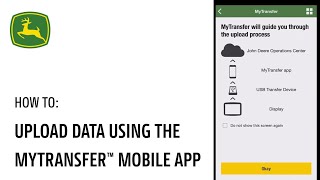
Walk through uploading farm data to John Deere Operations Center using the MyTransfer mobile app. The video covers version 4.0 features, USB flash drive transfers for both iOS and Android, and the export process step by step.
The May release of Mitransfer app version 4.0 will now give users expanded options to transfer their data to and from their display or to and from operations center. The My Transfer app will now support the use of USB flash drive to transfer data. Users with an iOS device now have the ability to use a SanDisk IXPAND with a Lightning connector to transfer data. Android users now have the ability to use a generic USB flash drive to transfer data as well. This how to video shows the export process with the SanDisk USB flash drive and the Gen 44600 display SA. Once the data is exported from the display to the USB flash drive, the customer can disconnect from the display and then connect their USB flash drive to their phone. Please ensure their flash drive has the proper connection to their phone to transfer data. Customers will then need to upload the Data to the MyTransfer app before uploading to the operations center. The next video will demonstrate the MyTransfer experience for the customer when uploading data to the MyTransfer app and then uploading to the Operations Center SA. We hope you enjoyed the updates and expanded functionality of the mitransfer version 4.0. As a reminder, those customers with mobile data transfer devices will still be able to use these along with the MyTransfer app to transfer data. Thank you.