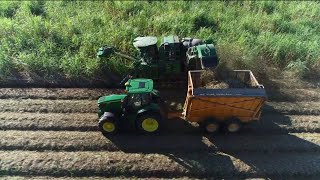
This is a YouTube video titled "How To Use Harvest Monitor™ | John Deere Sugar Cane Harvesters" created on May 26, 2022. The content is an instructional presentation detailing the features, setup, calibration, and operation of the John Deere Ch570 sugarcane harvester's SmartClean Harvest Monitor system. It explains how the system uses sensors and GPS to measure crop yield and other metrics to improve farming efficiency. The video provides step-by-step guidance on configuring the system, performing calibrations, and maintaining the equipment for optimal performance. The content is technical and focused on agricultural machinery operation and data-driven farming practices.
The John Deere Ch570, the global market leader in sugarcane harvesters, provides better returns for your operation by increasing the total tonnage and quality of cane delivered from your field throughout the entire crop life cycle at a reduced cost. Along with its benchmark productivity, Ch570 stands alone on the front line of harvester technology, pairing systems automation with analytics to give our customers the most comprehensive value driven harvesting solution available in the world today. Let's explore some of the technology by taking a closer look at harvest monitor with SmartClean harvest monitor with SmartClean is a John Deere exclusive system that gives sugarcane producers the tools to make data driven farming decisions. Harvest Monitor can measure crop yield, leaf trash, fuel pour rate and other valuable metrics that can be used to improve farming operation efficiency and reduce costs. Harvest Monitor uses all weather non contact sensors and cameras to measure yield and trash data in real time, while Starfire GPS georeferences data to specific locations in the field. Operators can use this information to make on the fly adjustments in the cab and plan using interactive maps in the operations center@myjohndeer.com let's take a closer look at how the system works. Note that as options and software versions may differ between machines, the system consists of the following key components the Greenstar 32630 display located in the cab on the Command Touch armrest console the optical sensor assembly and LED lights both located on the sensor mounting bracket on the elevator the elevator speed sensor located on the side of the elevator at the Idler sprocket the electronic control unit located behind a cover which is behind the chopper gearbox door. The system works by using a stereo camera to measure volume and calculate yield and elevator trash. The system must be properly set up to work efficiently and accurately. Begin by setting the row spacing in the sugar application to match the field. The next step is to set up the documentation client farm field and task. These only need to be set initially or in case of changes. These settings are used to section and sort data according to yield management needs. Next, multiple run pages can be configured to display information to the operator. Start by selecting the Layout Manager soft key from the Greenstar main menu. Select the recommended layout menu soft key G as an operating screen page for sugar operation and check include in the homepage collection. Select the red area at the top. Select Sugar Cane as the information source. Cycle forward to the control screen shown for SmartClean and select it by pressing on the screen area. Upon return to the Layout Manager. Select the green area. Choose Sugar Cane as the information source. Cycle through to the base cutter, target and pressure screen as shown and select it by pressing on the screen area. Set up the blue section with Save Load Totals. Select Green Star as the source of information and press Next page to display Load totals. Check Configure and then select Cain as the operation type from the drop down menu. On the Totals screen layout, Go to the space one drop down and check Billet loss. Add the remainder of the desired Smart Clean functions for display such as elevator, trash or residue estimate. Check the box to add load totals to the Run screen. Press Accept to save the selections. A summary of SmartClean data will be included in the Green Star Load Totals file. Press the Save Load soft key to save the data to file the SmartClean summary data can be reviewed to determine machine cleaning efficiency. This example of a run page shows SmartClean harvesting gauges and the Save Load button. The Save Load button writes additional summary data to a file as shown. Sensor calibration is required prior to initial use and if there is any change or impact to the elevator or camera, the machine must be stationary in a clear area. The elevator should be all the way up and swung completely to the left. With the engine at full throttle and primary harvesting functions off. Ensure auxiliary harvesting functions are enabled so the elevator can be operated. Run the elevator and start the calibration. Observe the progress gauge. When calibration is successful, it will update the page to show the latest calibration date and time. When performing yield calibration, it is recommended to post process or all yield data in order to simplify operations in the field and to properly scale the data. Harvest monitor records yield data in a way that can accurately be post calibrated to further refine real time input. Perform infield calibration as needed in field calibration should be performed at the beginning of the season when crop conditions change. Requirements for performing in field calibration include a method to weigh harvested cane such as a scale equipped weigh wagon, scale, semi truck or the mill scale. A harvest quantity of more than 5 tons is required for an accurate weight sample. The following steps demonstrate how to perform in field calibration. Start the calibration recording and begin harvesting. Harvest until the container to be weighed is full. Pause the calibration and resume normal harvest until the weight of the harvested calibration sample is available from the weigh wagon, scale, mill, etc. Enter the verified weight value into the display and press Accept to calculate before accepting the new calibration. Compare it to historical calibrations if available. Save the new calibration factor when harvesting, Watch the Harvest Monitor gauge to confirm the calibration is working as expected. Operating Harvest monitor involves a few simple steps. While harvesting, it is important to check system health daily. Confirm that the system has no errors when running. Note that the elevator engagement indicator will initially be yellow until the elevator is started. Review totals in the GS3 app daily and verify client farm field and task documentation settings as well as row spacing. Clean the camera lens daily. Spray water on the lens and lights to remove dirt, then wipe dry with a clean cloth. Keep the elevator camera view clear of obstructions. Press the Save Load button to write a new line to the load totals file. Each line will summarize the data since the last button press. Often used after every row, load field or day. The load totals file provides summary agronomic data in a user accessible file format similar to Harvest Activity Monitor data. Use interactive and multi layer maps and analysis tools through John Deere Operations center to identify areas for improvement, develop long term strategies and develop prescription application strategies.