
How To Use The SmartClean™ System | John Deere Sugar Cane Harvesters
Step-by-step guide to operating the SmartClean system on John Deere sugarcane harvesters. Learn how to navigate display menus, adjust fan speeds, manage cleaning modes, and read system diagnostics to optimize harvesting performance.
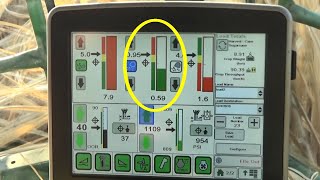
From the greenstar Display main menu, press the application soft key to display the Sugarcane Harvester home page. On the home page, press the Sugarcane Harvester icon one more time. To move to the second sugar cane home screen, press the primary Extractor fan icon. Opening the Extractor Fan setup screen System controls and function status indicators are displayed for the extractor fan. Checking the auto checkbox in the upper left corner of the screen will activate the SmartClean system. The fan speed scale in the upper portion of the screen is a green bar that expands progressively to the right as the fan speed increases, indicating the current fan speed. Fan speed increase and decrease arrow buttons below the speed scale adjust the fan speed. The lower section of the Extractor fan setup screen includes operating Mode one and Mode two checkboxes and a fan RPM set point box. The the Smart Power modes are designed to reduce power requirements during periods when no cane is being harvested, such as during headland turns. The fan speed will be reduced to the speed indicated in the RPM set point box. The Smart Power fan speed can be adjusted using up and down arrows that appear when pressing the Fan speed cell. When the Mode 1 checkbox is checked, Fan speed reduction will occur when the elevator is not operating or no crop is detected in the elevator. When checking the Mode 2 checkbox, fan speed reduction will occur when crop is not present and being processed by the chopper. In the upper section of the extractor setup screen, the upper and lower fan speed soft keys are used to adjust the range of fan speed from lowest to highest allowed speeds. Press the Lower speed soft key to display plus and minus buttons to adjust the lower fan speed limit on the fan speed scale indicated by the right end of the gray band on the left end of the speed scale. Press the Upper speed soft key to display plus and minus buttons to adjust the highest fan speed limit on the fan speed scale. When adjusting the upper and lower speed settings, limits cannot override the current fan speed setting by making adjustments past the current setting. For example, the lower limit setting cannot be adjusted higher than the current set point and the higher limit setting cannot be adjusted lower than the current set point. If the specific fan speed ranges are set, then both manual and automatic modes are restricted. To run between the lower and upper ranges. Press menu box E to advance to the second primary extractor setup page displaying setup controls for elevator trash cane loss and residue estimate values. An enable checkbox above each of the settings must be checked to activate that mode and allow adjustment of target settings. The up and down arrows are then used to adjust the range and target for the maximum detected and allowable level of elevator trash. The up and down arrows are then used to adjust the range and target for the maximum detected and allowable level of cane billets discharged from the primary extractor fan. The residue estimate mode reflects the amount of extracted debris that is returned to the field surface. The up and down arrows are then used to adjust the range and target for the minimum allowable level of crop residue that is discharged by the primary extractor fan. SmartClean will increase the extractor fan speed in an attempt to reach the elevator trash targets. The result is an increased level of debris removal and a cleaner cane harvest sample. Increasing the speed of the extractor fan, while effective in removing debris, can also result in cane billet loss. Therefore, the effects of reaching cane loss targets can often reduce the fan speed and reduce cleaning. When multiple control modes are activated, the cane loss mode will take precedence and override other settings to avoid cane loss. The offset of preventing cane loss is slightly more debris and residue in the harvested cane. The steady blue icon will indicate which mode is currently controlling fan speed during operation. The colored gauges next to each target setting adjustment will have green gauge bars to indicate when the system is achieving or performing better than targets. If the measured value falls outside of the target range, the gauge bar will change from green to red in color. Understanding the interactions between the fan speed control modes is important in helping the operator determine adjustments in reaction to different operating conditions. The objective to achieve optimal cleaning performance while avoiding cane loss is for all of the performance gauges to be operating within target ranges with green gauge bars. Some examples will illustrate how operation may be modified to return a control value back to meeting targets. If elevator trash maintains a persistent red gauge, the operator may opt to accept an elevator trash level greater than the current target and continue to operate outside the target. The trash target could be increased to allow more elevator trash and return to the green range or ground speed could be decreased until the current trash target is met. If the cane loss mode is controlling fan speed, the cane loss target can be increased which will increase fan speed and decrease elevator trash. However, this approach will likely result in an increase in cane loss. The cane loss target can remain at the higher setting with a corresponding reduction of ground speed until loss targets are met. If the system does not seem to be able to remove as much trash as previously demonstrated or expected, this indicates other effectors should be considered. Some known influencers of cleaning fan versus fan speed are cane variety, diameter, leaf condition, throughput such as tons per hour, fan blades, chopper blades, and chopper timing should be investigated. If difficulty is experienced in attaining the level of performance of the SmartClean system due to sensing or fan speed control issues, onboard diagnostics are available. Press the Diagnostics button in the right hand menu column. System diagnostic readings can be displayed and checked to confirm operating values are within correct system parameters. Refer to the operator's manual and SmartClean diagnostics for further information and procedures. Contact your John Deere dealer as necessary for assistance. Creating a Load totals file in the GreenStar system will allow the operator to capture SmartClean operating performance. Start by selecting the Layout Manager soft key from the greenstar main menu. Select the recommended Layout menu soft key G as an operating screen page for sugar operation and check include in the homepage collection. Select the red area at the top. Select Sugarcane as the information source. Cycle forward to the control screen shown for SmartClean, and select it by pressing on the screen area. Upon return to the Layout Manager, select the green area. Choose Sugar Cane as the information source. Cycle through to the base cutter, target and pressure screen as shown, and select it by pressing on the screen area. Set up the blue section with save load totals as shown in the Harvest Monitor video and press Accept. This layout allows a floating crop divider and contour base cutter operating page in one Horizontal Cell and SmartClean in the other horizontal cell harvest monitor data is displayed in the vertical cell on the right side of the layout. This video has been provided as a supplement to the Machine Operators Manual. The objective has been to provide sugarcane harvester operators with the information necessary to set up and operate the SmartClean system. SmartClean is yet another tool available to producers who have come to expect the ultimate in productivity from harvesting equipment. By John Deere.
More from Francisco




Desh Ke Superhero | Mr. Madhava Rao | Faster Pole Installation with GreenSystem™ Post Hole Digger



En CasaToro John Deere encuentras el respaldo que necesitas para mantener tu maquinaria lista



