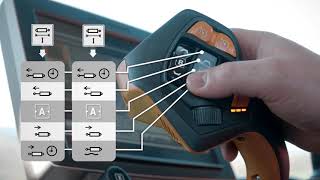
Sam walks through the CommandPRO Settings Manager, showing how to assign functions to tractor controls, save user profiles for different implements, and switch between setups without reprogramming the machine each time.
This video will explain how to assign functions to reconfigurable controls and how to manage these settings. Different operators want to have the tractor controls and settings their way. Some operators like to have the control set up differently for different implements. In this video we want to show you how you can save settings and control setup under a profile and how to load user and implement profiles. Clicking this Quick Access button you will access the Controls Assignment screen. On the left part of the screen you can see the three elements you can reconfigure, namely Command Pro, E, Joystick, paddle, pods and ITech buttons. Specifically, on Command Pro you 11 functions that can be freely configured. If you work with an implement where you need to switch autotrack on and off regularly, for example a slurry tanker, you can save the auto track engage functions on a switch you can easily reach with your thumb on the joystick. Additionally, you can for example configure SCV1 and 2. While extend always offers the time detent, you can choose whether you want to have time or float on the retract detent. You may want to store your settings to recall them later. Click on the Save button and then on Save Current Settings, select Create New Config. A pop up screen will ask you which elements you want to save under this profile. As you can see, it is not only Command Pro settings that can be saved, but also the display settings related to the functions in the list. Click on Save to make your controls work. Press the Custom button on the lower left corner. The green LED at each control indicates that the control is ready to be used. If the LED is not green, although you hit Custom, check whether your control is locked through the Lock button on the Command arm. By the way, the Lock button can be used to lock functions in order to prevent inadvertent actuation. For example on the road As I now want to work with my loading wagon, I'm going to upload the settings for this implement which I prepared earlier. Let's see how on starting the tractor you'll see this screen. Here you just need to press the Save Load function and select the profile you want to load from the list. You can also modify settings of an existing profile. To activate the loaded configuration, press the Custom button on the lower left. I hope you enjoyed the video. Do you have questions or proposals for further tutorial videos? Then leave a comment in the comment box and we'll try to make it happen. Sam.