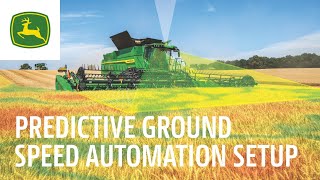
John Deere's predictive ground speed automation uses satellite yield maps and forward-facing cameras to adjust harvester speed and engine load in real time. The system reads the field ahead and slows down before heavy crop areas to prevent overload.
Once your combine has received a work plan with satellite views, we can now add our predictive yield map overlay to the map on the display show. Shortly after harvesting has begun to add that layer, we'll select the map on the display, add layers and add the predictive yield map. This will take about two to 15 minutes to populate as it correlates scaling to actual yield values. Once the map populates, here's what we'll see Predictive groundspeed automation utilizes these predictive yield maps to adjust speed based on how much biomass should be present. Another input for predictive ground speed automation is the forward cameras mounted to the front of the cab. As we can see here on the display, the cameras look out in front of the header recognizing different heights of the crop looking for downcrop, short or tall crop. With both the predictive yield map generated by satellite views and and forward cameras being inputs into predictive ground speed automation, the system can still function with input faulted. In cases where one of the inputs may fault out, such as in a very dusty environment obstructing the cameras, predictive ground speed will still run off of the other input. In this example, the predictive yield map. Note that typically only regular startup cleanings are necessary as supported from infield testing. When running with predictive ground speed automation, you can now set your max engine load limit to 105%. This is only available in the predictive ground speed and keep in mind that at this level you will be operating in the power bulge, so when unloading or adding anything else to the engine load, the machine may slow down. The max ground speed is the fastest ground speed you permit the automation to perform if there are no other limitations. From the default run page we can see when the speed is changing via the Harvest automation module. When speed is changing, the number will show in blueprint with an icon next to it displaying the reason for that change. Here, for example, the icon is indicating a speed change due to pitch or slope of the field. The shortcut key at the bottom of the display is handy to understand the status of ground speed automation blue meaning engaged and can be selected to quickly navigate into user preferences and more detailed diagnostics of the inputs.