Build Your First Research AI Agent in 12 mins (No Code)
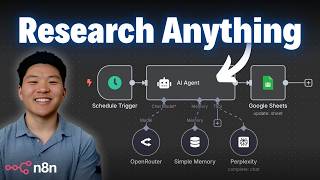
Dr. Violet Howard builds a research AI agent in n8n using OpenRouter for the brain and Perplexity for web search, no coding required. She walks through configuring API keys, testing a sleep optimization query that returns citations, then automates it with Google Sheets to research competitors daily.
Chapters
By the end of this video, you'll have built your very own research AI agent without writing a single line of code. And I think you guys will be shocked at how simple it is to set up. I'm going to walk through the entire process with you guys step by step, all of the connections, all the credentials, all the tough stuff like that. I even went ahead and spun up a completely new Enadyn account so I can do every single thing that you guys will do if you just got into Enadyn. So if that sounds good to you, let's get started. So before we hop into Enadyn and start building, I just wanted to real quick zoom out and tell you guys at a high level what we're doing today. So there are two services that we're going to have to access. The first one is OpenRouter. The second one is Perplexity. OpenRouter lets us connect to different AI models. So this is going to serve as the brain for our research agent. And then we're also going to connect to a tool called Perplexity, which is kind of like a ChatGPT research tool on steroids. So this is what's going to give our agent access to searching the internet in real time. So there's the brain for the AI agent. There's the tool the AI agent's going to use. And now how are we going to communicate with the AI agent? In today's example, we are just going to send it a message via chat, and then it will basically do its research, use its brain, and then it will respond to us with some sort of research report. So that's how today's flow's gonna work. But the cool thing is the trigger and the output don't have to be like this. Once we have built this agent, we could hook it up to whatever process we want. So maybe a new lead comes in and we wanna research the lead, or maybe every day we have a list of 10 competitors and we wanna research what they're doing. There's so many different ways that we can bake in a research agent into different flows. Okay, so now that that's outta the way, let's go into our N8N. Let's open up a new workflow and let's get started with our research agent. Okay, so what I'm gonna do is go ahead and click on this button in the middle that says Add First Step. And like I said, we just wanna chat with our agent. So I'm gonna choose down here on chat message. Now that we have our chat message set up in here, we could go ahead and open chat. And this is where we can go ahead and type and talk to our AI agent and it will get our message. So the next step is we're going to click on this plus after that chat trigger, and I'm going to type in AI agent and pull one of these guys in here. and now we're gonna go and connect that first thing that I talked about, which is OpenRouter, in order to give our AI agent a brain. So right here, chat model, I'm gonna click on the plus, and at the bottom over here, I'm gonna choose OpenRouter chat model. Once I open this up, you can see that it prompts us to connect a credential, and we currently don't have one. And if I click on create new credential, it asks us for an API key. An API key is basically just a fancy word for password. So what I'm gonna do is open up a new tab. I'm gonna type in OpenRouter. And we are going to go to OpenRouter.ai. You probably don't have an account set up, so if you don't, go ahead and sign up. And then what we're going to do is go over to our profile and we're going to go to keys. So all I have to do now is click on create API key. I can name this one, you know, whatever you want. I'm just going to call this research agent. And now I'm going to click on create. So this gives us our unique ID or a password, and we're going to copy this. And you want to store this somewhere else because it's not going to show it again. And now that I've copied this key, I can go back into N8N and I can paste it in right here. Once we've dropped that in, I'm going to hit save and we should go green, connect Connection tested successfully. So now we are able to have our N8N AI agent talking to OpenRouter and using that brain based on the chat model that we choose. But real quick, let's hop back into OpenRouter so I can just explain something. First of all, if you go up here to your credits, this is basically how much money you have in your OpenRouter account. And if you don't have credits in there, you're not going to be able to use this AI model as a brain. And then the second thing is you want to keep your API key secret because if someone else plugs in your API key, they're going to be able to eat up at your credits that you're paying for. So just keep that in mind. But now that we've connected to OpenRouter, I can choose from a ton of different chat models. As you can see, we have OpenAI's models, we have Perplexity models, we have Qwen, we have Anthropic, we have Google. There's tons of models in here. Right now I'm going to keep it at GPT-4.1 Mini, which is a really good balance of cheap but also powerful. So I'm just going to stick with that for now. Cool. So we have our brain set up. What we could do is just talk to our agent and we can see that it's going to use AI. So if I just open up chat real quick and I said, explain the rules of golf, when I send that off, it's going to be able to use an AI model in order to actually understand what I'm asking it and explain back the rules of golf. So here's what it answered with. I'm not going to read all of it, but it gave us an objective, which is to get the ball in the hole in as few strokes as possible. It's going to give us some basic rules, and then it goes into penalties and a summary. So anyways, we've validated that our AI brain is working. Now we need to add our research tool. So I'm going to click on this plus button right under tool, and I'm just going to search for Perplexity. I'm going to click on Perplexity tool right here. And once again, we have to go get a credential and get some sort of password. So I'll click on this, click on create new credential. And once again, it prompts us for an API key. So I'm going to open up a new tab and I'm going to go to perplexity.ai. And I already have an account set up. If you don't have one, you're going to want to go ahead and sign up for an account real quick. It's going to be very similar. You're going to go down to the bottom left into your settings. Now that I'm in my settings, I'm going to go on this left-hand side down to API keys. And here you can see I already have a key, but what you're going to do is click on create key, and now it's just going to pop up a new one. So just keep in mind, every service you're going to use is probably just going to give you your API key a little bit differently, but it's generally going to be the same. So I'm going to go ahead and copy this key. I'm going to go into n8n, paste it in right here, and when I hit save, it should say connection tested successfully. Down here it says credential successfully created. And there we go, it says connection tested successfully. So we're set up to Perplexity as well. And same thing with Perplexity. When you're in here, you want to go to your API billing and you're going to have to have some sort of credit balance in here. Otherwise it's not going to be able to actually search the web. So now that we have Perplexity connected, we have a few things to choose from. So first of all, we have a model and you can see we have R1, we have Sonar, Sonar Deep Research, Sonar Pro, Sonar Reasoning, Sonar Reasoning Pro. So these are just different Perplexity models that affect the, you know, basically the depth and the quality of the research that we're going to do. Based on which one we choose. They're also all going to be a little bit different with their pricing. Okay, so I went to Google and I searched Perplexity API documentation, and I'm going to click on this first link right here. Now all I have to do is come up here and click on models, and this is going to show us those different models that we just saw in NNN. So we can see if we want to do some basic search, we can use these search models, which are Sonar Pro or Sonar. If we want to do some research, we can use Sonar Deep Research. And if we want to do reasoning, we can do Sonar Reasoning Pro or Sonar Reasoning. Based on the use case, you'll kind of come in here and you'll choose which type of, you know, model you want to use. Let's say for now we want to do some in-depth analysis and let's do Sonar Deep Research. So I would just come back and end it in and I would choose Sonar Deep Research. And now I'm just going to set up a user message, which is basically just, you know, if we were searching and doing research right now, what would we type into Google? And what's really cool about this is the AI agent is going to be smart enough to know what it would type in. So all I have to do is click on this button right here, which says let the model define this parameter. I can click on that, and now the AI agent is gonna automatically fill this in right here based on the way we interact with it. I'm not gonna go too in depth of what all these mean. If you wanna see a video about that, check that out right here. But at the bottom, you can see that we can do like a search recency filter. So we could say, hey, I only wanna look at stuff from today or from the past hour. So you can get really customized with these results. And you could also, if you wanted to, look for only certain domains. So you could put in the domains that you wanna research. And make sure you know exactly where your information's coming from. But anyways, I'm gonna get rid of these two options for now, and we're just gonna go ahead and try off a search. So I'm gonna hit save, and then I'm gonna ask it a question. And before we send off this query, I just wanted to call out one more thing, which is the fact that our AI agent does not have a system message. The system message by default is, you are a helpful assistant. Typically when you have an AI agent in NNN, you want to give it specific instructions on, you know, you're an expert research agent, you have this tool to do research, you're going to do all this. And right now I just wanna show you guys how quick and easy it is to set up an agent and how smart it is by default without even prompting it. So once we did system prompt it, it would get much, much smarter. So I'm gonna send off this very broad question where I said, how can I optimize my sleep? We're gonna see that it's smart enough to use Perplexity right now. It's doing its deep research using Sonar deep research, and I'll check back in with you guys when we get that report about how to optimize sleep. All right, so that just finished up. And keep in mind, if you're doing deep research, it's going to take a little longer than if you do more of a basic web search. But as you can see, we basically have this full report right here where it's telling us things like temperature, or, you know, what you can do before bed in order to maintain a consistent sleep schedule, different relaxation routines, diet, exercise, all this kind of stuff. And if we click into the Perplexity tool, we can basically see all of the different sources that it used. So you can see here, it searched through 20 sources. And yes, I know it says 19, but computers start counting at 0, so that's 20 sources. And because we can see that it used these 20 sources to give us this report, we could system prompt the AI agent and say, always give me citations of every single fact where you found it from. So hopefully you can see how much quicker this is going to allow you to do research. So anyways, that's super cool. I want to show you guys a different example of maybe something you could do if you don't want to just have research by talking to this AI agent every time. All right, so what I'm going to do is get rid of this chat message trigger. I'm going to add a Google Sheet, and I'm not going to go over the Google Sheet credentials right now. If you want to see a video, I'll tag that right up here. This example, I just want to set up real quick to show you guys the power of how you can use this research agent once you've set it up. So I'm going to connect to my sheet real quick, which is basically this sheet of competitors. So we've got Apple, Nvidia, Google, and Amazon. And every day this can go off and it can do research about what they're up to in the past week or something like that. So what you could even do is switch out this manual trigger for a scheduled trigger. So that this could run every single day at midnight, and then you'll wake up to fresh insights and research about your competitors. So I pulled in my 4 competitors. As you can see on the right-hand side, we have the 4, and then all I have to do is make sure the agent can actually look at them because the agent right now was just set up to look at the connected chat trigger node, which no longer exists. So I would change this user message to define below, and all I'd have to do is drag in the competitor from that left-hand side into this user message right here. So now it will be looking at Apple. And here's where we can add a system message. And this is a really concise example just to show you guys. I said, you are an expert research agent. You will be given the name of a competitor, which is up here, the user message, and you will use your Perplexity tool to do the research about them and summarize what they've been up to so that we can stay ahead of them. So what I can do is go ahead and hit execute step. This is going to do research about all 4 competitors, not just one of them. So it's gonna do Apple, Google, Amazon, and Nvidia. And then once we get that research report back, we will be able to write it back to that Google Sheet. Okay, so that just finished up and now we have deep research done on our 4 competitors. So if I click into the AI agent, let's move this thing over to the side a little bit. You can see here is our research about Apple. Here's our research about Nvidia. Here's the research about Google. And then here is Amazon. Now all I'd have to do is add another node to write that all back into our Google Sheet. And I can just do this by dragging the output of the AI agent into the new column called Findings. And if I hit run on this node, it's gonna write it all back into our Google Sheets and we'll go take a look over there. So here's the sheet that we pulled from. We have Apple with the findings about Apple, NVIDIA with the findings about NVIDIA, and so on for Google and Amazon. So I know I went through this example quick, but I just wanted to show you the power of being able to every single day, you know, you could research 10 companies, 10 different tools, whatever it is. You can do deep research, you can do quick research, you can do whatever you want with Perplexity. And the agent will then process all the data that it got from Perplexity. And it could even cite and show you all the sources where it got its information from. So it's more than just being able to send the agent a text message and have it do research for you, because realistically, you could just go Google something yourself. It's about writing in-depth research reports where you prompt it on, here's the structure I want, I want all the sources at the bottom. It's about baking in a research agent like this into a different process that already exists, like something in your sales pipeline or something in your, you know, marketing pipeline. So if you're interested in learning about different use cases and how you can actually get a process from your mind onto an N8N canvas like this, then definitely check out my community. The link for that is down in the description. The goal of this community is to take you from a complete beginner to building your first AI automation for you or for your business or for another business. We've got a great community of members here who are automating things every day with N8N, sharing their resources, sharing their problems, sharing their solutions. And it's really cool because everyone is as obsessed with AI automation as you probably are. We've also got two full courses. The first one is Agent Zero, which is the foundations of automation. So if you are a complete beginner, you can start here, and then you'll move into 10 Hours to 10 Seconds where you learn how to identify, design, and build time-saving automations. We've also got step-by-step builds, end-to-end templates, and live calls. So if you can't make them live, you can also watch the recordings and make sure you're always staying up to date. Anyways, I'd love to see you guys in this community. It's a really fun environment, but that is gonna do it for this video. If you guys enjoyed and learned something new, please give it a like. It definitely helps me out a ton. And if you enjoyed this style of teaching, then definitely hit that subscribe button. I appreciate you guys as always making it to the end of the video, and I'll see you on the next one. Thanks so much.










