How I 100% Automated Long Form Content with n8n (free template)
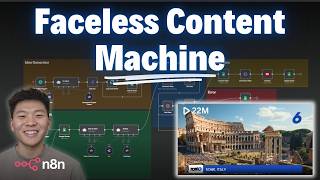
Dr. Violet Howard demonstrates a fully automated n8n workflow that transforms Google Sheet ideas into complete YouTube videos using AI. The system generates scripts with GPT-4o, creates images with Flux, adds voiceovers via ElevenLabs, and publishes to YouTube automatically. A free template is available through FreeSchool.
Chapters
Okay, so I'm going to go ahead and hit test workflow, and we're going to see that we're hitting a Google Sheet with our ideas, and now we're hitting an intro and outro agent. So this one's basically creating an introduction and an outro, and then we're going to hit a ranker agent that's actually going to be taking the initial idea and it's going to be creating that top 10 ranking list as well as the image prompts for the video. So what's really cool is we're going to be using an API right here called JSON2Video, and if you notice in this workflow, we're not hitting any sort of other third-party API to turn our text into images. We're just hitting JSON to Video in order to turn our text into images and also render everything together with a voiceover and everything like that. So I'll dive into what that looks like, and this basically takes a few minutes to render. So while we're waiting for that, let's head over to the channel I just spun up and take a look at a previous example. So here's my new YouTube channel, Top 10 Rankings, and here we have Top 10 Cities in Europe. So let's take a look.
Welcome to our thrilling top 10 countdown of the most incredible cities in Europe. From historic wonders to modern marvels, get ready to explore the unique charms that make these destinations must-visits. Whether you're a history buff or a culture enthusiast, this list has something for everyone. Starting off our list at number 10, it's the scenic city of Ljubljana in Slovenia. Known for its picturesque architecture and green spaces, Ljubljana is a hidden gem that offers a cozy, inviting atmosphere. Coming in at number 9, we have the vibrant city of Lisbon in Portugal.
So you get the idea, right? Let's, let's skip ahead to number 7 is Vienna, Austria. Number 6 is Italy. This is a really cool picture.
Rome offers a journey through centuries of—
and obviously all of the images are AI generated. Number 5, we have Amsterdam. Number 4, we have Barcelona. Paris comes in at number 3, Zurich is coming in at number 2, and number 1 is London. So as you can see, they all have different images, they all have relevant voiceovers, and then they all have a little blurb at the bottom of what the city actually is. And then I'll just show the outro real quick.
And there you have it, the top 10 European cities that delight and inspire travelers worldwide. What was your favorite city on the list? Let us know in the comments. Thanks for joining us on this journey through Europe.
Cool, so that video definitely earned a like from me. Anyways, back in the workflow, you can see it's finished, it's generated, it has been downloaded, and now it's publishing to YouTube. And then we'll go ahead and check the actual Google Sheet where our ideas are coming from. So there we go, workflow just finished up. And let's hop into our Google Sheet where you can see this is the first one we just looked at with cities in Europe. And now we have classic movie characters, which has been created. It has been published as unlisted and we have a video URL. So let's head over to YouTube and make sure it's there. So here's my channel. We can see that this video is being uploaded. If I click into it, we can see we already have a title and a description. And I'm going to click on the YouTube link so we can view it. Classic movie characters.
Welcome to our captivating countdown of the top 10 classic movie characters. From iconic heroes to unforgettable villains, these characters have transcended time and left an indelible mark on cinema history. Get ready to relive the magic as we unveil the legends who have shaped the silver screen. At number 10, we have the unforgettable Marty McFly from Back to the Future. This time-traveling teenager captures our hearts with his adventurous spirit and clever problem-solving skills, making him a beloved—
okay, I'm gonna go ahead and just skim through to see the other rankings.
At number 5, we have Indiana Jones, the adventurous archaeologist from the Indiana Jones series. Number 3 is Dorothy Gale from The Wizard of Oz.
Cool. And of course, who do we have at number 1?
Topping our list at number 1 is none other than Forrest Gump from Forrest Gump. His endearing simplicity and profound impact on the lives of those around him make him an unforgettable icon of cinema. And there we have it, the most unforgettable classic movie characters that have captivated audiences for generations.
So as you can see, we have a different intro video, we have a different outro video, we have every single you know, actual ranking has a picture, and then we have our titles at the bottom. Okay, so now that we've seen a live demo, we're gonna hop into sort of analyzing this workflow and seeing what's going on within each node. But I wanted to mention, if you wanna download this workflow for free, as well as this Google Sheets template that you're gonna need, you can get it all for free by joining my FreeSchool community. So the link for that will be down in the description. All you gotta do is join the community. You'll come in here and search for YouTube resources, and then you'll click on the post associated with this video, and then you'll have the JSON to download right here, as well as the Google Sheet template. And then it's just a matter of importing that JSON file into your n8n, hooking up your Google Sheet template, and then plugging in your different credentials for, you know, OpenRouter or for JSON to Video. And then of course your own YouTube channel. Okay, cool. So before we actually start digging into this workflow, I just wanted to talk about this Google Sheet and what it's doing. So the idea here is that it's pulling in a subject, and it's only going to do that if the creation status is set to "to do" because we don't want to do that for created videos already. So then obviously it's just going to use this subject to create the intro, the outro, the rankings, and all of the image prompts we need. So what I'm going to do real quick is show you guys the idea generator so you can see that this system can really be completely hands-off. I'm just going to duplicate this tab so we can run this idea generation thing up here. I'm just going to move the manual trigger up here so we can trigger this bad boy. I'm going to get rid of the to-do right here. And what this is going to do is it's going to basically create 10 new rows in here. So it's gonna create 10, and then it's gonna loop through and add them to the sheet. So as you can see, there goes the first one, there goes the second one. If we come into here, we can see that they're being populated as we speak. So we've got cities in the US, iconic movie quotes, breakfast meals, famous landmarks, classic literature, and they're filling in with to-do. So now the second part of this workflow can actually pick these up as subjects. Okay, cool. So now that that's out of the way, let's start to dive into what's going on in Obviously right now we're doing a manual trigger, but what you could do is have both of these be scheduled. So every day, you know, we're going to create 10 new records, and then every day we're going to run this thing 10 times, something like that. So the first node that's going on here is we're accessing our Google Sheet. So obviously we're connecting the document name, which is Top 10 Videos. In your case, make sure that you have this linked to the correct sheet. Then we're pulling from Sheet 1. It's the only sheet on the template. And then what we're doing is we're creating a filter. So we only want to look for videos if the creation status column is set to to-do, as we talked about earlier. So there may be more than just one that is set to to-do. In this case, we have 10. And so what you have to do is just add an option down here that says return only the first matching row. And then you can see over here, we're only gonna get one row, which in this case was classic movie characters. So from there, we're moving on to an intro and outro agent. What we're doing here is every agent has a user message and a system message. The user message is a bit more dynamic. It's like every time you're talking to ChatGPT, you're sending a user message. but behind the scenes in ChatGPT, it's got a system message that's trained it on how to act and what its job is. So in the user message, all we did was I said subject colon, and then I dragged in the subject from the Google Sheet row so it knows what subject to make this whole video about. And then in the actual system message, what I did, I'm not gonna read this entire thing, but keep in mind, if you download this template, you'll have access to the prompts. But I basically told it, you are a creative assistant that helps generate engaging content for top 10 ranking videos. On various topics. Your job is to take a subject and create two parts of the script, an intro and an outro, and each part should include a voiceover script as well as a corresponding visual image prompt. So as you can see here, we're telling it to output four things: an intro voiceover text, and then we define what that was in a quick example, an intro image prompt, an outro voiceover text, and an outro image prompt. So all of these things are lining up. And actually what I'll do is I'll throw all the prompts in this workflow into a PDF and I'll also put that in my FreeSchool community. So what's really important here is that we turned this button on that says require specific output format, because as you can see on this right-hand side, it's outputting 4 different fields super cleanly. We have our intro text, our intro image, our outro text, and our outro image. And we were able to do this because we used a specific output format, which is down here. It's a structured output parser, and basically we just gave it the 4 JSON fields that we want it to return. Otherwise, they would have all been lumped into one field called output, and it would have been tough to split them up to send them off to JSON2Video. Cool. So at this point, we have our intro and outro elements thanks to this agent. Now we're just moving on to a different agent to create the rankings. And the reason I didn't just lump this all into one agent is because that's a lot of responsibility for one agent. You want to see if you can sort of segment them out as much as possible just to get more consistent and high-quality results. So anyways, both of these agents, by the way, I have hooked up to OpenRouter, and they're both hooked up to GPT-4o, Whereas up here in the idea generation, I did OpenRouter and I hooked up the 4o Mini just because we don't need as much power to generate ideas compared to creating image prompts and dealing with making a top 10 ranking. As you can see, this one's outputting 10 different rankings, but for each of the rankings, it needs a text, an image prompt, and sort of a title. So let's dive into how this works. So for the user message, I did the exact same thing. I just gave it subject colon, and then I dragged in the subject from the Google Sheet. So it's looking at classic movie characters. So now let's take a look at the system prompt for this puppy. Open this up and we can see the overview is kind of similar. You are a creative assistant for a top 10 rankings video channel. Your task is to generate a full top 10 countdown for a given subject. Your output must include 10 ranked items starting from number 10 and counting down to number 1. So same thing, we laid out for each, you know, item, what do you need to output? The first thing is a voiceover text. So I gave it a little explanation as well as an example. Then we said obviously an image prompt that has to line up with the voiceover text. And then finally something called lower third text, which is just, you know, when number 8 pops up or, you know, number 1, Forrest Gump, it just has to say down there Forrest Gump. And then we just gave it some important rules like starting with the number 10, counting down to number 1, making sure that the voiceover text is concise, not anything longer than 2 to 3 sentences or the video is gonna be way too long. And then I said to use a variety of language so that each entry is kind of fresh and not repetitive. And then same thing, we had to require a specific output format. This one's a little bit more complex than the previous one, but not too bad. You know, I basically told ChatGPT, hey, this is what my agent's doing. Help me write a JSON structured output to give it and threw it in there. And now you can see every one of the entries are coming through the same. And so this is super helpful because now we have a really clean set of data to drag into our API call to JSON2Video. Okay, so now let's talk about this actual API call that we're making to JSON2Video. So this is JSON2Video. You can get in here and get your free API key to get started, and you can also use the link in the description. And as you can see, it's a video creation API that's going to boost your video automation. And what's really cool about it is that we're basically just going to send it all the information and it's going to compile that video together. So those of you guys that watched a previous video I made where I automated faceless shorts, as you can see right here, we had to turn our text into images. And then we had to turn those images into videos, and then we could finally render them all together. But what we're doing in this workflow is basically just sending in a ton of text, and it's going to take care of the image generation and also the narration. In this previous one, we had to use ElevenLabs to either create a narration or an audio and then stitch it all together with this API call. But in this video, JSON2Video is basically taking care of all of that, so it's super cool. So anyways, the first thing that you're going to do is you'll get your API key from JSON2Video, and then you set that up in here as a generic credential type, a header auth, and basically we're gonna put in your API key and you're gonna name this value right here x-api-key, and that's how you authenticate yourself with JSON the Video. And if you go ahead and save your credentials ahead or off, we can use this later without having to go back and grab our API key. So from there, we're passing over a body request, so make sure that you're doing a POST method. And when I open this up, it may look really intimidating, but we're gonna explain. It's It's not too bad. You just have to drag in some variables. So here's what this request looks like. The only reason it's so long is because we had to send over 10 rankings. But let's start from the top and work our way down. So obviously we're asking JSON2Video if it can stitch everything together for us in one video. And we're accessing a specific template, which in this case I put the template ID, and this is already predefined for top 10 ranking videos. So it makes our job really easy. And now we're basically just defining the variables that are going into this template. So the first thing that we need to define is what's the title of this video. That is what shows up right here, in this case, Classic Movie Characters. And so we just have to drag that from our Google Sheet that started this whole process right here. So I just dragged subject right into here within the quotes for the title of the video. And then we have a few things to configure for the actual narration. The first one is the voice model. In this case, we're using ElevenLabs. Then we have voice.connection_id, which is basically we're giving JSON to Video our API key for ElevenLabs so that we can access our credits. You don't have to configure your own connection. You could just use JSON to Video's connection, but then you're just going to get charged more credits for that. And so if you want to connect your own account, what you'll do is you'll come into JSON to Video, you'll go to Connections, you will create a new one if this one thing loads up. So this is my connection ID, I just named it my ElevenLabs connection. And so when you're adding this, this is where you'll give your ElevenLabs API key. And also, if you don't have an ElevenLabs account, you can sign up with the link down in the description. You'll make an account, you'll come down here, and then in your profile you can click on API keys, and then this is where you can create a new one and copy it over to JSON the Video. Okay, so because we've already set up our connection, I can just put it right there. So my ElevenLabs connection, and then the last thing we need to do is set up the actual voice ID. So when we're in ElevenLabs, we can go over here to the left-hand side and click on voices, and we have a ton of different voices to choose from. And what you'll notice is that each one has a voice ID. So let's say, I think for this video I was using Rachel, but if we went to Archer and we clicked on view down here, there's a button for ID and we would just copy this ID right into this section between the quotes. And then this is just telling JSON to Video and ElevenLabs, which voice do you want to use for your video? And then we have an image model. So obviously we're passing over a bunch of text and it needs to use AI to create those images. So right now I'm going with Flux Pro just for the sake of this demo. But if you used Flux Schnell, which I will put somewhere in the setup guide. That one won't cost you extra credits, but Flux-Pro will cost you extra credits. I believe it is 20 credits per video. And at the end of this video, I'll do a little section about the pricing of everything that goes into this. Okay, cool. So now we're feeding in the intro and the outro, and this comes in the form of an image prompt and a voiceover text. So I'm going to open up the agent that we had that created these 4 elements, which were the intro and outro, text and image prompts, and all we had to do was drag them in. So this first one right here, let me just actually make this a little bit bigger so we can see. The first one that we needed to drag in was the intro image prompt. So I grabbed that from right here and I put it between the two quotation marks. And also, if you guys just download this template, you won't have to configure any of this. It'll all be set up. But anyways, just explaining you how I did this. Then I did the exact same thing with the voiceover text, and then the exact same thing for the two outro elements. And then what we're doing is we're setting up the 10 rankings. So I'm going to close out of the intro and outro agent, open up the ranker, and now we can see we have at number 10, we have Marty McFluff, or Marty McFly. And then at number 9, we have Holly Golightly. I don't know who any of these people are. Anyways, number 8 is James Bond. I know who he is. So we basically just dragged in the voiceover text, the image prompt, and the lower third text. And so then at this point, once we did that for all 10 rankings, we have all the information that JSON2Video needs in order to, you know, basically render it all together. And when it does that, what happens is we get this message over here that says success is true. We get a project ID and we get a timestamp. And so obviously the video's not ready yet. It takes a few minutes to render. If I go into my JSON2Video and I go to render logs, you can see I had a few errors down here, but on average they're taking 180 seconds to actually render. And they're coming through between 3, maybe a little over 3 minutes as far as the actual duration of the video. Okay, so basically the next step is to wait for the video to render, and then we want to pull it back. And what you can do is actually, you know, this is a cool trick. If you go here, you can click through to the next node or the previous node. So anyways, the next node is a wait, and we're waiting about 150 seconds. Probably could increase that, but it's okay because what we're doing is we're using a basically a technique called polling, as you can see down here. So this just means if we make the request and the video isn't done yet, it's going to wait over here for 10 seconds. And in this first live demo, you can see it had to do this 3 times, and then it's going to check again. If we still don't have the video, we're going to come back, wait 10 seconds, and continuously check until we're done. And I'll explain what's going on in this switch logic in a sec, but let's look at the actual get video request where once again we are using our JSON to Video credentials. So that's why it's great if in the previous step you already saved it as a header auth. We're using a GET method to this endpoint, and then all we have to do is pass in as a query parameter the actual project that we're looking for. So as you can see, this project is O2J. If I come into here, we have O2J as our most recent project, and how we're getting that is we're pulling it from the previous node that we actually generated the video. So all the way down here, it's not here right now because it was polling and it lost it basically. But as you can see, it came from the generate video node. And we're just pulling in the project, which is right here. And then it finally comes through over here as status equals done. But as you can see, there were 4 times we tried. The first time the status was running, the second time the status was running, the third time the status was running, and then finally it was done. So then that's how it knew to pass on because we set up the switch logic right here, which basically just says if the status equals done, you're going to go down the done branch. If the status equals error, you're going to go down the error branch. And if the status equals running or preparing, because according to JSON the video's documentation, you may get either of those values. So if it equals running or preparing, in this case it equaled running 3 times, you're gonna go down this way. So as you can see, we basically have different logic defined based on the status of the video. And so real quick, all I'm doing if it does error is I'm just updating the row in the sheet and I'm just updating the final URL section. So right here where we're giving the URL, If it errors, you're just gonna get a message here that says error. So that's all I set up right now. But more interesting is the upload video section when the video is done. So what we're gonna do first is we're just basically gonna update the sheet, and we're gonna say that, you know, we're changing the created status from to-do to created. And we're just able to do that by, you know, we're using the operation of update row in a sheet. We're choosing our document, we're choosing our sheet, and then we're mapping on the column of subject. And so what we do is we go all the way down to the trigger that started this workflow. We dragged in the subject of the, the video, and basically what that's saying is, okay, I'm going to update any row where subject equals classic movie characters. So obviously you want to be a little careful, and that's something I was thinking about working in up here, is making sure like maybe we're going to do a check so we don't duplicate any subjects. But anyways, this is just a V1, so then it's going to update that row It's gonna change the creation status column to created, and then it's going to upload the video URL in the video URL column. And so that's how this gets changed as well as this, but the posting status at this point would still be to-do because we have that coming in later over here. Anyways, what's next is we have to download the video as binary data so we can actually pass it into YouTube. So what we have is we were given a video URL, and so if I come into here and we click on the video URL, you can see that we can access this. [NOISE] Right, so there's the full-screen video for cities in Europe. As you can see, it's the exact same thing that we looked at earlier with all these different cities and explanations, but we only have the link at this point. So what we have to do is we just make a standard GET request. We drag in the URL of the video because it's a public URL. We don't have to authenticate anything at all. And then when we test that step, we're getting it over here in our N8N, as binary data. It's going to take a little bit to load up because it's like a 3.5-minute video. Sorry for that loud noise. But as you can see, we have the full video now. This one's classic movie characters, obviously. So we have our classic movie characters video, and now that we have it here in N8N as binary data, we're able to pass it into YouTube. So here is the YouTube node. If you're having trouble connecting to YouTube or Google Sheets, then I would definitely recommend checking out this video up here where I walk through, you know, how to set up your Google credentials. Essentially, you're just gonna go to your Google Cloud Console. You'll come into your enabled APIs and services and make sure you have YouTube Data v3 enabled. And then you just have to set up like your OAuth consent screen, make sure you have yourself as like a test user or that your app is published, make sure you have an OAuth client ID set up, and then you'll get a client ID and a secret. Like I said, the video I linked will walk through that in more detail. Anyways, all we're doing now is we're setting first of all the title of the video. So I just made it top 10 colon And then I dragged in the subject that we've been pulling in this whole time from the original Google Sheet. I set up my region code, category, the input binary field. By default, you're just gonna want to leave this as data because as you can see right here, this is the binary data that we're working with right over here in a field called binary. And if we click back into it, it's in a field called data. So that's why we're pulling in data right here. And then I just did two more things. I added a description and I put it as unlisted rather than just a public video just so we can go in and manually check it if we want to. But the description just basically says, here are our top 10 rankings of the subject, so classic movie characters. Do you agree with us? Let us know in the comments down below. If you go into the video, you can see that the description right here comes through exactly how we defined it. Cool. From there, we're pretty much done. All we had to do was we wanted to update that sheet once again and just say that the posting status is now unlisted rather than— what would it be? To do. So that's pretty much it. As you can see, these are the first 2 runs that we did. They got posted to our YouTube, and now we have, you know, 10 more that we could run through, and we basically get updates on the status of all of them. Okay, so now let's talk about pricing. So with JSON to Video, you can get started for free, and that's going to get you free access to all of the API features, 600 seconds of video rendering, so maybe 2.5 to 3 of these videos, but you can only do movies up to 1 minute long. And then you'll also get access to the template editor where you could come in here and create your own custom templates. And then for the paid plans, here's what you've got, you know, different amounts of credits or different subscription options for you to get started. And like I said, you can either connect your own ElevenLabs and, you know, pay your credits through there, or if you use JSON to Video's credentials to use ElevenLabs, then you'll just be charged a little bit extra credits. And then also when you're thinking about the actual text-to-image models, if you use Flux Snell or Freepik Classic, it won't charge you any extra credits, but if you use Flux Pro, it'll be 20 extra credits per image. Okay, so a couple things to keep in mind here. The first one is that we're basically just having AI create these rankings. What you could do is you could basically hook up some web search functionality in order to go do different types of videos where you're kind of research backing them. Also, these don't have to be long-form videos. You could do them as, you know, vertical TikTok Shorts, YouTube Shorts, Instagram Reels, and they could be top 10, they could be top 5. You know, you can really get in here and customize exactly what you're looking to do. But anyways, this workflow will be available to download for free as well as the template you'll need for Google Sheets. You know, just make sure you're linking your Google Sheets to this workflow and all of these Google Sheets nodes. You've obviously gotta link up your own OpenRouter account, your own JSON to Video API key, and your own YouTube account. But that's gonna be it for this one. There's so much more that we can do with JSON to Video. So if you guys appreciated this video and you wanna see some more stuff, let me know what else you'd wanna see with JSON to Video. I'd definitely love to make some more content on it. As always, appreciate you guys making it to the end of this one. If you enjoyed the video, please give it a like. Helps me out a ton. And I will see you guys in the next video.
Thanks.










