How I Auto Track AI Agent Actions and Token Usage (n8n tutorial)
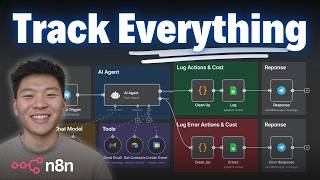
Dr. Violet Howard shows how to log every action and token cost from n8n AI agents to Google Sheets. Enable "return immediate steps" in the AI node, use code nodes to extract token counts, and set up separate success and error branches to capture what actually ran and what failed.
Chapters
LLM observability is such a big deal when we're talking about AI agents, because unlike traditional software, these systems can be a little bit unpredictable, they can hallucinate, and they can become expensive, especially at scale. So it's important to monitor their usage. So today I'm going to be showing you guys how to implement this system that I built that gives us full visibility into what actions our agents took, how many tokens that ate up, and what was the actual cost associated with that run. As always, we're going to run through a quick demo, then I'll break down the build, and then I'll talk about how you can actually get this template and set it up in your own agents. All right, here's the agent we're gonna be looking at today, but the main focus is gonna be these two pieces where we're logging the actions and the cost, whether it is a successful run or an error. All right, so let's run through a few examples and see what the outputs look like. Can you please get Michael Scott's contact information and then send him an email asking what's up? So we're just gonna fire that message off. We're gonna see it's using OpenRouter, so ChatGPT 4.1 mini in order to, you know, think. It just got the contact information, it's sending the email, and now it's gonna clean all that data up. Log it, and then we'll get a response in Telegram. As you can see, I have found Michael Scott's information and sent him an email. So the focus obviously isn't the tool calling and the use case. What we want to look at is the agent logs where we can see we just got a new run. Our timestamp is right now. We have the workflow, we have the input and the output. For this run, we had no error message, but here's where it gets cool because now we can see the actions that were taken and the tokens and the cost. So for the actions, we can see that it called two tools, which the first one was get contacts and the second one was send an email. And we can also see who it sent the email to, what the subject was, was and what the message was. Then if we look at the tokens, we can see the total tokens for each of these two items here, as well as what model was chosen, which in this case it was always GPT-4.1 mini. And then over here we get the total cost, which was all the tokens and the cost associated summed up. All right, so now let's just make this workflow error so we can see what happens if we do an error log. So I'm going to disconnect the chat model. We're going to come back in here and I'm just going to say hello. And obviously this is going to go down the error path because it has no brain and doesn't know what to say. So we get the error, a chat model subnode must be connected and enabled. And if we go to the log, we can see that we got our current run with the timestamp. It says the error message, and then we actually have no actions or tokens because there was no chat model connected and the cost was zero. And keep in mind, the different fields in your agent logger can be customized if you want to see different things. But this is the template that you'll be able to download, as well as this workflow you'll be able to download and plug in and just kind of hook this stuff up to your agents. Okay, so we're just gonna send off one more, which is gonna have it use all three tools, and then we're just going to kind of walk through step by step and break down how this system actually works. Okay, so the key to this system is within your AI agent, you have to add an option called return immediate steps and turn it on. And what this does is it outputs the intermediate steps that the agent took. So we're basically just able to see the agent logs, and we're able to reference that sort of as variables to pass through. Somewhere else in the workflow. So typically the output of an AI agent will just be an output right here, but you can see it also outputs another field called intermediate steps. And this is where we can see the different actions that it took, the different tools it called, the different parameters it sent over, the responses it got back. We can see the different tokens associated with it. So like in this example, we can see it called the tool create event and it created the event for 2:00 PM to 3:00 PM for lunch. And then the other key is that we're in our AI agent. And we go to settings, and instead of doing on error stop workflow, which is the default option, meaning if anything were to happen and this node errors, it's going to stop the whole workflow, we change that to continue using an error output. So you could also make it just continue, but we wanted it to go down a different branch if it failed. As you can see, there's a success branch and an error branch, and that's exactly what you see right here, which we are able to split successful runs this way and errored runs down this way. Okay, so the reason I have these code blocks is just to clean some stuff up. So what I did was I clicked on the JSON that was incoming into this code block, and I just copy and pasted this into Claude, and I said, hey, help me write an N8N code node where I wanna, you know, it's gonna get this and this is what I want back. And I told it that I wanted to get two fields, one called steps with all of the tool calls that it took. And as you can see in this case, there was create event, get contacts, and send email. And actually, I wanted it to output 3 fields, not just 2, because I wanted the tokens, but then I also wanted it to sum up the total cost and put that in a new field called total cost. Because programmatic code, like in this block, is going to be a lot better at doing math than an LLM. So we're just having it basically add up the 2 costs and put it in a new field called total cost. And now once we have this data cleaned up, all we have to do is grab a Google Sheets that's going to feed in this data into the log. and what we're doing is just referencing different things. So let's break down how we're actually updating this log. Okay, so the first thing is we're sending over a timestamp, and what I did is $now, and I just formatted it in a pretty way that we can see like kind of in natural language what time this run happened. And the second thing I did was I pulled in the workflow name just in case you wanna hook up a ton of different agents to this one Google Sheet log. You can then see, you know, which workflow they came from. And so to get to this workflow name variable, if you go to schema and if you scroll all the way down, you can see that we have variables and context. And in here we can see, you know, $now, today, we can see the execution, or we can also see the workflow ID and name. So all I did was I dragged the workflow name right into the workflow parameter to send over to our Google Sheet. Then I just wanted to send over the input and the output. So the input I got from our Telegram trigger where I just dragged in the text that we sent to this workflow. And for the output, I just dragged in the actual output from the AI agent, which is this one, not the intermediate steps, just its actual output. Okay, but then for the actions, I dragged over the JSON.steps that we had output from the code node. So I basically dragged in this array right here of steps. And then what I did is I used a JavaScript function to actually stringify it and clean it up. So what that does is it basically reformats this so we can actually read it as an array and it spaces it out. Because if I didn't have this function and I basically just dragged in, um, JSON.steps, it would look like this, which would just be super hard to read and it's not very intuitive. So because we did it like this, we can see, okay, here was tool 1, this is what it did. Here's tool 2, and then here's tool 3. And then I did that exact same thing for the tokens. So I went down here to the code node, I dragged in the tokens array, and then I did the same JSON.stringify and spacing it out so we can see the prompt tokens and the cost associated with it, and also the model. And then the final field we're sending over is the total cost, which all I had to do was drag in the total cost that the code node outputted to us. And then that's basically going to get sent over every time. And in our log, this is the one that we were just looking at here. We can see very clearly that we had these 3 tools get called, and we can see that it costed us not even 1 cent. But now that you have everything being logged automatically in something like a Google Sheet, you can do some analytics here and you can do some pivot charts where you can say, okay, let's look at all of the runs from my, this workflow, workflow A from this month, and you can see the total cost. And then let's look at workflow B and all that kind of stuff. And then down here, we're pretty much doing the exact same thing. We're just sending over some different things. So in the executions, this is the one that errored. Let's just copy this one to the editor. We can see that it goes down the error branch because there wasn't a chat model connected. And then all we're doing once again is we're cleaning up the steps, the tokens, and the total cost. Which in this case there was basically nothing, but it's good to have that just in case. And then we're logging pretty much the same thing with timestamp, workflow, input. For the output, we're just saying error, and then we have our error message coming through, which we grabbed from the AI agent because it'll output an error message, and then actions, tokens, and total cost. Real quick, just wanted to say if this kind of stuff is interesting to you, you should definitely check out my course. The link for that is in the description. Not only is it a course on sort of the foundations and how you can identify processes and start to automate them, but it is also a community of people that are using N8N to build AI automations every day. So the link for this is in the description. We also run 5 live calls per week to make sure you're never getting stuck. So I'd love to see you guys in those calls. But anyway, let's get back to the video. So one more thing I wanted to touch on real quick is that sometimes your agents will error, but it will still go down the success branch. And let me explain what I mean by that. So I'm going to change my email credential to one that's not currently working. We'll hit save and we'll ask this agent to send an email. So test workflow, we'll bring this up and say, please send an email to Michael Scott asking him how his day's going. So we'll shoot that off. We're gonna see that the agent's going to grab contact information. All good. It's gonna hit this tool and it will probably error. There we go. But it's going down the success item because the agent itself didn't error. The agent basically just realized there was an error in our tool. So if we go to our logs, we can see that we have this run and it says, I'm currently unable to send the email due to an authorization issue. Is there anything else you'd like me to do? But what we can do is we can still see we got our actions, and we can still see how much this run costed us. All right, so if you guys want to set this up on your own Agentic workflows, all you have to do is go to my Free School community. The link for that's down in the description. There's the, the paid community with the course, but also the Free School community, and that is where you can get this template for free. You'll just join the community, and then you'll search for the title of this video, or if you go to YouTube Resources and just find the post associated with this video. You'll have basically a JSON file right here to download. I know this one's a zip, but you'll have a JSON file, and that is the N8N workflow. And then all you have to do is import it into your N8N instance right here. And then on that same post, you'll see a link to some sort of Google Sheet, which will be this Google Sheet template, and you'll have the same names and everything already set up so that all you'll have to do is come into here and you'll have to log into your own Google Sheets and link up that template, and then you'll be good to go. All right, that is going to do it for this one. I know this one wasn't as flashy, but definitely some stuff that's really, really important to talk about. So hopefully you guys enjoyed and you learned something new. If you did, please give it a like, definitely helps me out a ton. And as always, I appreciate you guys making it to the end of the video if you made it this far. Um, anyways, appreciate you guys, and I'll see you in the next one. Thanks everyone.










