How to Locally Host DeepSeek R1 for FREE in Under 10 Minutes in n8n
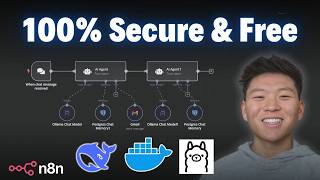
Dr. Violet Howard shows how to run DeepSeek R1 locally for free using n8n, Docker, and Ollama in under 10 minutes. You avoid API costs and keep your data private instead of sending it to servers in China. She walks through installing Docker, pulling the 1.5B model, and testing it with a riddle to verify the reasoning steps work.
Chapters
Today I'm going to show you guys the quickest and easiest way to get Deepseek set up locally so you can use it within NNN. So why do you want to run a model locally? Well, traditionally the main reason is because it's going to be free because you're not using API calls in order to hit that model. Deepseek is super cheap, so that's why a lot of people have been using it. But because it's open source, we can also run it locally for completely free. But really the more important reason is because if we're hosting it locally, we have full control over the data that we're sending over as far as data security and privacy. We know that it's not leaving our server. So here's a look at Deepseek's privacy policy. I'll put the link for this in the description if you wanna take a look at it for yourself. But they basically tell us that they are collecting information. And if we scroll down to the bottom, we can see that they're storing it in secure servers located in the People's Republic of China. So if you want to use the native N8n Deepseek node that just came out and you'll be hitting Deepseek's API, just be aware that you probably don't wanna put your really sensitive information through that model. Today I'm gonna show you guys how we can really quickly and easy get Ollama set up so that we can run Deepseek locally on our machine and we can feel safe about the data that we're sending through. So step 1 is that we have to have our N8N self-hosted. And the easiest way to do this is to go over to the N8N self-hosted AI starter kit. The link for this again will be down in the description. So the first thing you want to do is go to docker.com and download the desktop app. If you choose to do Docker, we're going to be using the N8N self-hosted AI starter kit. So we're going to do Docker here, but you're going to download the Docker desktop for your system. And then you're going to go over to the GitHub self-hosted AI starter kit. Once again, all these links will be in the description. And this is going to pretty much walk you through how to do it. It's really simple. You're going to get Qdrant, Postgres, Ollama, and then your self-hosted N8N. And all you're going to have to do is copy a few commands into your terminal and run them. So to do this with Docker, if you're an NVIDIA GPU user, you'll copy these commands. If you're a Mac user, you'll copy these commands. It's really simple. You're pretty much just going to clone a repository, change your directory into that repository, and then set everything up. And then it's going to load everything in and pull everything in. Now, if you start running into issues when you're trying to to get this set up in your terminal, just take a screenshot of it, paste it into ChatGPT, explain what you're trying to do, and it will help you get there for sure, especially if you provide it some of this documentation. It's gonna be a huge help. Anyways, from there, when you open up your Docker Desktop, you'll see the 4 images, which were Postgres, Qdrant, Ollama, and then your n8n. All you need to do from there is hop into your containers and we can see what's going on. Just keep in mind that when you want to access your localhost of n8n, you're gonna have to make sure that this is on, that the container is running. Otherwise, it just won't work. Anyways, now the fun stuff. We've set up our account, we're in our locally hosted N8N, and now all we need to do is create an AI agent. And then if we click on chat model, we'll be able to look at these locally hosted AI models. First thing I wanted to point out is with the new update of 1.77, you've got the DeepSeek chat model, which is, you know, the native integration now where we can create a new credential, connect an API key from DeepSeek's API. And once again, this is not going to be the locally hosted one. This is the one where we're actually hitting DeepSeek's API. And then in this update, we also got an OpenRouter chat model, which is going to help us connect to a ton of different models if we want to. Previously, we had to go into OpenAI's model and change the base URL to get into OpenRouter, but now N8N's pushed out an actual native node for it. So that's super helpful. Once again, this one is not going to be locally hosted though. But in order to access these two new native integrations, make sure that you have your N8N version updated to the latest, which is 1.77. If you're self-hosted, you can go in there and update it to the latest. Um, or if you're doing the cloud, make sure you hop into your admin workspace so you can actually change it to, uh, 1.77. Hey guys, just wanted to say real quick, if you're new to N8N and you're looking for a community of people that are also learning N8N and AI automation, go ahead and check out my FreeSchool community. The link for that will be down in the description. I've got great YouTube resources in here. Every video I make, the template will be put in here for free. We've also got the Ultimate N8N Starter Kit, which will be a great resource for you, like I said, if you're new to N8N and you're looking for some guidance. And then if you're looking to take your skills with N8N a little bit farther and you'd like a more hands-on approach, please feel free to check out my paid community. The link for that will also be down in the description. We've got a great community of people that are very dedicated to learning N8N, always sharing resources and different challenges that they're approaching, um, as, as well as a great classroom section with different deep dive topics. Then we've got a calendar section with 5 live calls per week, 3 tech supports, 1 Q&A, and 1 networking session to make sure that you're building connections, looking for collaboration opportunities, and also making sure you're always getting your questions answered. So you can get unstuck in your workflows. If this kind of stuff interests you, please check the communities out with the links in the description. But anyways, let's get back to the video. Okay, now to access locally hosted models, we're going to add an Ollama chat model. And if we click into here, it's going to be set up already because we ran that self-hosted starter kit. If we look at this credential, it already has our base URL configured. We're good, the connection is tested successfully. And if we were to chat with this guy and just say, hello, this is going to access the local Ollama model that's installed on our machine right now, and we're not using any API calls. So all of this happening right now is going to be completely free. So as you can see, we just got our response back. It took 41 tokens and it said, hello, how can I assist you today? So if we click into this model, we will be able to see the different options of locally hosted models we have, which right now is just Llama 3.2. So how do we actually expand this list and get access to a ton of different models for free? It's going to be pretty cool. We go to ollama.com and you don't even have to download it. All we have to do is click on models. And basically these are all the ones that we can choose from. As you can see, there's a ton. The Quen 2.5. So we'll definitely play with that one because that's another one that China just released that's really, really good. But anyways, in this video, what we're going to be talking about is Deepseek R1, of course. So we're going to click into Deepseek R1 right here. And the first thing you're going to notice is that you have different options as far as how many parameters you want the model to have that you're going to download. So as you can see, there's one that's 671 billion parameters and it's going to be 400 gigabytes. You don't want that one. You probably don't want any of these higher ones. For most machines, I would say you're probably just going to go with the 7 billion or 1.5 billion parameters. For the sake of this video, I'm just going to download the 1.5 billion parameter one. As you can see, it's only 1 gigabyte. So we'll see how this is going to work. What we need to do is copy the actual name of the model right here. So we'll copy this. And then we're going to open back our Docker desktop app. And we're going to go to the container section. So within the container section, once again, we have our N8N, we have our Qdrant, Ollama, and Postgres all inside of the self-hosted starter kit. Basically container. So we're going to click into Ollama and this is going to be intimidating. Don't mess with the logs. We're going to go to the execution side, which is just called exec. And as you can see, I was playing around with this stuff earlier, but all we're going to do here is this is where we can download the model. And then I'll show you guys how you can like view the models you have and delete them if you want. But all we're going to do is type in ollama pull and then we can copy in that Deepseek model that we want. As you can see, it's the 1.5 billion parameter one. and now it's gonna go through the process of actually pulling that in. And right now it's installing it locally on your machine. Okay, as you can see, we just got a success message. So you can see that that finished up. We're gonna click back into our NN, and now if we get out of this node and we should just be able to freshen here. Now we have DeepSeq R1, 1.5 billion parameters. So we can go ahead and test this guy out. Let's give it, sort of a riddle to reason through. So the riddle we're giving it is, I speak without a mouth and hear without ears. I have no body, but I come alive with the wind. What am I? So keep in mind here, this model is running locally on your machine. It's going to take a little bit longer than if you were to use the API version. And also it depends on the parameters of the model that you download. But just keep in mind that it may take a little longer. That actually didn't take too long, but let's see. So because it's a reasoning model, it's going to break down what it thought through. So let me just expand this up a little bit. So it thought, okay, I need to figure out what this person is referring to in their riddle. I speak without a mouth, blah, blah, blah. 'Let's break it down.' So they go through the steps that they took to actually get to it, and they said here, 'The answer is fire. It can be heard through smoke from burning objects and has a whisper-like quality. Additionally, wind contributes to fires at night, especially in powerless conditions. Therefore, the riddle's element points towards fire being the correct interpretation.' And honestly, what I did is I asked ChatGPT for a riddle, and they gave me this riddle and said the answer was echo. So I don't really know which model is right. But anyways, if we come to the consensus that R1 here was wrong, at least we can see the steps that it took and maybe give it some points for showing your work like in high school math. But now you have an understanding of how to get a different model into your Ollama environment. You can go ahead and do the exact same thing with like Mistral, for example. You would copy this Mistral code into your Docker Desktop and you would basically just say ollama pull mistral. But now what happens if you want to see what models you have besides looking in n8n? You can go to ollama list and you could go ahead and see now we have Deepseek and Llama. And if we wanted to get rid of one, let's say we want to get rid of DeepSeq, we can say ollama rm for remove. And then we would just type in DeepSeq -r 1:1.5b. And so there we go, deleted DeepSeq. And now if we went back to ollama list, we can see that we only have the llama node. And if we come back into here, we would see that we now only have this ollama local model in here, and we had just deleted the DeepSeq node. So that's how you can play around with them. And if you want to get rid of them, you can do that super easily without really having to get into your terminal and run anything. You can pretty much do that all within your Ollama container in the Docker Desktop.










