I Built 3 Lead Gen AI Agents Using ONLY My Words (beginner tutorial)
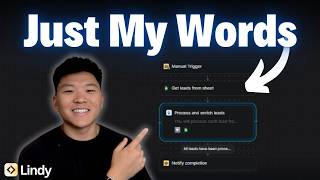
Nate builds three connected AI agents using Lindy's no-code platform: one finds leads via People Data Labs and adds them to a Google Sheet, another enriches them with company pain points, and a third drafts personalized Gmail messages. He shows how splitting workflows into separate agents keeps things clear and avoids duplicate work.
Chapters
Today I'm going to be building a lead generation and outreach system right here in front of you guys, just using my natural words. So let's get started. This interface right here is what's prompting me to use natural language in order to explain what kind of agent I want to build. So I'm just going to paste in this request that says, build an agent that generates leads for me. It will find the name, role, company, company size, and email address of people based on my request of industry and location. It's also going to store all the results in a Google Sheet. So I'm gonna send this off and what's gonna happen is the agent is going to look at this request and it's gonna start to figure out how to build this for us. And now that it has that information, it wants us to go to the flow editor where we can actually watch it build out the different nodes and the connections right in front of us. So right here on the left we have our agent builder, which allows us to have a conversation with our words to build something. And then over here on the right is the actual like visual flow editor where it will Connect nodes and stuff, and that's where we can see the configuration. So the first thing you'll notice over here is that the agent builder asks us some follow-up questions to make sure that it's gonna build the system exactly like we want it to. So it's asking me where to find the leads from, if I already have a Google Sheet set up, which I do, what's the input method, and then the lead criteria. So I'm answering its questions by saying to use People Data Labs for the leads. I told it I already have a sheet set up, which is right here. We've got name, role, company, company size, email. I said I will talk to the agent. That's how it'll basically get triggered. And no criteria for leads, we're just gonna find all of them. So now it's basically saying, okay, here is what I think you want, let me make sure it's correct. And I'm just gonna say yes and we'll basically see what happens. Okay, so I think it's finished up. You can see all the different steps that went through. It had a few things where it had to figure out what to do, but it did. And ultimately we came over to this workflow where we have these 3 nodes. and so before we actually run the test to see how it works, let's just make sure we understand what we're actually looking at. I think that natural language to workflow building is super, super cool. I love to see where this technology's going, but I am worried about the false sense of security that it may bring to people if they start using their words, building all this stuff, and then just like throwing it into production or starting to use it without actually understanding what's going on within each step. I think that's what's gonna be really, really crucial because this agent builder type of stuff will be really good at getting you to a first template, a first POC. Then you understand it, and then you can sort of iterate upon it. So anyways, what we see here is that the trigger of this workflow is a message. So we'll open up a chat and we'll start talking with the agent and probably telling it, I want leads in this industry, in this location. And then what's next is it will send it off to People Data Labs to search for those leads. You can see that it's going to be searching using Claude 4 Sonnet. It sends off a search query which will be filled in with AI. And it's limiting to 10 leads. So it's only going to find 10. We could obviously move this up or down if we wanted to, or we could have the AI actually choose how many to find. But right now we're just going to leave that at manual 10. And so after it finds those leads, it moves on to this agent step. And you can tell it's an agent because of the little robot or because of the blue arrows. And now we have a prompt for this AI agent. And remember, I didn't make this prompt. The agent builder did it for us. So what it says is that you will receive a list of people from the lead search. For each person on the list, add them to the Google Sheet by calling the Add to Lead Sheet action, which is down here. This is kind of like when you connect a tool or an action to an agent and it decides when to use it, and it will send over the name, the role, the company, the company size, and the email. So now we understand kind of exactly what's going on. I'm going to hit Run Test and we're gonna see this thing kick off. So we have to tell the lead generation agent what industry and location we're looking for. So I'm just going to say real estate agents in Chicago and fire that off. And then we should see it basically send that off to People Data Labs, grab 10 leads back, and then our agent should be putting that in a Google Sheet. All right. So then when we moved on to the agent step, it started processing them one at a time. And what happens was, you know, it processed the first one and said, okay, now I'll do the next 9 and then I'll do this one and now I'll do the next 6. And it actually, for some reason, stopped after 5. If you see the sheet, it did add them correctly, and we have this information we were looking for, but it only sent 5 of them for some reason. So we'll come back to the AI Agent Builder and see if it can fix that. But it is good to validate that it did what we wanted, but we just need to identify why it stopped after 5. I think it potentially could have been because of an exit condition or something like that, but what I'm going to do is just tell the Agent Builder what went wrong and see what it has to say about it. All right, so I told it that it worked, but it only added 5 of the leads to the sheet, not all 10. And it said, I see the issue, blah, blah, blah. And now I'm going to try to fix that. So I'll check back in once it is done and we'll just give it another run. All right, so it says that it fixed it. I deleted everything from the sheet. And this time I'm going to say dentist in New York. We'll fire that off and I'll check back in with you guys and see if we got all 10. Okay, so this time after it found the leads, it did in fact do all 10. You can see that it very explicitly went through each individual person, so I think it was a prompting thing. Gave us a quick summary, and you can see the Google Sheet now has 10 leads. One thing that's a little strange is this first one came through as a solution consultant from Adobe. The rest do look like at least somewhere in the medical field, and the reason why this happened is because of in the People Data Labs node that searches for leads, you can see it basically searches using a kind of SQL query, and it's looking for job occupations like healthcare or like blank, like dentist. So it's doing kind of like a similar search, not exactly an explicit search. Obviously that's stuff that we could fix later. But anyways, now that we have this very simple system that basically gives us leads on demand, we want to have another system that takes these leads, enriches them, and helps us write a personalized outreach email. So I'm going to go back out to the home screen of Lindy, and we're going to talk with our words again to make a different agent. But real quick, I wanted to touch on something that I'm sure some of you guys are wondering, if you've been following my channel for a while is why am I making a video on Lindy? What about Enaden? So I don't want to dive too deep into the specifics of the differences between Enaden and Lindy. I think they both have pros over each other, so it really depends about your use case. But when I started up this channel, my whole motivation was to go into like no-code tools and show how easy it is to build some of these AI automations because I don't come from a technical background and you don't have to, to build stuff that really saves time. So like I said, each one has their pros and cons. NN, you can self-host. Lindy, you can't. I think that Lindy is a lot less technically overwhelming and intimidating when you look at it because you don't have all these variables to pass over. The way it works with Lindy is the context kind of stacks throughout the whole workflow. What I mean by that is node 2 is gonna receive all the context from everything before it, and then node 3 would receive all the context from everything before it compared to an NN where you choose pretty specifically the inputs and outputs for each node. This does not by any means mean that I'm done with AnyDen. I'm still a very, very big fan of the product and will continue to be making AnyDen content just like I have been. But this update from Lindy recently was super cool because not only do they have this agent builder sort of interface, but they also have some native computer use functionality, which we won't really build too much of that today. But if you guys are interested, definitely let me know. And if you do want to get into Lindy and try this stuff out, there's already a ton of prebuilt agents out here that you can use for meetings, for sales, for brand monitoring, for productivity support. and I was able to work with Lindy and bring you guys a discount code. All you gotta do is join my free school community, which will be linked in the description, and then once you get there, you'll be able to claim that exclusive discount, which will be 30% off, and you'll have a free trial before you even have to pay. But anyways, let's move on to the second agent that we need to build for this system. So for the second one, I'm saying build an agent that takes in leads from my Google Sheet and enriches them by finding their company's pain points. So we'll shoot this off and we'll go through that same process of watching the agent spin it up. Okay, looks like this one finished up. You can see all the steps that it took and how it was able to fix itself. And now we have a system that when we trigger it, it's gonna get the leads from the sheet. The AI here will basically enrich them by searching through the web, looking for pain points, and then writing that data back to the Google Sheet and then let us know that it's done. Real quick before we run this, I wanted to talk about why did I split this up into a separate flow? Well, I like to think, especially when you're using natural language to workflow building, you're gonna get better results if you break things down into pieces. You could always later on combine it all together, but I think that if you chuck that much stuff at an AI that's trying to build AI systems, it's just gonna get messy. So that's why I like to start, you know, very small piece by piece and then bring it together later. Anyways, now that that's out of the way, let's go ahead and run this thing and we'll see how it works. So this one actually doesn't give us a welcome message. I'm just gonna go ahead and say, enrich the leads, and that should fire off the flow. And now it's going to go to the Google Sheet. It's going to pull in these leads that we have right here, these 10. And now it's basically searching the internet. As you can see, it's processing and enriching the leads. And once it finds information, it'll write it all back. So I'll check in with you guys once that's done. Okay, so I went ahead and stopped the workflow just because I don't want it to do all 10 because I don't want to sit here and wait and go through credits. I just wanted to prove that this works. And you can see that we have our first 4 leads enriched with pain points about their business and their industry, and then AI solutions. And this is what we can use to write a really good outreach message. So to break down the system that the agent built for us, the leads come in from the Google Sheet. You know, we saw exactly how that worked. It pulls in 10 leads. Then it moves on to this agent step that has access to searching the web and updating the Google Sheet. So you can see what it does is it researches each person individually. It started to research the first guy, then it moved on to Henry. And it finds this information and then decides it needs to write it back to Google Sheets. And what's cool is we didn't even have to configure how to update it. It knows how to find the unique identifier, it knows to write it to the data field. And after it was doing this individually for each person, I was like, okay, I don't want to run through all my credits. And, um, yeah, we got our research back here. And so the idea is that we'd run the first workflow to get these leads. The second one would automatically fire off when a new row comes in and it would start to enrich the leads. And then we'd have a fourth one fire off once the lead is enriched, and that is the one that's gonna write an outreach message. So let's head back into Lindy. Let's open up another fresh workflow and use natural language to create that. All right, so here is the prompt I'm putting in here. Build an agent that will write personalized outreach messages for our enriched leads from our Google Sheets database. It will craft the message and store it as a Gmail draft, but do not send it. All right, so the agent builder and I had a little bit of a back and forth. I answered some of the questions. And then I realized that I also wanted to have it update the row in our lead sheet and say that the draft was created if one has been created. So now we have this final flow. I'm happy with it. I'm gonna say yes. You can see also in the lead generation sheet, I added another column called status for the agent to actually update. And now we can go in here and watch it. It's actually getting started building this agent now. So I'll check back in when it's done and we'll give it a run. Okay, so it looks like we are finished up. We've got our manual trigger. We're gonna pull in the enriched leads from the spreadsheet. We have an AI agent that's going to write that personalized email. You can see that this was already created for us using AI as well. And after that, it's going to send a Gmail draft, not an actual Gmail. We've got the to and the subject and the body all being automated with AI. And then we have this being saved as a draft. And then finally, it goes back to the sheet and updates the status of that lead as draft created. So we're going to go ahead and run this thing. I'm just going to go ahead and say go in here and just keep in mind we're only going to be doing 4 leads because only 4 of them actually have been enriched at this point. So we've pulled in all the data and now we should see that the AI is writing those messages. Okay, so this just finished up. However, what I realized is that it only pulled in 1, I think. So when it got the spreadsheet, limit was 1,000. Okay, it pulled in all 10, but did it do all 10? I'm not sure. If we go to the Google Sheet, we can see that we only have one draft created for the first lead. But let's go take a look at it real quick. Okay, so I do have the email in my draft. We've got the to, the subject, and the body filled out, and we can see that it addresses basically his role and his company. And then it goes into how our AI solutions could address their problems that they're currently seeing. And then there's a call to action at the bottom. It also signs off as Nate. And then we could also get rid of this sent via Lindy automated message. So the issue now is that it only processed one. So what I'm gonna do is say that that worked, but only one of them got processed, similar to what we had to do in one of the, that first example. And this is actually a really great point that I want to touch on real quick because you want to also think about as this system is actually running, how can we make sure it doesn't error? And one thing that would currently cause us to error besides the fact that the AI originally built this wrong, or not wrong, but it didn't take everything into consideration, is that now that we're gonna rerun this, we'd be duplicating outreach messages to Alex because there's already one created, but it's the first row, so it would go again. So you'd probably wanna make sure you're setting up a filter where if the status equals Draft Created, you're not gonna push it through the rest of the pipeline and create another draft. So just something I wanted to throw out there, but let's make this change and then we'll test it again. And actually, you can see that was the third option that the AI suggested was to process all leads that don't have a Draft Created status. So that's what we're gonna do. All right, so it said it made those changes. I'm gonna go ahead and run a test and we'll see. So I'm just gonna say go. We'll fire that off and let it get to work. Okay, so this one worked as expected. As you can see, it went through all of the leads, but then what it said is that out of the 10, it only did 2 because one of them already had draft created and then the other 7 had no data, as you can see. So we stopped it after just these first 3 had data. So it only decided to create drafts for these 2 rows right here. Real quick, let me go to my drafts and make sure that it has a good flow. So here's the one we got for Jim. AI solutions for dental practice management challenges. I noticed your role as this at this company. Here are different challenges that you're facing and how our AI solutions can help address those specific challenges. Would you be open to a 15-minute call to see how we can benefit you? So considering that we did no prompting in here ourselves and that this entire thing was mapped, all the variables were processed, all of the mapping from the spreadsheets and everything like that was processed all by this agent builder right here. And all 3 of these agents took me about 30 minutes to build tops. Really, really impressed. And from here, what we'd want to do is actually iterate, continue to test, and make these even better. Which is why it's really important that we went through the process of like talking to the agent, having it develop something, and then we still want to go into every single node and understand what's going on. Because now what we could do is branch off these different conditional paths and say, okay, you know, like now let's create a follow-up agent and make sure every 2, 3 days we're going to continue to follow up with these leads. We could even then start to go back to the other agents that we had built for lead gen and enrichment and figure out, okay, how do we actually link these together and make the enrichment even better? Because I think ideally these would all just be one big flow with multiple agents, or it would basically be like I said earlier, when the leads come in, the second flow to enrich them automatically kicks off. And then once the data is enriched there, the third flow to write that outreach automatically kicks off. And then you'd build up another flow to do the follow-ups and so on and so on, maybe even all the way into like onboarding, stuff like that. So I don't want this video to go on too long, but you can see in just the past 30 minutes that we were sitting here together, I built pretty much a fully automated system. All I have to do is connect those pieces and now I can ask for leads on demand and get all the drafts created automatically. And it's only gonna get better and better as I improve the prompts and the search criteria and the lead criteria and stuff like that. So there's a lot of stuff in Lindy that I haven't yet talked about that's very new and very cool, especially the computer use. That's probably my favorite feature so far. So if you guys do wanna see more videos about Lindy, let me know in the comments. And don't forget that you can get 30% off Lindy if you join my free school community. There'll be a link in there where you can get a special exclusive discount code so you can try out Lindy for a lot cheaper. But you can also get started for free, but go grab that code from my community so when you're ready, you've got that discount. But that's going to do it for this one. If you guys enjoyed, you learned something new, please give it a like. It definitely helps me out a ton. And as always, I will see you all in the next one. Thanks everyone.










