I Built a Human in the Loop Calendar Agent in n8n with No Code
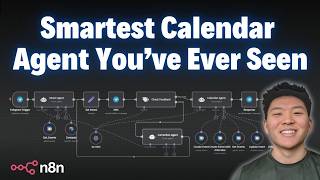
Dr. Violet Howard builds a calendar assistant in n8n that uses Telegram for messages, checks Google Calendar and Airtable contacts, and asks for human approval before creating or changing events. The demo shows scheduling a dinner with Michael Scott, handling conflicts, and letting you correct the assistant's understanding before it acts.
Chapters
What we'll be looking at today is a human-in-the-loop calendar agent. This thing is super intelligent. It's gonna make sure you don't have any conflicting events. It's gonna make sure you're scheduling events at the right time with the right attendees, and it's not gonna do anything until you personally say, okay, I'm good to go with that. The correction agent is able to take your feedback as well as the original message and then revise the prompt to send back to you for approval. Once it's finally approved, we hit off to the calendar agent and then it finally takes action for us. All right, so I'm gonna say create an event with Michael Scott for dinner at 5:00 PM tonight. I'm gonna fire this off, and as you can see, it's going to the intent agent, which is going to get the events and look at our contact information to make sure we're not, you know, having any scheduling conflicts, as well as getting the correct email for Michael Scott. As you can see, we got this message that says, you requested to create a dinner event at 5:00 PM tonight with Michael Scott. I found 2 contacts for Michael Scott. Before creating the event, there is a scheduling conflict. There's a meeting titled Corporate Retreat Discussion from 4:17 to 5:17. Would you like to change the time for dinner, or would you like to proceed with another date and time. So now we're able to click on Respond, and it's gonna open up this page where we can leave feedback. First of all, what I'm gonna say is, send it to his business email. And then I'm gonna say, keep the time for dinner. So now we hit Submit, we go back to the Human in the Loop, and we can see that it's going off to the correction agent, which is gonna take the original intent as well as our feedback. And now we have a new message waiting for us on Telegram, which says, new intent, you would like to schedule dinner for tonight, 5:00 PM with Michael Scott. And as you can see, it now has his business email address associated with this invitation. And then it asks us once again if we want to schedule even though we have a conflict, so I'm gonna hit respond. I'm gonna open this up and I'm just gonna say yes. So now that I've said yes, we go back into this workflow and you can see now it has passed it off to the calendar agent to actually create that event. So now it's going to, right there we have our dinner invitation set for 5:00 PM. And if we click into the invitation, we can see that it did in fact invite michael@dundermifflin.com, which was his business email address. Okay, but now I'm gonna say move my dinner tonight to 7:30 PM. So we'll send that off, we'll see the exact same thing happen. The intent agent is first of all going to get events to make sure it's going to move the correct one, and then it's gonna pass that over to us to respond in Telegram. So here's the message. As you can see right here in the workflow, the Telegram node is waiting for us, and it says, you have a dinner invitation scheduled for 5 to 6 with an attendee Michael at Dunder Mifflin. Can you please confirm if you wanna move this dinner to 7:30 PM instead? So I'm gonna hit respond, open this up, and I'm gonna say, yep, that's good. And then as soon as I submit this and go back to the workflow, we can see it's gonna go up here to the calendar agent who's going to get events in order to update event. And then on the left-hand side, you can see that that dinner invitation got moved to 7:30. And finally, our Telegram assistant responds and says, "Dinner invitation has been rescheduled for tonight, 7:30 to 8:30 with Michael. You can view the updated event here." And the last thing we can do here is say, "Actually, just delete my dinner for tonight." It's gonna go through, it's gonna grab that event, and then it's going to understand that we need to delete it. So now it's waiting for us again. It says, You have a dinner invitation for tonight, February 19th, 7:30 to 8:30, and then it also includes the attendee, and it says, would you like me to proceed with deleting this event? Once again, opened up that message, we're gonna respond with yes, and coming back into the workflow, we can see it's going up to the Calendar Agent to get events. It grabbed that ID, and now it's gonna delete it, and as you can see down here, it just vanished. The dinner invitation for tonight has been successfully deleted. So now that we've seen a quick demo of how this works, let's get into the build and break it down. And by the way, if you wanna download this workflow for free, head over to my FreeSchool community. The link for that's down in the description. Once you get here, click on YouTube Resources, click on the post associated with this video, and then you'll have the workflow right here to download. But if you're looking for a more hands-on approach and you wanna watch me build this step by step, head over to the paid community. The link for that's also down in the description. We've got a great community of members always asking questions and sharing resources about n8n. We've got a great classroom section of different deep dive topics like building agents, vector databases, APIs, HTTP requests. And then here's the step-by-step series I was talking about where I'm doing all of my builds from YouTube step by step live in this course. And then we've got 5 live calls per week, so I'd love to see you guys in these calls. But let's get back to the video. Okay, so what did we just see in the demo? What happens is we're talking to our agent with Telegram through a Telegram trigger, of course, and then we're feeding that into an intent agent. So what's going on inside this intent agent is it has access to our calendar using this tool called GetEvents, and it has access to our contact database using this Airtable tool which searches for records. So the intent agent's job is to take the user query from Telegram, search through events, search through our contact information, and then create an intent. This is what the human wants. It then sends the human the intent over to Telegram where we are able to, you know, answer any clarification questions and also approve or basically deny the message. Once Telegram gets our feedback here, we send that into a check feedback AI node where it is going to understand, okay, this is the human's feedback. Is this an approval message and can we send it off to the calendar agent? Or is it denied and we need to send it to a correction agent in order to make the changes, and then we'll send that back to the human for review. So obviously if the message is denied and it gets sent to the correction agent, the correction agent is going to look at the original intent that the agent made over here, and it's also going to look at the feedback that we gave, and then based on combining those two inputs, it's going to create a new intent. And then from there, once it's approved, it goes up here to the calendar agent who has different tools like creating events, creating events with attendees, getting events, updating events, and deleting events. Finally, from there, the output is passed back to us in Telegram so that the agent can say, hey, we did that job for you. So that's what's going on at a high level, but let's get into each node and see what's going on here. So the best way to break this down, I think, is going to be we're going to send through an example that's going to be a very simple one, creating an event. We're not going to send it through the feedback loop, we're just going to confirm that it's correct. So I'm going to hit test workflow. I'm going to say create an event with Nate Herkelman for today at 1:30 PM for lunch, and we'll see it go through this process of getting Nate Herkelman's contact information. It's going to get events to make sure that we're not conflicting with anything. And then now we have our message, which says, you would like to create a lunch event with Nate at 1:30. Here's his email. There are no scheduling conflicts for the time. Would you like me to proceed with creating the event? We're gonna hit respond, open up this link, and all I'm gonna say in here is yes. Submit that, go back to the workflow, and then it's going to be approved. So now the calendar agent is creating that event with an attendee. And then we can see over here we have that event that just got created, lunch with Nate Herkelman at 1:30. And now we can just break down how the data just flows flowed through this workflow. Okay, so first things first, starting with the intent agent, let's open it up here. What we're getting as the user message is we're sending it a user query, and all the user query is, is what we said in Telegram. So in this case, we're saying, create an event with Nate Herkelman for today at 1:30 PM for lunch. And now let's dive into the system prompt. So we have an overview. You're a calendar assistant. Your job is to look at the incoming query and determine the intent. You have two tools, contacts and get events. So we have to specify when and how to use these tools. In contacts, we said use this tool to get contact information like email address. This tool must be used if the user requests to create an event with an attendee. If no attendee is specified, you don't need to use this tool. Simple. And then we have the tool get events. Use this to get events when the user wants to create, delete, or update an event. You should provide details about the event to confirm it is the right one to update or delete. Also pretty simple. And now we move into giving it some rules. So you must always get events using the get events tool to make sure there are no scheduling conflicts. When you are asked to move, update, or delete an event, you must use get_events to confirm the event. You must output the event details like date, time, and any attendee emails. And this is important because the correction agent later down the line doesn't have access to the contact database. We easily could give it access to it, but we wanted to make sure that the data is passing through the whole way and it's, you know, keeping all the information we need. And then finally, we gave it some guidelines for output. You must output the request from the user and ask any clarification questions. So in, you know, the example, do we need to use the business email or the personal email? Always output the email of the contact the user requested, if requested. And then finally, if there are two records of contact information for a single name, output the email and type of contact. And then of course, we gave it the current date and time so it can accurately make these events. Now let's take a look at the tools. The first one is a Get Events tool. So all that's happening in here is we're doing a Get Many operation, looking for events within our Google Calendar. We chose our calendar, and then we chose to return all, but returning all within a specified time range, which is after this parameter and before this parameter. So what we did here is we clicked on the little button right here that says let the model define this parameter, and we gave the description of looking for any events after 12:01 AM of the day the user requested, and looking for any events before 11:59 of the day the user requested. So essentially, if, you know, in this case we're looking for February 19th because we said create an event for today, And it's pulling back these events because this is what's on our calendar for today, because it's looking between, you know, basically the morning and the night and then grabbing all the events in between. That's how it's able to let us know if there's any scheduling conflicts. Then next, what we're doing is we're just searching through the entire contact database. In this case, we only have 8 records, so it's not too difficult, but we're looking in the contact table of the contact base within our Airtable. So this is what it looks like. As you can see, we only have one instance where there's two names that are duplicated, which is Michael Scott. 2 different emails, and then this is the example where we said, hey, this is the type of email, which type do you want to send this invite to? Okay, cool, so that's what's going on within the intent agent, nothing too crazy. As you can see, all of the agents here are hooked up to Foreo Mini, so the intent agent, the check feedback agent, the correction agent, as well as the actual calendar agent. But from here, we have to move into the set intent node, which is where the magic all really happens. And this is because we are doing a variable number of revisions. So sometimes it'll go through on the first try and it gets approved, like we just saw. But sometimes it's going to go through once, maybe even twice. And when that happens, where there's this feedback loop, we need to make sure that the calendar agent over here who's actually taking action is getting the most recent updated version of our intent. And so if we weren't to set this right here, this agent wouldn't know whether it's supposed to grab intent from this agent or from this agent. So if we're able to set it here, we can reference it right in this guy where we're saying, hey, this is what you're going to be looking at, and this is what you're going to take action based on. Because right here you can see we're referencing the node called set intent, which of course is this one. Anyways, hopefully that makes sense. If it doesn't, we can deep dive into it more in the paid community, but for now, let's just keep moving along. So we're setting the intent right here, which is json.output. If we use JSON rather than referencing a node, it's just going to pull whatever's coming right before this node. So in this case, what's getting right before this node is the intent agent or the correction agent because we loop it back into this node. So this one's dynamically pulling the most recent intent. Anyways, from there, we're also having to make sure that the Human in the Loop Telegram node is sending over us the most recent intent as well. So we're able to reference json.intent because it's referencing the set intent parameter right here. As you can see, it's always going to be pulling that. So within this Human in the Loop node, we have a few options. The chat ID is obviously coming from the Telegram trigger. As you can see, this node right here, Telegram trigger, and we're referencing the chat ID so that it comes back in the same thread that we started this process with. We're obviously giving it the message to send over. This is the one that we have to confirm or deny or just provide feedback about. And then finally, we're choosing the response type. So you could do approval and you could say, you know, there's only one button, which is approve. You could have approve and disapprove. But what we're doing here is doing free text so that we're able to feed in our feedback dynamically to the agents. And they can look at, okay, here's the human feedback. Here's the original intent. Now let's merge these together to create a new intent. Awesome. So from there we get our actual feedback. So in this case, all we said in that response form was yes, but if we said something like, you know, choose his business email and actually let's move it to 7 PM instead of 8 PM, that's where we get the feedback right here. So we get that feedback and then it gets passed into the check feedback AI node. So in here, this is basically just going to classify what's coming back. So what we give it is the text to classify, right? What we're classifying is whatever we said in that form. So all we did is drag in the text from the human in the loop node, and as you can see, it's json.data.text. And so that's what it's going to be looking at, and it has to decide if it's either approved or denied based on the description that we give each category. So let's take a look at these descriptions. The first one is approved. And so I'll open this one up, and we can see this is what is classified as an approved message. The human is confirming or agreeing with our request. This means they acknowledge that the provided information or action is correct and ready to proceed. Approval messages often include phrases like, yes, looks good to me, send it, correct, stuff like that. And now, on the exact opposite side of things, we have the category of denied. And so we had to give it also some prompting in here. The human is providing feedback that does not indicate approval. This could include requests for changes, corrections, or additional clarifications. A denial may also involve specifying a type of email like business or personal. So example denial phrases look like, business, change the time, delete both, today, February 22nd, all that kind of stuff. And so how I was able to figure out what to put here is that I was doing tests, and sometimes I would say something like, you know, it would ask me, do you want to use Michael Scott's business or personal email? And I would just respond in the feedback form and say business, and it wouldn't get categorized as approved or denied. It would just go nowhere. So I was like, okay, I got to be a little more specific here. And that could be a very common use case is just saying business or personal email rather than a full-on sentence. So we were able to prompt that in there. And then as you could see in the example, it was able to push it down the denied branch. In this case, all we said was yes. So the agent knew it was an approved message and it pushed it down the approved branch. As you can see, there's one item. And if we click into the denied branch, there are no items. So we can also see this by zooming out, looking over here, we have approved and denied. We can see approved, there's one item and it went down this path 'cause it's green. And then denied. The correction agent got nothing in this case because there was no denial message. So finally, that query gets passed into the calendar agent. Let's take a look at what it's getting here. As you know, we are giving it the output from the set intent node. So this is what it looks like. It's basically just the message that we got in our Telegram. But if you notice, there's like a clarification question at the end. And so we want the agent to ignore this. Otherwise, it's going to get a little confused and it won't even take action. So how we told it to ignore this was in the system prompt, of course. So we gave it the overview: your calendar assistant, your responsibilities include creating, getting, deleting events. We gave it each tool, so create event with attendee, create event, get events, delete event, and update event. And for each tool, we told it how and when to use it. So for something like create events and create events with attendees, it's pretty intuitive. But in order to update or delete an event in N8N, what you have to do is you have to feed it the event ID to actually update or delete, as you can see right here. So what we have to do in the system prompt is we have to tell it, okay, so you've got get events, you have to use get events before you delete or update an event in order to get that ID of the event to update. So it's basically just intelligently grabbing all events back, understanding which one we're looking to update, and then getting the ID of that, and then passing that ID into the update event or delete event. Tool. So hopefully that makes sense. But anyways, back to what I was trying to say about the rules. We said, turn the incoming query into an action, ignore clarification questions, just take action based on the intent that you receive. So because of that rule, the agent's able to look at a message like, you want to create an event at 5 PM with Nate, is that correct? And it won't get confused about like, is this an action? Am I just like looking at something? It knows that it needs to turn everything into an action and it will just take action. Because if it gets to the agent, at this point we know the human's already approved it, so there's no need to ask further questions. And finally, we just said, you know, here's the current date and time once again. And then if a duration for an event isn't specified, just assume it will be an hour. So if you remember, in this example, our incoming query was to create an event with Nate Herkelman for today at 1:30 PM. We didn't ever say how long it was going to be, but in this create event with attendee node, because we have the model fill out all of these parameters, we can see that it made the event for 1 hour starting from 1:30 to 2:30. With the correct attendee as well as the correct summary. And then finally, all we're doing over here is responding to ourselves back in Telegram. So we once again mapped the correct chat ID, we gave the output of the previous calendar agent as the text. So what it said was, I have successfully created the lunch event with Nate Herkelman today at 1:30. We have the event, we have the start time, the participants, a link to the event as well. There were no scheduling conflicts, so that's perfect. And then that's pretty much the end of the process. Okay, but now let's do an example where we actually send it to the correction agent for feedback, and then we'll dive into how it works. So let me hit test workflow here, and we'll ask it to, um, create an event with Michael Scott. Hopefully you guys aren't sick of the Michael Scott example. Um, 4:30 PM. For business discussion. Okay, so we'll send this off. It should be getting events, making sure there's no conflicts. It's going to be getting Michael Scott's contact information, and there's two contact information because there's two records for him. So we got our message, um, basically, I found two email addresses for Michael Scott, business and personal. Which email would you like to use for this event? So I'll hit respond. We'll open up this tab. I'm going to say, let's say personal in this case. So we'll send off personal, go back to the workflow, and now we can see that that got denied. So it went to the correction agent And, um, before we, we respond to the agent, let's just go in here real quick. So what it's saying is, you know, here's the original intent and here's the human feedback. So on the right we have the original intent was to create an event for business discussion with Michael Scott, 7:30. Here are the email addresses that you found in the contact database. And then our human feedback was saying we want to use the personal email address. So then the output is you want to create an event for a business discussion with Michael Scott using his personal address, mike@greatscott.com. And then as you can see, it's asking us, is this correct? So we'll come in here, we'll hit respond, open this up. It's asking us, is this correct? All we have to say is yes, and then go back to the workflow. It's gonna go to the calendar agent who should be creating an event with an attendee any second now. There we go. And then it's gonna respond to us in Telegram. So we'll open up Telegram. I hate that the emojis always pop up. The event for the business discussion with Michael Scott has been created. Here are the details. Personal email address, you know, created it for an hour at 7:30. If we open up the calendar right here, we can see there it is, business discussion with Michael Scott, and he got invited. So that's how it works. Now we'll come back into here and we'll just see what happened through this process. Cool. So the first thing I wanna do is hop into the set intent node. We click into here and we can see there were 2 runs. So the first time it ran the original message that we got in Telegram, which was saying, hey, which email address do we use? Once we responded, it came through and took our feedback and then it said, hey, okay, we understand. We want to use the personal email address. So same exact thing with the Telegram Human-in-the-Loop node. We can see that the first run we responded with personal, and then once it got through and corrected it the second time, we said yes. And then that's when the check feedback node was able to finally approve it, because the first time it went to the denied branch. As you can see, personal got denied, and then the second time it was yes and it got approved. So I hope that all makes sense. Um, let's take a look at the actual system prompt within the correction agent now. Cool, so this one's not as long. All we said was, you know, the overview is you're a correction agent. Your job is to look at original output and then correct it based on the human feedback. So those are the two parameters we defined in that user message. And now for the output. Your job is to output the new intent of the request. Always include all the details required like email address of attendees, time, date, summary, etc. And this is just so if it keeps looping through, we're always keeping those core details of you know, what's the time, what's the date, what's the summary, and what are the attendees' email addresses? Because we don't have the ability to go back to the contact agent in the beginning— or sorry, the intent agent in the beginning— because that's the only one that has access to the contact database. And then finally, we said ask a clarification question if necessary. If there's nothing to clarify, just ask, is this correct? So that's what you saw in that most recent example. So like I said, I spun this thing up and I've been playing around with it, and I think it's super cool. I think that the human-in-the-loop aspect of these different nodes is going to be really cool to just like play around with different assistants and how you can implement human-in-the-loop within your daily processes. Just a reminder, this isn't the only way to do it. You can prompt your intent agent differently, you can set up the calendar agent differently. If you don't like the way that the feedback is happening, you can change all that kind of stuff up. And all that is going to happen within the actual architecture and prompting of these agents. So like I said, this template you can download for free by joining the FreeSchool community. Link for that's in the description. And And then you could get in here and you could just mess around with the prompting of the intent agent and the correction agent and all this kind of stuff and really just customize this thing to make sure it fits the way that you want, you know, a calendar assistant to act for you. Anyways, I don't want this one to go too long. I just wanted to hop in here, show you guys something that I'd worked on, and I really would like to hear some feedback on, you know, how can we make this thing better? Because that's where the future of these agentic systems are going, is like not just completely removing the human out of the system, but it's how can we leverage AI and, you know, loop us in so that we can, you know, just save time and focus on higher impact things rather than worrying about if an agent is, you know, scheduling invites to the wrong email or for the wrong time or for the wrong date. So as always, really appreciate you guys making it to the end of this one. If you enjoyed this video, if you learned something new, please give it a like. Definitely helps me out a ton, and I will see you guys in the next video. Thanks everyone.










