I Built a YT Strategist AI Agent That Makes Me $6k/mo (free template n8n)
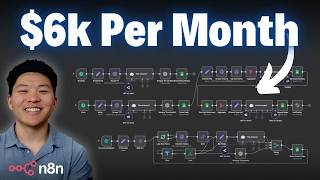
A creator built an n8n workflow that automates YouTube strategy analysis and generates $6,000 monthly. It scrapes top videos from your niche, analyzes titles and thumbnails for power-words and visual appeal, pulls comment data to identify what's working, and uses AI to generate three new video ideas weekly. The template is free to download.
Chapters
Today I'm going to be showing you guys this AI system that I built that I actually use every single day. It essentially acts as my YouTube strategist, and it's been helping me grow my channel and consistently bring in over $6,000 a month from YouTube. As always, I'm giving you all the resources that you need to set the system up completely for free. So by the end of this video, you'll have this exact system running for you as a YouTube strategist. So let's go ahead and do a live demo. I'm going to run the system, we'll take a look at the results, and then we'll break down every single node so that you guys can see how I built this thing. So we basically have 5 different phases here. So let's start with phase 1, which is niche outliers. The idea here is that you pop up this form submission and you're prompted to enter in 3 YouTube channels that are in your niche. So right here you can see I put in Nick Sarayev, Robo Nuggets, and Simon Scrapes. Keep killing it, guys. I'm gonna hit submit and then we're gonna watch this first phase kick off. And right now what it's gonna do is it's gonna take all 3 of those channels, it's going to go look at their outliers, so their best performing videos over the past 6 months. It's gonna grab those top 10 and then analyze their titles and their thumbnails, and then we're gonna get all of that data for us in a Google Sheet. So as you can see right now, it's working on scraping videos from Nick's channel, and then it's gonna loop through and do Robo Nuggets, then Simon. So I'll check back in with you guys when this first phase is complete. All right, we're on that third batch right now of the loop, and you can see it's analyzing these 10 titles. Then it's gonna go down and analyze the thumbnails, and then we'll have our finished results. All right, there we go. Just finished up, and we're writing back to Google Sheets. So I'm gonna hop over to that tab, and we'll take a look. Okay, here we are on the first tab of this Google Sheet, which is the niche outliers. So as you can see, the first channel we looked at was Nick Sarayev, and we can see that we have his 10 best performing videos from the past 6 months. And the data that we get about each of these videos is the title, the URL, the thumbnail, the views, the likes. And then here's where our AI analysis comes into play. So one of the most important things about YouTube is the title and the thumbnail, which is the packaging. So what we have that first AI agent do is look at the title and pull out the power words that were used in the title. Once we break down the build, I'll show you guys how I prompted it. But basically you can see it's pulling out certain words that are grabbing attention or or making some sort of promise. Like right here we have full course, 6 hours, build and sell AI automations. We have start and sell AI service, 10 hours, boring AI automations, $1.5K each, 2025, stuff like that. So the idea of this first sheet is that you can go ahead and look at other channels in your niche that are doing well. You can look at their best performing videos and you can see different things in their titles, different patterns that are probably leading to their videos performing well. And then you can start to think, how can I make titles with my niche and my content that work into these patterns. So then of course here are all of RoboNuggets' top performing videos from the past 6 months, and then the same thing down here with Simon. And then we move on to the second part of packaging, which is thumbnail analysis. For example, this first one, it grabs attention and encourages clicks because the bold text says "Full AI Automation Course." It's large, it's high contrast, and it immediately shows the viewers the value that they'll get out of the video. And then we can go ahead and click into this link right here and it will pull up the actual thumbnail that was used for the video. But the idea here is once again analyze the packaging that's working well for your niche and then see how you can customize it to fit into your videos. All right, so that's phase 1 of this workflow, which was basically a form submission. So you set that off whenever you want. Now the rest of these phases are automations that go off on a scheduled trigger. So first let's go look at phase 2, which is one automation in itself, and this one runs every single week on Sunday. So I'm going to go ahead and execute this workflow down here, and this is basically looking at my broad niche. So my targeted niche is pretty clearly NNN, but my broader niche is maybe AI automation or artificial intelligence. So that's what I put right here in the set node is artificial intelligence. So now we have another Apify Actor running, scraping YouTube. It basically searched for the word artificial intelligence, and it's going to do the same thing, analyze the titles and analyze the thumbnails, and then it's gonna put that in a Google Sheet for us to take a look at. So that's finishing up right now. Let me click back into the Google Sheet. We'll go to the second tab, which is broad niche daily, And here you can see we just got our broad niche insights. So on this tab, we're getting basically the same columns, but these are 5 videos that are in our broader niche and it's gonna run every single week. And the idea here is that you don't want to get caught in the bubble of your niche and only looking and analyzing other people in your niche because packaging that works on YouTube, even if it's really general, can be basically narrowed down to your niche and applied to your videos. So here we can see some power words like AI in the future workforce, impact jobs, artificial intelligence, lose it, Sam Altman, AGI, GPT-5, stuff like that. And it may not seem super impactful when we just look at 5, but as this builds up, you're going to continue to get a pattern bank of outliers and analyze why did these videos perform so well? Why are they outliers? And then of course we get the analysis over here. So this one is 2 people deep in conversation. And if I click into it, we can see that it is Sam Altman and someone else deep in conversation. And so even though this may not really work for my specific niche with like an edit and workflow and me sitting down, it can still just kind of help you put yourself in the shoes of a consumer. Okay, so now we'll move on to Phase 3, 4, and 5, which are all linked up together in one workflow. All 3 of these phases will run every single day at 6:00 AM. So let me just go ahead and kick it off. So what happens here is now we're looking more targeted in our niche for insights. So right here, I set my niche as any, then it's gonna go ahead once again, scrape those YouTube videos from the past week that are performing really well in our niche, analyze the titles and analyze the thumbnails, and then we get that data back. And then we move into Phase 4 and 5, which are a little bit more tailored towards us specifically. So the first thing that it's going to do is it's going to actually scrape our own comments. So right here I set my channel URL. You can see I put in youtube.com/nateherk. And what we have here is another Apify Actor that is grabbing our 5 most recent uploads. And now that it has those videos, it's passing in those URLs to a different Actor that's going to go grab the comments from each of those YouTube videos. So the idea here is every single day, this comment analyzer agent is going to look at all the most recent comments on our channel. It's going to analyze them and it's going to pull out patterns and it's going to put them into 3 different buckets. So things that we're doing good, things that we're doing bad, and things that the audience wants more of. So once it's done analyzing that, it's going to write it to Sheets and we move on to phase 5, which is ideation. So ideation basically takes the output from this phase over here and this phase right here, and it basically is going to give us some more ideas about how we can package future videos. So it looks at high-performing videos in our niche, it looks at comments of what our audience is looking for, and then it helps us out with packaging for 3 new ideas every single day. So let's go over to the Google Sheet and go to the third tab, which is our niche daily insights. So these are the 5 best performing videos right now if you went and searched N8N in the past week. And once again, we're getting the same type of data as far as title, URL, thumbnail, views, likes, power words, and thumbnail analysis. Okay, from there, phase 4 is we actually analyze comments. So we can see that every day we're gonna get one new row and we're gonna have good, bad, and things we need to do. So one good example is viewers consistently praise the clear, well-explained, and useful tutorial content. Especially around setting up and using N8N locally with AI agents. Some negative comments that I'm getting are users are facing issues with errors with Git commands, certificate verification failures, JSON parsing errors, WhatsApp triggers locally, things like that. And then finally, some things that the viewers are looking to see, like tutorials on Redis, Grafana, LangChain, Post-its, how to host N8N setup 24/7 on something like AWS EC2, Google Cloud, VPS. And I'm not saying you have to make a video to address every single one of these points, But if you see things popping up more than just one day, maybe you should make a video on it. Or if you're unable to make a video on it, maybe you should try to learn that topic. All right, anyways, the final phase is now the ideation where every day we're going to get one new row of 3 new packaged videos. So once again, this agent takes into account things that are performing well in our niche lately, what the audience is looking for lately, and then packages it all together. And it also looks at the power words and other thumbnail elements that are doing well. So we have how to run your N8N automations 24/7 on AWS EC2, which is one of the things that the audience just said that they wanted. and then we have some inspiration for a thumbnail. We've got Budgeting AI Workflows: Cut Costs and Avoid v03 API Overcharges in NNEN. And then once again, another inspiration for thumbnail. And then finally, we have Secure Your NNEN Tunnel: Ngrok vs. Cloudflare with 2FA Setup and Troubleshooting with another thumbnail concept right there. So that's how this whole system works. We have one element that we can trigger whenever we want. We have a weekly insight, and then we have a daily insight. Okay, so I'm gonna break down each of these phases and what's going on within these different nodes. And explain why I built it this way. But keep in mind, you're able to customize this template for the way that you would go about your YouTube strategy. But real quick, I just wanted to talk about my thought process when I went to build the system. So whenever I'm going to build an automation that's gonna replace manual work, I try to think about what do I actually do manually? And it's really important to be able to process map and wireframe out the solution that you're looking to build. And even though you may not get it exactly right on your first wireframe, it helps you really imagine what you're gonna do. So for example, I knew that every once in a while I would go look at other channels in my niche I would see what was performing well for them, and then I would try to put my own spin on it. And I knew I could build an automation for it, but I just wanted to come into Excalidraw and basically just kind of wireframe out this whole system of what I was doing on a weekly basis. So I'm not gonna dive too much into this actual wireframe. I don't wanna bore you guys. But if you do wanna nerd out on process mapping and wireframing so you can build more effective systems, then definitely check out my Plus community. The link for that will be down in the description. I've got a full course in here where I basically teach how to pick the process, map the steps, wireframe it before you actually get into any of the building stuff with n8n. So if you're interested, definitely check out that course. Anyways, let's break down what's going on here in phase 1. In the form submission, I put in 3 channels, which were Nick, Robonuggets, and Simon. From there, I knew that I had them all as one item, but I wanted to loop through and process each one individually. So I knew I had to do a little bit of data manipulation here in order to get them into 3 separate items. My solution for this was using a set node to set them as an array. So on the left, I have 3 different channels and 3 separate fields, and and I basically put them into one field called channels. And now I'm able to take that array and split it out into 3 separate items that can now be looped through and processed individually. So that's the start of the loop. And now we move into the process of scraping YouTube videos and analyzing stuff. So first thing I wanted to call out is all of the HTTP requests that you see in this system are using Apify. So Apify is basically just an app store to use different scrapers, and we're using for the majority of the time this one called YouTube Scraper. But don't worry about the setup. I have everything already set up for you. All you need to do is grab an API key from Apify and you'll be good to go. and all you'll have to do is throw in your Apify API token, which is gonna be really easy. You just go to Apify, you go down here to your settings, click on API and Integrations, and then you'll copy this API token right here. And don't forget, you can use code 30NATHURK for 30% off Apify. And then you just paste your API token right there. So we have the Apify actor that we want to hit. I put in my API key, and now we have the JSON body, which is where the magic really happens. So I'm not gonna read off all of these different parameters and what they're doing, but in simple English, what's going on here is it's going to look at this channel right here. So in this case, it's looking at Simon Scrapes. And it's gonna look through Simon's most popular videos and just grab 30 of them back, the 30 most popular. So once we have those 30 videos where we have the title, the URL, the thumbnail, the view count, all the stuff that we want about the video, now we just need to manipulate a little bit because what I wanna do is I wanna get the 10 best performing videos in the past 6 months. So the way I do that is first of all, I use a sort where I'm basically just sorting these 30 videos by view count and I'm descending. So now we basically have the number one performing video here, and every time we scroll down, the view count is going to lower. So now that our videos are in the right order, I wanted to set up a filter. So this filter is looking at the date that the video was uploaded, and it's saying that the date has to be after today's date minus 6 months. So the video was uploaded within the last 6 months. And in this case, we have 27 of them were, 3 of them weren't. So what I do is I move into a limit where I'm saying, okay, I only want to keep the top 10 items. So this is just making sure that we're keeping the 10 most popular videos in the past 6 months. And it's kind of annoying because in this Apify Actor, when you're configuring it, you have the option to choose a date range, which I originally came in here and said 6 months, and then I wanted to sort by popular, but it wasn't actually pulling the most popular videos. And then I came in here and I realized that if I filter here based on time, that it's going to automatically set the sorting parameter to newest. So I wish I could just set up all the filters and all the sorting in here, but it doesn't exactly work, but this method does guarantee that we get what we want. Okay, anyways, now that we have the 10 videos we're looking for, it does 3 things. The first thing it does is it just sets the fields, only the ones we want, so channel, title, URL, thumbnail, views, and likes. The second path actually does the title analysis, so let me click into here real quick. So the first thing we do is we have to give it a user message, which is the title of the video. So right here you can see video title equals json.title, and remember that this is going to be looking at 10 videos. So here's the first one, here's the second one, here's the third, and we could click all the way through and look at all 10. And that's exactly why you see on the output we get 10 different items, which is the power words from each of those 10 titles. And then of course we have the system message, which is where the magic really happens. I'm not gonna read this whole thing, but at a high level I said, you are an expert YouTube strategist and title analyzer. Your task is to analyze YouTube video titles and identify the key power words or phrases that make the title compelling and clickable. And remember, you'll get access to this entire system prompt when you download the free template. But besides that, I basically just said extract 1 to 3 power words. They should basically have like a big promise or it should sound easy or it should be relatable. So that's how the agent knows what to do. That's how it looks at 10 titles and then we get our power words. And then the final branch right here is the thumbnail analysis. So right now I'm just using OpenAI's Analyze Image node. You could try out Google Vision or something else if you want to, but right now I'm using OpenAI. I gave it a really quick system prompt which said, you're an expert in YouTube thumbnail strategy. Your task is to analyze a thumbnail image and identify why it grabs attention and encourages clicks. Focus on what the viewer sees or feels, the implicit promise or curiosity the image creates. Be concise and keep your answer simple, all this kind of stuff. And you may have noticed in the demo that some of these titles in here were actually kind of getting cut off like mid-sentence. That's just because for the sake of the demo, I changed the length of description to 50 tokens. So if we change that back, we'd get the full analysis, but I wanted to keep the Google Sheet looking clean for the demo and didn't realize it would just cut off the words. But anyways, as you guys could tell, it was clearly looking at the image and it was able to analyze it. And it's super handy because what happens is when we use this Apify scraper to look at a video, it gives us the actual URL of the thumbnail. So we can just drag that right in here and then OpenAI analyzes it. All right, sweet. And then we just basically merge together those 3 outputs. So we get everything that we want in one clean line. And then we can just write it back to Google Sheet. We write it back to that first tab, and we just had to drag in what we wanted, which was the channel, the title, the URL, the thumbnail. It was just a simple drag and drop from here. And then obviously the power words came from our title analyzer, and our thumbnail analysis came from our analyze thumbnail node where I just dragged in the actual analysis. Okay, cool. So that's phase 1, and that is how we end up with this output over here where we have 3 different channels, We have their 10 best performing videos from the past 6 months, and now we have a pattern bank to analyze and to get inspiration from. All right, so then that brings us down here to phase 2, which is the weekly broad niche insights. This trigger right here is a scheduled trigger, and it's gonna go off every Sunday at 5:00 AM. After this goes off, it's going to grab our broad niche. So I put mine as artificial intelligence. You can set that to whatever your broad niche is. If your targeted niche is fitness, maybe you put this as health or wellbeing, something like that. and then we're gonna feed this broad niche into another Apify Actor, which is the same YouTube scraper one. You'll put your token in there once again, and then we feed it down here into the body request. So once again, not gonna read all of this, but in simple English, what's happening here is Apify is going to search YouTube for artificial intelligence. It's gonna sort it based on views. It's gonna sort it based on only videos in the last week, and then it's just going to grab those top 5. But once again, we get stuff like title, URL, thumbnail, views, likes, all this kind of stuff. And I'm not even gonna click into the title or thumbnail analyzer because it does the exact same thing as these two up here. So just to save you guys some time, I basically copy and pasted those nodes down here, and then we write it back to the Google Sheet on the second tab where we throw in the date, the channel, the title, and then all this other information just like you guys saw on that first one. And then we have our 5 new insights on our broad niche for today, June 23rd. All right, and now Phase 3, 4, and 5, which is one automation all strung together, And this is where it gets really tailored towards you and your niche. So this scheduled trigger is actually gonna go off every single day and it's gonna go off at 6:00 AM. Once it goes off, it's going to grab your niche. So I just put N8N, it's pretty clearly my niche here. And then we're gonna once again do another one of those YouTube scrapers on Apify. That's the exact same one. You'll put in your API key here as well. And then all we're doing here is pretty much the exact same search as the node right above us right now, except for we're searching now for N8N rather than artificial intelligence. So hope it's not too repetitive, but we analyze those titles, we analyze those thumbnails. Once again, packaging is so important. We write it to that third tab in the Google Sheet, and now we move on to the actual fun stuff, which is phase 4 and phase 5, comments analysis and ideation. So before you run this template, you'll want to come into this node as well, and you'll want to set this as your URL for your YouTube channel because we're going to take this YouTube channel URL and we're going to feed it into this next node, which is the Apify Actor. You'll throw in your API key. And now let's look at what's going on in this body request. So this is gonna go to my YouTube channel right here, and it's just gonna grab the 5 newest videos that I've uploaded. And when we do that, the most important thing that we get back here is the actual URL of the video. So if I open this in a new tab, it would open up my YouTube video right there. So because we have 5 YouTube videos and 5 YouTube video URLs, we can feed this into a different Apify Actor. And this one is a YouTube comments actor. So you'll throw in your exact same API key though. All the Apify ones will take the same API key. And now let's take a look at what we're doing in the body request, which is really simple. Basically just gonna go to this YouTube video right here. It's going to grab 30 comments and it's sorting by 1, which means newest videos. And if you're curious how I got that 1, I basically came to the Actor itself. I set up, okay, here's the video I wanna scrape, here's how many comments I want, and then I can sort by either top comments or newest. And if I sort by newest and I go to JSON, all I had to do was copy this request into n8n, and 1 means sorting by newest. So that's what's going on here. It's getting the 30 newest comments from all 5 of these YouTube videos right here, as you can see. And so what we get is 139 comments, probably just because one of the newer ones doesn't yet have 30 or more comments. So we have 139 comments and we want the AI agent to look at all 139 in one go. So the solve for that is we use an aggregate node. We aggregate the field called comment. So this one right here, and what we get is one item that has all 139 comments in it right there. So because we have everything in one spot, we can feed that directly into the comment analyzer agent. So first thing to call out is we have a user message where I'm giving it the comments. So I basically just dragged in this array of comments and then I use this.join function just to split every comment. So it puts two new lines in between each one. So it's very clear to the agent, you know, this is one comment, this is one comment, this is one comment. And then the system message is basically saying that you are a YouTube Audience Insight Analyst. You're gonna be given a collection of real YouTube comments from the past 2 weeks. And I should probably change that 'cause that's actually not true. But anyways, its task is to identify patterns in the comments for 3 categories, things you're doing well, things the audience doesn't like, and things the audience is looking for. And then it's able to actually output them into 3 different parts, doing well, audience dislikes, and audience requests. Because we use a require specific output format. And if I click into my output parser right here, you can see that it's basically telling the AI agent to output these 3 different fields. And that's exactly what we get on this right-hand side. And then all we have to do is write that to the 4th tab of the Google Sheet, which is called comment analysis. We throw in the date and then we're just throwing in the output for the doing well branch, the audience dislikes branch, and the audience requests. And as you can see, I'm once again using that.join function just to split everything up to make it more readable in our Google Sheet. It just makes it more readable for us when we go to our Google Sheet and we actually want to look at what the agent found. All right. And finally, we move on to probably the best part, which is the ideation, because it basically is going to take into account what this agent found, what this agent found, and then help us come up with some new ideas. So the first thing I'm doing is I'm pulling in the data that was found over here in phase 3. Yes, I could have just used it as a variable since it was all in the same flow, but I thought I thought it would be easier just to pull it in from Google Sheets. So that's exactly what I'm doing in this tab right here. I'm getting all the rows from the Niche Daily sheet, and I'm doing one filter, which is saying I only want to get rows where the date equals today's date. And that's how we can ensure we're only getting in the 5 that were just found today. Now we're ready to basically do the same thing where we want the agent to look at all 5 in one try. So we aggregate everything, and then you'll have to come in here and set your own channel description. So I literally went to ChatGPT and said, hey, based on what you know about me, Write me a quick description of my YouTube channel. And so it gave me this: Nate Hur creates practical, beginner-friendly videos that teach people how to build AI automations using AnyDen. So now we have all that we need to give to our creative agent in order to help us come up with some new video ideas. So if I click into this agent, we can see first of all the user message that I give it. I'm giving it all of the titles from today, all of the power words from today, all of the different thumbnail analysis. However you say that plural, and then what the audience is looking for from our comments. So on the right-hand side, you can see it has titles, power words, thumbnails, and what the audience wants more of. So it looks through the user message and it looks through its system prompts to give us the packaging for 3 new videos. But real quick, let's take a quick look at the system message. So I said, you are a top-tier YouTube strategist and content ideation expert. You help YouTube creators generate high-performing video ideas based on proven title patterns, power words, and thumbnail styles in their niche. So I told it what I was gonna give it, I told it what its goal is, and then of course down here I have to give it the description of the channel that it's working for. So that's where we drag in this little variable here, which basically says, okay, here's the channel that you need to help create videos for. Then I gave it some final guidelines down here. Of course, you'll be able to access this whole thing for free when you download the template, so I'm not gonna spend too much time there. And then like I said, we get 3 different videos with title and thumbnail pairs. So then the last step here really is just to write that back into our Google Sheet. We are writing that to the last sheet called Ideation, and we're dragging in the variables from our creative agent right into the Google Sheet. And then just as a quick bonus, I'm sending myself a Slack notification so I can wake up, I can see this notification in my Slack, and I can actually just click on this link that I put in here, which is just the Google Sheet. And this is what it looks like. Your niche and channel audit for 2025, June 23rd is complete. View the results here. So I click on that link. And it takes us to the spreadsheet with our niche insights. So that's basically the entire flow. There's lots of ways that I can imagine building on top of this and extending the functionality to make it even more useful. One idea that I think would be pretty cool would be an agent that helps you with your positioning. So maybe it's able to look through that database of patterns and power words and stuff like that. And you can be able to talk to it on a conversational level and also say, hey, I made a video about, you know, I used image generation to create LinkedIn posts for me. 'Can you help me package it?' And it would look through different stuff in the niche and different proven patterns, and it would help you package it. So that's one thing. Another thing I think would be cool would be like in the ideation phase, maybe we have an agent that's doing research about our broader niche or even our targeted niche and kind of looking at things that have happened within the past couple days. And maybe it can help you with your content calendar of different topics to make some videos on. But anyways, the most important thing here is just to download this template, start playing around with it, and see how you want to customize it to fit your YouTube strategy. So if you want to download this template for free, all you got to do is go to my FreeSchool community. The link for that will be in the description and in the pinned comment. Once you get here, it'll look like this. You will want to click on YouTube Resources and find the post associated with this video. If you can't find it here, all you have to do is copy and paste the title of the video into the search bar and it will pop right up. But let's say this is the post right here. You'll see a JSON file which you can download and import straight into your N8N. And then also, if you want that Google Sheet template with all these tabs and columns already set up, All you have to do is in this post, you will see a Google Sheet template link right here, and you can make a copy of that and then hook everything up. When you download that template, there will be a full setup guide right here with all of the links and the discount codes and telling you everything that you need to do in order to get this system up and running for yourself. Like I said, the most important thing is being able to understand how do I do this process manually, and then how can I automate it based on that. And in order to do that, I really encourage process mapping and wireframing, which once again you can learn about in my Plus group. We've got a great community of members who are building with NNN every day, so they're always sharing their challenges and their resources and their wins. And of course, we've got a full classroom section with two courses, Agent Zero, which is the foundations for beginners of AI automation, and then 10 Hours to 10 Seconds, where we learn how to identify, design, and build time-saving automations with NNN. We've also got stuff like step-by-step builds and live call recordings, so definitely check out the community if you're interested in this kind of stuff. Hey guys, while editing this, I realized that you would all kill me if I didn't go over pricing because I'm able to analyze my comments and see that. But anyways, let's real quick do a pricing breakdown, and it's really, really not bad at all. The main cost here that you're gonna have is these 5 different Apify actors, and the first 4 are using the YouTube scraper, which is this one, and it is $5 for 1,000 videos. And here we're getting 90 videos, we're getting 5, 5, 5. So it's really going to take you a while to hit that $5 mark. And then this final one right here where we're getting comments, this one is $1.30 for 1,000 comments. And at most every day in this node, we're pulling in 150 comments. So once again, it'll take you multiple days to hit that $1.30 mark. So the actor price is not that bad, especially if you use code 39HERC to get 30% off Appify. And then your only other costs are the OpenRouter costs and the OpenAI costs to analyze the images. And both of these are not too bad at all. It's a very minimal amount of credits. You obviously have to keep your billing information in there so you can have credits. But like, for example, if we look at all the GPT-4.1 mini models that I'm using, if I go to my activity in OpenRouter, you can see that it's super, super minimal. Each call is costing not even anywhere close to 1 cent. So it'll take a long time for you to even hit a dollar with this system. And also while I'm editing, I thought of one more thing that I could do to enhance this workflow, which would be looking at the transcripts of these well-performing videos and analyzing the hooks, and then having the creative agent help us generate some hooks as well. And we can build a pattern bank of hooks that work well. Anyways, that's going to do it for this one. Hope you guys enjoyed the video. Hope you learned something new. If you did, please give it a like. It definitely helps me out a ton. And as always, I appreciate you guys making it to the end of the video. I'll see you all in the next one. Thanks so much.










