Learn Voice Agents Now, Thank Me Later (Full Beginner's Guide)
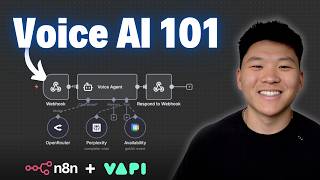
Dr. Violet Howard builds voice AI agents with VAPI and n8n, starting with the three core parts: speech-to-text, a language model, and text-to-speech. He creates a customer-support assistant that reads PDFs, then a booking agent that connects to Google Calendar, and finally automates call summaries to Google Sheets and email using webhooks.
Chapters
In this video, I'm going to take you from zero to building your very first voice AI agent. By the end, not only will you understand the value of voice agents, but you'll also understand exactly how you set one up and all of the different components that go into building effective voice agents. So let's not waste any time and get straight into the video. So if you've been following my channel for a while now, then you probably know what N8N is. And to build our voice agents today, we're going to be using a platform called VAPI. And I'm going to show you guys that when we combine VAPI with N8N, the possibilities are pretty much endless. So to start off, what is VAPI? VAPI is a no-code platform that lets you build voice AI agents. And if you've never really heard the term voice agents before, it's basically just a virtual assistant that can have natural real-time conversations with people over the phone or on websites. And really the only difference between a voice agent and a chatbot is that a voice agent uses voice instead of text. These agents can make and receive phone calls, they can have natural conversations with users, and they can integrate into all of your existing systems. So they can do things like appointment scheduling, customer support, sales calls, and more. So before we get into the actual building today, I did want to go over a few things at a high level so that we're all on the same page about how voice agents work. Essentially, there are 3 core components that go into voice agents. We have speech-to-text, we have the large language model, and we have text-to-speech. And just think about it like this. When you're talking to your ChatGPT or your Anthropic Claude, what happens is you text something, the large language model interprets it, and then responds to you, and that all happens in text. So the only thing we're actually changing here is the input and output. So the voice agent will take our speech, turn it into text, the large language model will process it, and it will output a text response. But then the agent will just turn that text response into speech, and it happens real time with minimal latency. So no need to overcomplicate voice agents. At their core, it's just an LLM, the same way you would build one in N8N, or the same way you talk to ChatGPT, except for we use speech rather than text. and now let's real quick break down the anatomy of a voice agent. So there's 4 main parts I want you guys to think about. Obviously we have the large language model, which is the brain of the AI agent, and we can use top models that you're already used to, like OpenAI, Google, or Anthropic. Then we have the system prompt, of course, which is like the playbook or the script for your agent. You write out the agent's instructions, you define its personality and certain rules. We also have the actual voice, so you can choose from tons of different voice models. You can use ElevenLabs, other providers, stuff like that. This can be male, female, young, old, British, American, whatever you want. Then finally we have the tools, which is where all of the magic actually happens because tools let our agents do things. So real quick example, let's say you're going into a dentist and you are building them a voice agent system. We could choose something like GPT-4o as our large language model to run the entire agent to be the brain. We would give it a system prompt as far as what is your role? What company do you work for? What do you do when people call in? What tools do you have? What is your end goal? And ultimately the end goal would be to help people book appointments. We would also give it a voice, of course, and then we would give it different tools. So it would need access to view the calendar. It would need access to make events on the calendar, maybe even need access to sending emails, stuff like that. And real quick, if you're not familiar with N8N, it is a no-code automation platform that lets you visually build workflows. And what's really cool is you can have VAPI being the voice agent and you can have VAPI trigger any of your N8N workflows as tools. So anything that you build in N8N as a custom agent or a custom workflow, you can now have a VAPI voice agent trigger that and use that. So why would you want to connect them together? Because you can of course supercharge your agents and have them do anything that's possible with automation, because in N8N you can connect to essentially anything. So you could have agents that instead of just answering questions could book appointments in Google Calendar or Airtable, look up customer information, send email confirmations, trigger payment processes, manage tasks. Stuff like that. Now, there are two main types of voice agents, maybe three. I'll explain the bonus one in a sec, but we have inbound versus outbound. So inbound basically just means someone will call this number and then a voice agent will pick it up. These are great for handling things like customer support, answering questions, scheduling, managing orders, whenever someone reaches out to your business first. And then we also have outbound agents. These are ones that proactively call people. So some common use cases for outbound agents could be sales outreach, appointment reminders, collecting feedback, surveys, marketing campaigns, stuff like that. And then the third bonus one I was gonna say is basically an inbound one, but if you've ever been on a website and there's like a little chat widget in the bottom right, and that's actually a voice agent, I would pretty much consider that inbound since a consumer would click on it to initiate that phone call. But just thought I'd also throw out there that it doesn't have to be a phone number. It could also be a website widget. And why do I think that you should be learning this now? The voice agent space is gonna blow up in 2026. There's lots of opportunities, there's very clear ROI, and you can have a lot of impact. If you know how to build voice agents. So that's enough of the boring slides that I had prepared for today. We're gonna jump into VAPI and N8N and we're gonna start to do some stuff, but I wanted to real quick tell you what we're gonna be building today. I'm gonna show you guys how to set up VAPI. We're gonna talk about prompting and stuff like that. I'm gonna show you guys how you can give a voice agent a knowledge base super easily so you can load in a bunch of information about you and your business. So now it has that. I'm also gonna show you guys how we can connect tools to our AI agents so it can do things like, you know, check the calendar and create events and stuff like that. And then I'm gonna show you how you can automate all of your end-of-call reports so you can automatically see what was talked about and what actions had been taken. So if that all sounds good to you, let's head over to VAPI and get started. All right, so here we are on VAPI, and you can actually see right here is an example of one of those website widget voice agents where you could talk to VAPI right here. But we're not gonna do that. We're gonna go to the top right and click on Open Dashboard, and I'm going to actually just sign up for a new account in front of you guys right here to show you what you will see. All right, so I just signed in with Google and this is spinning up my dashboard. I have not created an account with this email yet, as you can see. And now let's kind of talk about what we're looking at. So right here you have an overview where if you have voice agents in production that are running live, you can see your calls, your average duration, and your costs. Now I know when you hop into a new platform, it can be a little overwhelming. There's a lot to look at. Just focus on what I tell you about today, because that will be what you need to set up your first agent and understand how this stuff works. So today, really, there's just going to be two main things that we're going to look at. On the left-hand side, we have Assistants. If you click on that, this is where you can create different voice agents in VAPI. And then we also have a section right here called Tools. If I click on this, where you can see we can create tools, and then we can have any of our voice agents call on these tools later on. So let's just go ahead and go back to the Assistants tab, and real quick, just take a look at the default base agent that is already here for us, the Example Agent. and I just wanna run through where things are because we talked about earlier the anatomy of a voice agent and what goes into it. And let me just show you what that looks like in VAPI. So the first thing right here, you can see we have the model and it says configure the behavior of the assistant. So if I open that up, you can see that we can choose from different model providers like OpenAI, Anthropic, Azure, Google, and from each of those providers we can also choose a different actual chat model. So right now by default we're on GPT-4o Mini cluster. We're gonna stick with that for now, but you can see that all of these different models have different costs. They have different strengths, and they also have a different number of milliseconds. So a different amount of latency. The next thing we can set up is who speaks first. So if this is an inbound agent that I'm calling, as soon as I call it, the agent would answer and say, thank you for calling Wellness Partners. This is Riley, your scheduling assistant. How may I help you today? And so if you don't want them to speak first, you could have it be assistant waits for user, or you could have it be assistant speaks first with model generated message, which means it's not going to be this fixed message. Message every single time. And then you can see here, we move on to the system prompt. So this is where we actually define the behavior and the identity and the whole, you know, personality of this voice agent. So the reason I wanted to show you guys this is because the prompt is the most important part of your voice agent, but you're never going to get it right on the first try. In fact, you're probably going to iterate upon your prompts over and over as you have more conversations and as you expose it to the real world. But in general, here are some of the best practices with voice agent prompts. You can see at the very top we have sort of like a title. So this is an appointment scheduling agent. We give it the identity and purpose. We then have a section about the voice and persona. So we have personality, we have speech characteristics. We move into conversational flow. So you can see we have an introduction. Here's how you start. If they immediately mention an appointment needed, then say this. We also give instructions on how to determine what type of appointment they need, and we're able to explain what to say in each case. We explain the scheduling process. So you would first collect patient information, you would then offer available times, you would then confirm selection, and you would provide preparation instructions. And so you can see the pattern here. Basically, we have different sections of if this happens, do this. This is how you act, this is your role. If this happens, do this. And so like I said, there's so many different scenarios that could happen on a phone call. And so the more and more detailed you get in this prompt is how you make your agents more and more higher quality. And so today I'm not going to deep, deep dive into best prompting practices, but I am going to set up a few voice agents with you guys live, and you'll see exactly how I'm able to prompt and sort of get feedback and iterate upon it. And I'll show you guys the mindset of building an agent. You can also see down here we have a section for files, so we could drop in files that we want it to use as its knowledge base. We have max tokens, which says this is the max number of tokens that the assistant will be allowed to generate in each turn of the conversation. So this is how you can protect yourself on a cost perspective. And then on the right, we also have temperature, and it says the temperature is used to control the randomness of the output. So the higher this number is, the more random, the lower, the more deterministic and predictable your agent will be. So you can see there's lots of different levers that you can tweak, and there's lots of things to do here. And so that's why the most important aspect of automations, if we even zoom out from voice automations for right now, is being able to understand, here's what I have, here's the results I got. Now I need to go back and make it better, and then I test again, and then I go back and make it better, and then I test again. All right, so that was model. We also have voice. So here you can see voice configuration. We can choose a voice from different providers. So we could use VAPI, ElevenLabs, DeepGram, OpenAI. And then for all of those providers, once again, you have different voice options to choose from. And then after voice, the next part I wanted to talk about was tools. So here is where we can give our agent different tools once we create them. And then we would also in the system prompt tell them, you have this tool, here's when you use it. You have this tool, here's when you use that one. Most of these are kind of custom ones that you'll have to set up, but they're not too difficult at all. I'll show you guys that later on. But we also have a few predefined, like the ability for the agent to end the call, so we could give it access to that. And we could also give it a forwarding phone number so that when we give it a tool like transfer the call, it actually knows what number to transfer it to. So there's lots to do, there's lots to dive into today, which is why this one, today's video, this first voice agent, we're gonna keep it simple, and I'm gonna show you guys the core things that you should be looking to understand. Okay, so for the first example, we're gonna go ahead and create a new one. So I'm gonna click on Create Assistant, and you can see that we can either start with a blank template or we could quick start with a customer support specialist. So I'm gonna go ahead and click on this one first to start. So customer support specialist, sure, we'll just name him Alex for now, and then I'm gonna hit Create Assistant. So now this has just spun up a different assistant for us, and we once again would come in here and configure the model, the first message, the system prompts, tools, all this kind of stuff. So you can see right now the agent is set up to speak first and it's going to say, "Hi there, this is Alex from Tech Solutions Customer Support. How can I help you today?" So what we're going to do is we're going to play around with this agent and we want it to be able to answer policy information, FAQs with this document. This is our source of truth. So our store name is Greengrass. We have policies on shipping, returns, warranty, payment, privacy, and we also have a list of FAQs. So in order for us to give all of this knowledge to our voice agent, we just have to drop in the file. Which is really handy because we don't have to set up some sort of vector database in N8N and then have the voice agent call that. We can just set it up as a file natively in VAPI. So we're going to go back to VAPI. I'm going to go over here on the left-hand side and click on More, and I'm going to click on Files. And then it says drag and drop a file here or click to select a file locally. So I'm just going to drag in the policy and FAQ document right there. You can see it has been uploaded and now we have this in our VAPI dashboard, and we can give our agent access to it. And I don't want to get too technical here and confuse you guys, but this is not using any sort of sophisticated chunking or ingesting of a vector database. This is just going to let our agent basically read it, very similar to when you drop in a file into something like ChatGPT. So if you have a huge, huge, huge knowledge base that you want your voice agent to be able to use, you would probably want to actually set up more of a vector approach and call NNN as a tool, something like that. which we're not gonna talk about today, but that is something that you can do pretty easily. Okay, so now I'm gonna go back to that assistant that we had, and right here, it's this easy. We scroll down a little bit below the system prompt, and you can see there's files, and all I have to do now is select policy and FAQ document. And now if I hit publish just to save that, publish is just, I don't know why it says publish. It should probably just say save, but now we have saved that and our agent can look at it. Okay, so we already have our system prompt in here that's basically optimized to be a customer support representative. What I wanna do real quick is change every instance of Tech Solutions to Greengrass, since that is our company in this case. And so I'm just gonna do that real quick. Okay, so I switched out all of those instances. We're not going to fully read this entire system prompt. We will do one together later, but essentially same thing, identity and purpose, personality, conversation flow, troubleshooting, how to address frustrated customers, all of this kind of stuff. All right, so now we're going to test out this assistant just so you can see how the flow works. And I'm gonna do that by clicking on this button up here, Talk to Assistant. Which is nice because we can test it in the dashboard rather than having to call a phone number every time. And when I click on this, you're going to see on the right-hand side, we'll see a little screen and it will be sort of like transcribing the audio so we can see what's going on. But I'm going to ask it some questions based on this policy and FAQ doc right here. So let's get started.
Hi there, this is Alex from Greengrass customer support. How can I help you today?
Hey Alex, I'm just calling in today because I've got a few questions.
Hi, I'd be happy to help answer your questions. What's on your mind today?
Yeah, I'm just curious about the return and refund policy. I had a recent order and I was just trying to understand if I could return my product.
Hmm, got it. Thanks for letting me know. We actually don't process refunds directly from customer support, but I can help connect you with our billing department for assistance. Would you like me to do that for you?
Yeah, I don't need a refund yet. I was just curious about the policy.
Totally understood. Let me, let me look up that information for you. Just a moment, please. I'll check the knowledge base to get the specifics on our return and refund policy. Alright, here's the info on our return and refund policy. You can return items within 30 days of delivery. The product should be unused in its original packaging and include all accessories. Customers cover return shipping costs unless the product is defective or incorrect. Refunds are processed within 5-7 business days after inspection of the returned item. Keep in mind, final sale items and digital products are non-refundable. Anything specific you'd like clarification on?
Yeah, yeah, no worries. Um, thanks for that information. I was curious about Bulk discounts. I'm looking to order just a ton of this.
Gotcha, bulk orders. That's exciting. Let me grab the details on any discounts or policies related to larger purchases for you. Give me a moment. Looks like we offer bulk order discounts. You can reach out to our sales team directly at sales@techhaven.com to get more details on the pricing and options. They'll guide you through everything Anything else you'd like help with?
Yeah, I guess the last thing would be, um, I'm also looking to send over some friends to Greengrass. Do you guys have any gift cards?
Ah, gift cards. That's a great idea. Let me find out if we offer those for our services. Hang tight for just a moment. All right, here's what I found. Um, we do offer digital gift cards in various denominations. You can grab them straight from our website. Whenever you're ready. Anything else you'd like to know?
Nope, that is going to be it. Thank you so much for your help today. All right, awesome. So we can actually go back now and we can review that conversation. You can see what it did is it had to use a tool here, which is called default query tool, and that just basically means it's looking within this file down here. But you can see it used it every time before answering me. So that's how we know it was looking up the information based on this PDF that we had given it. Now you may notice there was a few things in that flow that maybe you didn't love. So that would be as simple as coming back into the prompt and refining, hey, you know, like you did this, I don't like that, or do this more specifically when you are presented with X scenario. So I just wanted to show you guys that real quick demo of how this all works in VAPI. And now what we're gonna do is we're gonna create our own blank assistant, and I'm gonna show you guys how we can, you know, set up some tools and have it take action for us, which is gonna be pretty cool. So. I'm going to go ahead and click on Create New Assistant and we're going to do blank. And I'm just going to call this one a booking agent. We'll go ahead and create that assistant. And now we just have to set it up once again. So we'll stick with GPT-4o-Cluster for now. It is working fine for us. Basically what I want this agent to do is let's say I'm running a car detailing company called Hercules Detailing, which is actually one of my first entrepreneurial adventures that I embarked on. Anyways, we're going to system prompt this thing so that someone could call the phone number on herculesdetailing.com and book in an appointment. So what's the first thing I would want to think about here? If I called a detailing company, what would I want to hear? I would probably want someone to say, hey, this is Nate from Hercules Detailing, how can I help you today? So I'm going to put that in as the first message. And just make sure you're hitting publish whenever you make changes, otherwise you'll lose those. But anyways, Now we have that set up. Before we go ahead and create the system prompt, what I want to do is give it access to two tools. So what it needs to have access to is my calendar. So here's the calendar. You can see we have one appointment from 3 to 4, and we have one appointment from 6 to 8. So this voice agent needs to be able to look at the calendar, and it needs to be able to also create events. So back in our VAPI dashboard, we're going to go over here on the left and click on tools, and we need to create those two tools. So it's actually really easy. In the past, before there were native integrations, you would basically send VAPI this data to n8n, and you would build an n8n agent that would take action in Calendar. But now we can just do this. I can click Create Tool, and I can go down here to Google Calendar, and you can see there are two ones that are available: Create Event and Check Availability. So let's first start with Check Availability. So I click on that. So I renamed the tool Check Availability, describe the tool in a few sentences. I'm going to say use this tool to check the calendar to see when there are available time slots. So just a real quick description of when to use that tool. And then we have calendar settings. So this is gonna use primary calendar if we don't fill anything in. And I also want to set my time zone, which is gonna be America/Chicago. And then I'm gonna go ahead and save this. But what you may notice is that we didn't actually connect a calendar yet, and there's nowhere in here to do that. So you have to actually go down here to more and You're going to click on Integrations. And first thing, what is Integrations? Well, you can connect other providers. So if I was using ElevenLabs, I could connect my ElevenLabs API key and this would charge me on ElevenLabs billing information rather than in VAPI. You can also connect models so you could connect your OpenAI key or Anthropic key, your OpenRouter key, and it would charge you on there rather than here. And I'm not going to do that here to keep this tutorial simple. But if you do connect outside and if you connect externally, it will be a little bit cheaper because VAPI marks it up, and you also won't have issues with potential rate limits because you're on your own key, I guess. So that's just an option that you do have available to you. But I'm gonna keep scrolling down, and what we're interested in right now is tool providers. There it is. And you can see that we can connect Make, Slack, Google Sheets, GHL, but right now I'm gonna connect my Google Calendar. So I'm gonna real quick sign in. So you can see it's saying VAPI wants to access your Google account. That's fine, continue. and now we have basically connected our Google Calendar right here to our VAPI tool, which is this check availability one. And so real quick, I'm gonna do the exact same thing now with Google Calendar create event instead of check availability. I'm gonna rename this create event, and I'm gonna say use this tool to create a calendar event booking. Okay, sure, good enough, brief description. And then once again, I'm just gonna make sure that all of our time zones match up. So this one has to say America, Chicago as well. So super simple. We have a create event tool. We have a check availability tool. Now in our booking agent, we have to prompt it to understand what is your role? What company do you work for? What are you supposed to be doing? What tools do you have? When do you use those tools and stuff like that? And just keep in mind, it will never, ever, ever be perfect on the first try. So we're going to give it an initial prompt. We're gonna test it out and we will probably have to make some changes. So I'm actually gonna use ChatGPT to help me with this prompt. All right, so here's my system prompt. I'm actually gonna get rid of the word please because I just saw a study about being rude to ChatGPT makes it better. So I got rid of please and now I'm gonna shoot this off and we should just be able to have a first iteration of a system prompt for our agent that we will then go ahead and test out and see if we need to change that. And the one thing I just want to make sure we have here is when to use each tool. So you can see it kind of talks about that right here. For now, let's just copy this code into VAPI and test it out. Okay. One more thing I did forget to mention though, we, we told it in the system prompt, as you can see, when to use each tools, but there is a tools tab right here and we do have to select those tools. So all I have to do is click on this and I just have to select create event and check availability because those are the two that we created. As you can see now, they are here, which means that our agent can actually access them. But now what we're gonna do is we're gonna go ahead and talk to the assistant and just observe what we like about it and what we don't.
Hey, this is Nate from Hercules Detailing. How can I help you today?
Hey Nate, I am looking to set up a car detailing appointment.
Great, I'd be happy to help you with that. Are you looking for an interior, exterior, or full detail?
I'm looking for an interior design— er, interior detailing appointment today.
Certainly. What time today were you hoping to schedule the appointment?
Sometime in the afternoon, maybe? What do you have open?
We have openings available at 12 PM, 1 PM, 2 PM, 3 PM, 4 PM, and 5 PM today. Which time works best for you?
Okay, so I'm gonna go ahead and end the call. Now, the reason I ended the call is because that actually isn't accurate. And the reason why is because if you look really close down here, this says 2023, November 3rd. So that probably is true on our calendar, but today is not 2023, November 3rd. So what we have to do real quick is give the agent access to the current date and time. So what I'm going to do is open up this system prompt and down here in the bottom at the additional notes section, I'm gonna add this bullet point that says today's date and time is this function, which basically is today's date and time. It's also in America Chicago time zone. And so I'll pause that right here if you wanna be able to copy that expression. You could also go to Perplexity or ChatGPT and say, hey, in VAPI, what's the expression to give my agent the current date and time? Anyways, I'm gonna update that. I'm gonna go ahead and hit publish. And now let's go ahead and try talking to this thing again.
Hey, this is Nate from Hercules Detailing. How can I help you today?
Hey Nate, I'm looking to schedule a full interior and exterior detailing today.
Thanks for reaching out. Let me check availability for the rest of today so you can choose a time that works best for you. Hang tight. It looks like we have availability for today at the following times: 1:37 PM until 3 PM, 4 PM until 6 PM, Which time works best for you?
Let's do the 5 PM slot.
Got it. Let's book you for full interior and exterior detailing at 5 PM today. Could you please provide me with your email address so I can send you a confirmation?
Yeah, you can send that to nate@example.com.
Thanks for that. Just to confirm, it's N-A-T-E-E-X-A-M-P-L-E, right?
No, it's Nate @example.com.
Got it, that's nate@example.com. Let me finalize your booking now. You're all set. I booked your full interior and exterior detailing for today at 5:00 PM. A confirmation email has been sent to nate@example.com. Thanks for choosing Hercules Detailing. If you have any other questions or—
Okay, had to go ahead and end the call, but you can see what I did is it got them the spelling wrong of my email. So I'm glad that I told it to confirm that. We were able to correct it, and then it went ahead and created the event right here. As you can see, we confirmed 5:00 PM worked, and it titled it Full Interior and Exterior Detailing, and it added nate@example.com as an attendee. So I would've gotten an email if this was a real email. So what we would do from here is we would now just continue to have conversations and throw different scenarios at it in order to see how it can react. And then we would just, like I said, come back and fix the system prompts a little bit. All right. So before we move on to the next section about how to automate those end-of-call reports, I'm going to real quick just do another example. We changed the chat model to Anthropic. We changed the voice to a different VAPI voice just so we can see a different experience. And I'm going to go ahead and run it again.
Hey, this is Nate from Hercules Detailing. How can I help you today?
Hey, Nate, I'm looking to schedule a full exterior detailing tomorrow, sometime in the afternoon.
Great. A full exterior detailing tomorrow afternoon sounds perfect. Let me check what time slots we have available for you tomorrow, October 29th.
Great.
A full exterior detailing tomorrow afternoon sounds perfect. Let me check what we have available for you. Looking at tomorrow's schedule, I've got some good afternoon options for you. We have openings at 12 PM, 1 PM, or 3 PM and later. Which of those afternoon times works best for you?
Let's go ahead and do 5 PM.
Perfect. 5 PM works great. That slot is available. So just to confirm, that's a full exterior detailing tomorrow, October 29th, at 5 PM. Perfect. You're all set for your full exterior detailing tomorrow at 5 PM.
Okay, so the reason I wanted to show you guys that is because that one felt noticeably slower, and it's because we changed the model. So if I went back here to OpenAI and we went to, which was one of the ones we were using, Floral Cluster, and we hit publish, you can now see how much the latency was able to drop and the cost, and it was just a smoother experience. So you want to probably play around with different models. We also noticed in that example, it like repeated the same thing. It said, let me check what slots we have available for you. It said that twice. And so that's something that we would want to either change the model for or go ahead and reprompt. But the point I'm trying to make here is this system prompt was our first iteration and we used ChatGPT for this with no data and we've only run like 3 practice calls. And so really what you should be doing is, like I said, prompt, run like 5 calls, jot down what you don't like or what you do like, and then give those notes to ChatGPT and say, hey, I just ran some tests. Here's what I found. Help me refine the system prompt again. And just kind of keep going back and forth and continuously testing until you feel like you have a good voice agent. So anyways, I hope that those demos and that example was helpful, and now you have a good idea of how you could get into your own VAPI voice agent and start building a little bit. But now I want to show you guys how we can automate those end-of-call reports and sync that up to N8N. So what we're going to do is we're going to go over here to Analysis, and this lets us have a summary. We could also determine if the call is successful or not, and we can also send over structured data. So for now, we're going to leave the summary prompt as is. It just says, you're an expert note-taker, you will be given a transcript of a call, summarize the call in 2 to 3 sentences if applicable. And so for now, that's fine. We're just going to leave that as is. What I want to show you guys is what we can do with the structured data. So I can open this up and I can basically say You will be given a transcript of a call. You need to extract the type of appointment that was booked, the email address of the customer, and the time and date that they booked their appointment. And so now not only are we going to get a summary, but we're going to get this specific information sent over to N8N, and we can do whatever we want with it. So in order to actually get that sent over though, we have to add each of those as a property. So I'm gonna click on Add Property. The first field is going to be, I'm gonna do Appointment Type. The second one I'm gonna add is going to be the Email Address. And then the third one is going to be Appointment Date Time. And so now it's going to extract these three properties from the transcript and it will shoot them over and you guys will see what I mean by that. But before we can actually finish this up, I'm going to click on Advanced, and this is where you can see stuff like privacy, HIPAA compliance, all this kind of stuff. But I'm going to scroll down here to Messaging. And what I'm going to do with Messaging is we need to give it an endpoint to hit. And so this is where it's basically going to know whenever a call ends, I'm going to take the summary. I'm going to take those 3 properties that we just defined, and I'm going to send it to this address. So where do we get this address? That's where N8N comes into play. I'm going to open up a new workflow in n8n, as you can see, and we're going to start this workflow with a webhook trigger. And all we have to do here is two simple things. We have to change the method to POST, and then we have to click right here to copy this webhook URL. And we're going to go back into Vapi and we're going to paste that right there. Perfect. And now you can see you could set up authentication and HTTP headers. The last thing I want to do is I'm going to basically turn all of these things off, and I just want to send over the end of call report. It's cool because you could get conversation update, function call, model output, tool calls, full transcript. Right now, for the sake of the demo, to keep this simple, I just want our server message to be the end of call report. And you can see here it says these are the messages that will be sent to the server URL configured, which once again is our NNN webhook. So I'm going to go ahead and hit publish. Perfect. I'm going to go back over to our interface. I'm gonna make sure that this is all saved, and we're gonna do one more experiment and, um, make sure that it can send over that information for us. But what I need to do is, because right now we're using a test webhook, and there's a difference between test and production— I'm not gonna explain that right now, I will at the end of the video— but this just means that in order for this to work, we have to click Execute Workflow. So what I'm going to do is execute this workflow. We're going to call our VAPI assistant, we're going to book an appointment, and then we should capture that information right here. So I'm going to hit Execute Workflow, go back into VAPI and start the call.
Hey, this is Nate from Hercules Detailing. How can I help you today?
Hey Nate, I would like to schedule a full interior detailing for today at 4 PM.
You're all set.
Okay, so we just got that information sent to our webhook because I ended the call. And now if we click into it, We can see we have tons of information here, but what we're interested in is if I scroll over, you can see what we have is the summary, which says the user called Hercules Detailing to schedule a full interior detailing appointment. They successfully booked the service for today at 4:00 PM, and the confirmation email was sent to nate@example.com. We also got the structured data that we requested, which was email address, appointment type, and appointment date and time, which is today at 4:00 PM. So we should have specified not to say today. We should have specified to give the actual full date, and we could have easily specified that by going back into VAPI, going to our analysis that we set up, and then clicking into our structured data. And then right here for appointment date and time, just saying like, please use full date format or something like that. And now it would be able to send over that actual full structured data in the way that we want it. But what's important now is that we have this data here, and if we wanted to get the full transcript, we get that too. But right now for this example, we just want this info. And now, because N8N lets us do anything, we can put this into a Google Sheet, we can email ourselves, we could send ourselves a text, we could put this into Slack, whatever we want to do with it to get notified of this call and to have some sort of call log we can do. So here we have a very simple Google Sheet with date and time, customer type, appointment, and summary. And I'm just going to show you guys how we could just write this data from N8N back into the sheet automatically so that every time we get a phone call, we get a log here. You are able to track your logs in VAPI, but just in case you want to put this into some sort of CRM or something like that, I'm going to go to N8N. We're going to add a Google Sheet node. We're going to do an append row in sheet operation. And now it's as simple as connecting to Google Sheets. So you would once again just come in here. Same thing that you did in VAPI is you would sign in with your account and then all you have to do is choose the document and the sheet to append information to. So this document is called Call Log, as you can see right here. It's called Sheet 1, as you can see down here. And so I'm going to choose Call Log Sheet 1, and then it automatically pulls in the columns because it can read the sheet. So all we have to do is go grab those variables that it's sending over and drag them into here. So we're going to close out of headers because that's just a ton of metadata that we don't need. And here we are with our analysis, with the summary and our structured data. So I'm going to drag this summary variable and just put that right there. I'm gonna drag the email address into customer. I'm gonna drag the appointment type into type, and I'm gonna drag the appointment date and time into appointment. And then in order to get the actual current date and time of basically when the call happened, I'm gonna change this to an expression, and I'm gonna use a very similar function to what we used in VAPI, just a little bit different, um, actual punctuation, but I'm gonna do two curly braces. And $now, which gives us the current date and time. And then I just want to clean it up. So I'm going to do.format. I'm going to, at the end of this 8-digit year, do hh:mm a, and that now gives us the full time as well as if it's AM or PM. And now if I go ahead and hit execute step, we go over to our Google Sheet. We see that this new row will pop into this sheet. With all that information that we were looking for. So now what we have is as soon as VAPI call ends, it will send data to NNN. NNN will send data to this Google Sheet, and it will basically update this for us. And then what we can do after that is maybe just shoot ourself a quick email. So I can go ahead and click the plus, I could type Gmail, and this could also be, you know, a Slack message or a Discord message or whatever you want it to be. And I could go ahead and do send a message. Once again, you'll log in with your credential you have to send this to someone. So let's say, you know, I am the manager and my email is natehurk88@gmail.com. And now I can just basically fill out the rest of this information. So for subject, I could say new call log and then I could just basically go ahead and maybe let's just say I want to drag in the customer so I can see right away the customer's email that just called. And then for the actual body message, for the email type, I'm going to change this to text. And then for the actual body message, we could make this whatever we want. Maybe we just want to send the summary. So I'm literally just going to chuck the summary in there and that's it. And then finally, I'm going to go to the option down here, Append NNN Attribution, and just toggle that off so that at the bottom of the email we don't get that message that says this was automatically sent by NNN. So I'm going to go ahead and hit Execute Step. It's going to send that email and let's go over and take a look at it. All right, so here it is. We got our new call log, Nate@example.com. The user called Hercules Detailing to schedule a full interior detailing appointment. They successfully booked the service for today at 4:00 PM. 4 PM, and the confirmation email was sent to nate@example.com. So I know that that was a very, very simple example of connecting to N8N, but now hopefully you can see how this would be powerful to automatically get things to happen after every single call has finished. The last thing I will say is this will not work unless you turn it on to be active, which means that the webhook will actually be constantly listening. But in order to make sure that they still connect to, you know, Vapi and N8N still can talk to each other. What you have to do is come into here, click on production, and copy that. And we're going to update that in our VAPI dashboard for this booking agent. Or once again, you would come to advanced, you'd scroll down to messaging, and you would literally just paste in that active webhook now instead of the test one that we originally had in there and publish it. And one quick thing is in this webhook, when you basically open it up, it's always going to by default look like it's on test, but If your workflow's active, it will be sending data to the production no matter what. Okay, so I didn't want this video to go super, super long, but let's sort of wrap up what we covered today. We talked about voice agents and the anatomy and why we're using VAPI for voice agents and the value of having N8N as a tool. We talked about how you could give a voice assistant access to a knowledge base by super simply just dragging in a file and then connecting that file in its model. We talked about some of the ways that you can use system prompts and what to look for when you're building one, as well as how you need to constantly be iterating upon upon them with testing to make sure that your voice agents are actually getting better and better. We also talked about how you can go ahead and set up different tools in VAPI and how it's probably easier to connect to some Google Calendar tools like creating events and checking availability by creating those VAPI tools rather than creating a custom tool where you send data to AnyDen and then have AnyDen send data back. Of course, I'm planning on making some more videos showing you how to actually have VAPI send data to AnyDen and then have an N8N agent, you know, make an image or make a video or send emails or update records in the CRM and whatever it is, and then send data back to VAPI. But I just thought for this first video, it would be a little more simple to understand and better to keep everything in VAPI until the end when we want to actually get that end of call report sent over to N8N, as you can see here. And we talked about how in the analysis tab, you can get more than just a general summary. You could also get some success evaluation and have the AI judge how good the call was. And you can have different properties extracted based on what you add here and based on what you tell it to extract. Now keep in mind, not all of these are required. So if someone calls and ends up not booking a call, it's still going to send over that report to N8N, and then it's still going to update all this stuff. But that just means that your row may be empty and it may be missing certain data. So what you could do is in your description, you could say, you know, like if an email address isn't provided, just say 'N/A' or whatever you want to say. Now there's a lot of different levers that we can pull here. As you guys can see, if I just scroll down, there's also things with voice configuration like background sound, punctuation. You can get really technical with how long you wait in between different speaking points and if you have punctuation or not and all this kind of stuff. And so I didn't want to dive into all of that in this video. The last thing I did want to talk about is if you wanted to connect this to an actual phone number. You could go over here to phone numbers, and what you can do is you could go ahead and create one, and VAPI gives you one for free to start with. So I could click create phone number, put in an area code, and you can see here you can get up to 10 free US phone numbers from VAPI. So I could go ahead and create that, and then if I scroll down a little bit with the inbound settings, we can choose an assistant to link to that phone number. So now if I called this number and my VAPI assistant was published and active, it would have the booking agent pick up. And so that was the inbound that we talked about. You can also see there are outbound settings, so you can call from a specific phone number as well and have that be set up from a specific agent. And if you already have phone numbers on Twilio or something like that, you can of course import those into VAPI and connect any of your VAPI assistants to those phone numbers. As you can see here, you could add a ton of different phone numbers into your VAPI account. Now, the last thing I wanted to talk about was pricing. You can see that we are on the pay-as-you-go model. and I currently have 8.52 credits left. So when you create an account, you get 10 free credits, and you can see that I was already able to do some testing and not use up all 10 of those yet. But from there, you can just go ahead and buy more credits, and you would just use $10 to get about 18.5 credits. So this one was a very intro and beginner voice agent video with VAPI and NN, but hopefully you were able to learn a lot. Definitely let me know in the comments what else you guys want to see with VAPI and what other type of voice agents you'd like to see me build for you guys. but also if you wanna speed up that process and you wanna be surrounded by people who are building N8N agents, voice agents, and building businesses with all this kind of stuff every day, then definitely check out my paid community. The link for that is down in the description. We've got a great community of over 2,500 members who, like I said, are building every day and building businesses. We've also got a full classroom section with 3 full courses. We've got Agent Zero, which is the foundations for beginners. We have 10 Hours to 10 Seconds where you learn how to identify, design, and build time-saving automations. And then for our premium members, we have One Person AI Automation Agency, where you learn how to build a scalable AI automation business. I also run one live call per week in here, which is really fun answering your guys' questions and having some cool conversations. So I'd love to see you guys in those live calls. I'd love to see you in the community, but that's gonna do it for the video. If you enjoyed this one or you learned something new, please give it a like. It definitely helps me out a ton. And as always, I appreciate you guys making it to the end of the video. I'll see you all in the next one. Thanks everyone.










