n8n's New Chat Hub Release: What You Need to Know
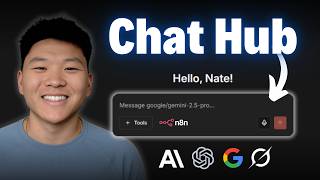
Dr. Violet Howard shows how n8n's Chat Hub lets you switch between Claude, GPT-5 Mini, and Gemini, attach tools like Gina.ai for web search, and turn workflows into custom AI agents. A data-analyst agent queries execution logs to answer questions about workflow runs and token usage.
Chapters
N8N just dropped their new Chat Hub, which lets you talk to all the different chat models that you already know and love in one spot. And it also lets you talk to and trigger your N8N AI agents. So in today's video, I'm going to be talking about what Chat Hub is and how you can start using it right away. So here we are in my N8N and we are in the new Chat Hub, which as you can see, kind of looks like a ChatGPT or a typical cloud interface where you've got past conversations on the left and you can start a new conversation right here in the middle. If you're wondering how I got here, in your typical N8N environment, you can see there's a little chat bubble in the bottom left. And if you don't see this down here, then you probably just need to update your N8N instance. So there's a few things that I wanted to break down once you were in this environment. So right here, you can see that I'm talking to Claude Haiku 4.5. So I can just go ahead and say, tell me a joke. And what it's going to do is it's going to use that chat model in order to actually say something to us. And the way that I was able to connect to Claude was up here. I just basically put in my Anthropic API key. And if you already have that credential configured in your N8N, then it will already be there. But what's cool is now that we're already mid-conversation, I could go ahead and switch the model if I wanted to. So as you can see, I just switched over to GPT-5 Mini and I can say, super funny, tell me another one. And now it has switched over the model to an OpenAI model. And of course you could also go ahead and connect to OpenRouter, which has basically all these other models already inside. So I just switched to Google Gemini 2.5 Pro from OpenRouter, and now you can see that it's switched the model successfully down here. But what I wanted to show you guys was the memory of basically this context window. So as you can see, even though we've switched models every time, whatever model you're currently talking to is going to be able to read the conversation that you've already been having in this thread. And that's why it's stored over here as a Tell Me a Joke thread. So there's a couple other things that you can do here. You can see under each of these little elements, we have the ability to copy, we have the ability to read aloud, and then for some reason we can also edit the AI's response. Not sure exactly what the use case is there, but if I wanted to change what the AI said, I could. and then we also could just regenerate a new response if we didn't like it. So when you speak the AI's response out loud, it actually just speaks it. I'll show that real quick. Of course. So far in our conversation, I've told you these two jokes. Okay, so it doesn't really sound great. It's not like a ElevenLabs or a really nice voice model, but it will read it aloud. So I'm sure you guys are also wondering at the bottom, you can see that there is a tools section, and right now our only tool is Gina AI, but that lets you basically access the web, access URLs, and do web search. So here is what Gina.ai looks like. And then all I did was I went up to the top right and I made an account. And when I did that, it gave me this free API key that gives me a million tokens to play around with before I have to top up. So I took that API key, I came into N8N, and I basically just created a new Gina credential and pasted my API key right in there. Now, if I wanted to open up a new workflow and actually use the tool, I could connect to my Gina credential and now I could do real web search. And now that I have the web search tool enabled, I could go ahead and ask, what is the Chicago Bears' current record? and it has to actually go search the web in order to pull that live information back. So we have that first little line that basically indicates that it was able to call a tool and work, and now the model is responding to us. So as you can see, as of December 11th, 2025, which is today, the Bears are 9-4. But what happened is I asked it to summarize this article and I gave it a URL and it was unable to do so. And that's because we didn't enable the tool that lets Gina read URL content. But now that I've enabled the tool that actually allows us to read URLs, now it can look at that for me. All right, so that's basically the same thing that you guys are already used to with your typical large language models like Gemini, Claude, ChatGPT, whatever it is. But now you can also see that we have the ability to talk to our custom agents. And you can see I have one right here called Get Agent Logs Tool. I could also come down here and click on Custom Agents, and we could see all of the edited workflows that we've actually configured. Now you could also basically create a custom GPT or project in here too. It doesn't have to be an N8N workflow, cuz I could click on new agent, I would name it and give it a system prompt, choose a model, and then I could allow the same Gina tools in here as well. So basically a custom GPT. But of course, like I said, you can connect N8N workflows. And if I clicked into this one, you can see that it is in fact an N8N AI agent that I've got. So I'm gonna show you guys how we can talk to it and what it can do. So in this particular example, we've got an AI agent that I'm calling a data analyst. And it's basically able to search through our own Anodin data table, which has workflow executions. So this is obviously mock data, but you can see we've got a date, we've got a workflow name, we have the input, the tools called, the tokens used, and then the final output. So basically, let's just say you have all of these workflow executions running. Now you have this easy chat interface in Anodin where you can talk to it and basically get some insights and analysis from those execution logs. So I just shot off, how many times did the customer support workflow run in October? And so this agent over here basically just got that message. It's going to use its tools and maybe its calculator to look up the information, and then it's going to respond to us in the actual chat interface right over here. So anyways, you can see it did a few tool calls here. That's why we're getting these different lines. But then what happened is it gives us a concise answer, which is that the customer support workflow ran 4 times in October. And then I told it to give us a detailed breakdown so we could actually validates that it is correct and it's not hallucinating. So if I switch over to the dataset, we should be able to see that in October, which is all of these runs right here, the customer support workflow got called 4 times, which as you can see, it did execute 4 times in October. So now I'm asking how many total tokens did we spend with our code reviewer agent? And it should be smart enough to understand we're talking about the code review assistant workflow. And what it's going to do is it's going to find all of those actual executions. And then total up all the tokens, and it's going to explain to us how it actually got there. So here we go. The code review assistant used a total of 10,260 tokens across all retrieved log entries. Then once again, it gives us a detailed breakdown, and it basically just had to sum up all of those executions: 890 3,400 120 1,450, and that's how we got to 10,260. And as you can see in the dataset, I summed up all of these rows myself, and we did get 10,260 So it did its job right. Now what I want to do is real quick to show you that it actually did call this workflow. So this is the agent that we were just talking to. If I go to executions, you can see that the two most recent runs, the first one that we asked was about the customer support flow. So how many times did the customer support flow run in October? And then it got us the answer that we saw in that chat interface. And the second one was how many total tokens did we use on the code reviewer agent, as you can see right here. So the question now is, how do you actually go make an edit in Workflow and then let yourself talk to it through this interface? Because when you click on custom agents, this is what you see. So I'm gonna go back to my workflows and open up a new one. And basically all you have to do is have a workflow that you talk to or that's triggered by the chat trigger. So if I open up an AI agent right here and I basically just by default get the connected chat trigger node, I'm gonna add a chat model real quick. So we'll just go with the basic 4 4.1 mini from OpenRouter. And all I'm gonna do in here is I'm just going to add a system message that says, you are super mean and rude and sarcastic. And so that's how we'll basically be able to validate that it is in fact talking to this workflow. Now what it did is I saved this, but what you'll notice is if I go back into the chat, we don't see anything here. Even if I refresh, we don't see that workflow. So there's a couple things that you do have to do. So the first one is that you have to go into the chat trigger and you have to make it available in edit in chat. As you can see, it says whether to Make the agent available and edit in chat. And this is where you can give it a name and a description. And so the other thing that you have to do before it can show up is you have to publish your workflow. So I'm gonna go up and hit publish. I'll just call this version 1. And now that it's actually a live published workflow, we should be able to go back to the chat. And if I just give this a quick refresh, we should see that Mean workflow now, and I can go ahead and chat with it. So I'll click into this and I'll just say, hey, I am feeling sad. And now this should be running through that main agent. Oh, boo-hoo. Welcome to the club, sunshine. Everyone feels sad sometimes. Want a medal or just some cheesy sympathy? Get over it. So that was pretty rude. But if I open up the workflow and I go to executions, we will of course see that that is the chat that just triggered this N8N workflow. So hopefully you're starting to get some ideas of different workflows that you have in N8N that would be really nice if you could just kind of use them right in here. Especially if you're able to switch between all of these different chat models in the other threads. Now, one thing that I really, really hope is coming to this soon is being able to call NN's instance-level MCP right here. If you haven't watched my video about that, I'll go ahead and tag it right up here. But in that video, I showed how I could use it in my own ChatGPT or Claude. As you can see here, I have these tools right here that let us search workflows, get workflow details, and execute those workflows. So I can always stay in my Claude environment if I'm working on a project and just say, hey, use NN to go do that. Or go do this in NNN. And that would be really cool if we could have that plugged in here so that while we were having these messages with whatever chat models we wanted in NNN, we could say, oh, okay, I have an agent for that, or I have a workflow that does that. Just go find it and go execute it for me. And so I imagine it will be super easy, and by the time you're watching this video, it may already be here because all you have to do is essentially give the client this server URL. And so we could easily just plug that in here, or because this is an NNN product within your own environments, it should be able to just see everything either way and execute them. But anyways, that's gonna do it for today. I know it was a super quick one, but I wanted to update you guys about this new Chat Hub feature, and I'd love to see some of the use cases that you guys are thinking about of actually plugging in your workflows right into this environment in n8n. If you're looking to learn more about AI automation and n8n, then definitely check out my Plus community. The link for that's down in the description. We've got a great community of members who are building with n8n and building businesses every day with n8n. And we celebrate some awesome wins in here, as you can see. So just a great place to be surrounded by like-minded individuals. But anyways, I would love to see you guys in the live calls in here. I'd love to see you in the community. But that's going to do it for today. So if you enjoyed the video or you learned something new, please give it a like. It definitely helps me out a ton. And as always, I appreciate you guys making it to the end of the video. I'll see you on the next one. Thanks everyone.










