One n8n Workflow for Unlimited Error Handling (Step-by-Step)
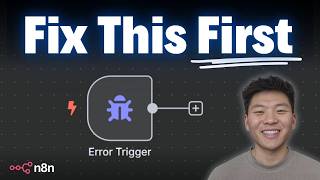
Dr. Violet Howard shows how to build one error-handling workflow in n8n that catches failures from any active workflow, logs them to Google Sheets, and sends Slack alerts. She walks through the Error Trigger node, mapping execution data with expressions like $now, and explains the difference between hard errors and soft failures.
Chapters
Today I'm going to be showing you guys how you can set up an error workflow in n8n so you can log all of your errors as well as get notified every time one of your active workflows fails. The cool part is all we have to do is set up one error workflow and then we can link that one to all of our different active workflows. So I think you'll be pretty shocked how quick and easy this is to get set up. So let's get into the video. All right, so here's the workflow that we're going to be using today as our test workflow that we're going to purposely make error, and then we're going to capture those errors in a different one and feed that into a Google Sheet template. I'm going as well as some sort of Slack or email notification. And if you haven't seen my recent video on using this new think tool in n8n, then I'll tag it right up here. Anyways, in order for a workflow to trigger an error workflow, it has to be active. So first things first, I'm gonna make this workflow active. There we go. This one has been activated. And now what I'm gonna do is go back out to my n8n. We're gonna create a new workflow, and this is going to be our error logger workflow. Okay, so you guys are gonna be pretty surprised by how simple this workflow's gonna be. I'm gonna add a first step, And I'm gonna type in error. And as you can see, there's an error trigger, which says triggers the workflow when another workflow has an error. So we're gonna bring this into the workflow. We don't have to do anything to configure it. You can see that what we could do is we could fetch a test event just to see what information could come back. But what we're gonna do is just trigger a live one because we're gonna get a lot more information than what we're seeing right here. So quickly pay attention to the fact that I named this workflow error logger. I'm gonna go back into my Ultimate Assistant active workflow. Up in the top right, I'm gonna click on these three dots, go down to settings, and then right here there's a setting called error workflow, which as you can see, a second workflow to run if the current one fails. The second workflow should always start with an error trigger. And as you saw, we just set that up. So all I have to do is choose a workflow. I'm gonna type in error, and we called it error logger. So I'm gonna choose that one, hit save, and now these two workflows are basically linked so that if this workflow ever has an error that stops the workflow, it's going to be captured in our second one over here with the information. So let's see a quick example of that. Okay, so this workflow is active. It has a Telegram trigger, as you can see. So I'm gonna drag in my Telegram and I'm just gonna say, hey. And what's gonna happen is obviously we're gonna get a response back because this workflow is active and it says, how can I assist you today? Now what I'm gonna do is I'm just gonna get rid of the chat model. So this agent essentially has no brain. I'm gonna hit save. We're gonna open up Telegram again and we're gonna say, hey. and now we should see that we're not gonna get any response back in Telegram. If we go into the executions of this ultimate assistant, you can see that we just got an error right now, and that was when we just sent off the query that said, hey, and it errored because the chat model wasn't connected. So if we hop into our error logger workflow and click on the executions, we should see that we just had a new execution. And if we click into it, we'll see all the information that came through. So what it's gonna tell us is the ID of the execution, the URL of the workflow, the name of the workflow. and then we'll also see what node errored and the error message. So here under the object node, we can see different parameters. We can see what's kind of how the node's configured. We can see the prompt even. But what we're interested in is down here we have the name, which is Ultimate Assistant, and then we have the message, which was a chat model subnode must be connected and enabled. So anyways, we have our sample data. I'm going to hit copy to editor, which just brings in that execution into here so we can play with it. And now what I want to do is map up the logic of first of all logging it in a Google Sheet. So here's the Google Sheet template I'm gonna be using. We're gonna be putting in a timestamp, a workflow name, the URL of the workflow, the node that errored, and the error message. If you guys wanna get this template, you can do so by joining my FreeSchool community. The link for that's down in the description. Once you join the community, all you have to do is search for the title of the video up top, or you can click on YouTube Resources and you'll find the post. And then in the post is where you'll see the link to the Google Sheet template. Anyways, now that we have this set up, all we have to do is go back into our error logger. We're going to add a new node after the trigger, and I'm going to grab a Sheets node. What we want to do is append a row in Sheets. I'm just going to call this Log Error, make sure I choose the right credential, and then I'm going to choose the sheet which is called Error Logs. And so now we can see we have the values we need to send over to these different columns. So for timestamp, all I'm going to do is I'm actually going to make an expression, and I'm just going to do $now. And this is basically just going to send over to Google Sheets the current time when whenever this workflow gets triggered. And if you don't like the way this is coming through, you can play around with.format after $now, and then you'll be able to configure it a little bit more. And you can also ask chat to help you out with this JavaScript function. And feel free to copy this if you want. I'm pulling in the full year, month, day, and then the time. Okay, cool. Then we're just pretty much gonna drag and drop the other information we need. So the first thing is the workflow name. And to get to that, I'm gonna close out of the execution, and then we'll see the workflow, and we can pull in the name right there, which is Ultimate Personal Assistant. For the URL, I'm going to open back up execution and grab the URL from here. For node, all I have to do is look within the node object. We're going to scroll down until we see the name of the node, which is right here, the Ultimate Assistant. And then finally, the error message, which should be right under that name right here. Drag that in, which says a chat model subnode must be connected and enabled. So now that we're going to go here, I'm going to test step, and then we'll check our Google Sheet and make sure that that stuff comes through correctly. And as you can see, it just got populated and we have the URL right here, which if we clicked into, it would take us to that main Ultimate Personal Assistant workflow. As you can see when this loads up, and it takes us to the execution that actually failed as well, so we could sort of debug. So now we have an error trigger that will update a Google Sheet and log the information, but maybe we also want to get notified when there's an error. So I'm just gonna drag this off right below and I'm gonna grab Slack node and I'm gonna choose to send a message right here. And then we'll just configure what we wanna send over. Okay, so we're gonna be sending a message to a channel. I'm gonna choose the channel All Awesome AI Stuff, and then we just need to configure what the actual message is gonna say. So I'm gonna change this to an expression, make this full screen, and let's fill this out. So pretty much just customize this however you want. Let's say I wanna start off with workflow error, and we will put the name of the workflow. So I'll just close outta here, throw that in there. So now it's gonna come through saying workflow error, Ultimate Personal Assistant. And then I'm going to say like what node errored at what time and what the error message was. So first let's grab the name of the node. If I just have to scroll down to name right here. So Ultimate Assistant errored at, and I'm going to do that same $now function. So it says Ultimate Assistant errored at 2025-04-17. And then I'm just going to go down and say the error message was, and we're just going to drag in the error message. There we go. And then finally, we'll just provide a link to the workflow. So, see this execution here. And then we'll drag in the link, which is all the way up top. And we should be good to go. And then if you want to make sure you're not sending over a little message at the bottom that says this was sent from n8n, you're going to add an option. You're going to click on include link to workflow, and then you're going to turn that off. And now we hit test up, and we hop into Slack, and we can see we got workflow error Ultimate Personal Assistant. We have all this information, we can click into this link, and we don't have this little message here that says automated with this NNN workflow. So maybe you could just set up a channel dedicated towards error logging, whatever it is. Okay, so let's save this real quick and let's just do another sort of like example. One thing to keep in mind is there's a difference between the workflow actually erroring out and going red and just something not working correctly, and I'll show you exactly what I meant by that. So this example actually triggered the error workflow because the execution on this side is red and it shows an error. But what happens is, for example, with our Tavli tool right here, I have no authentication pulled up, so this tool is not going to work. But if I come into Telegram and say search the web for apples, it's going to work. This, this workflow is going to go green even though this tool is not going to work, and we'll see exactly why. So as you can see, it says I'm currently unable to search the web due to a connection error. So if we go into the execution we can see that this thing went green even though it didn't work the way we wanted to. But what happened is the tool came back and it was green, and it basically just didn't work because our authentication wasn't correct. And then you can even see in the think node, it basically said the web search function is encountering an authentication error. I need to let the user know the search isn't currently available and offer alternative ways to help, blah blah blah. But all of these nodes actually went green and we're fine. So this example did not trigger the error logger. As you can see, if we check here, there's nothing. We check in Slack, there's nothing. So what we can do is we'll actually make something error. So I'll go into this memory, and it's gonna be looking for a session ID within the Telegram trigger, and I'm just gonna add an extra D. So this variable's not gonna work, it's probably going to error out, and now we'll actually see something happen with our error workflow. So I'm just gonna say, hey, and we will watch basically nothing will come back here. Okay, that confused me, but I realized I didn't save the workflow. So now that we've saved it, this is not gonna work. So let's once again say, hey, and we should see that nothing's gonna come back over here. I believe if we go into error logger, we should see something pop through. We just got that row, and you can see the node changed, the error message changed, all that kind of stuff. And then in Slack, we got another workflow error at a new time, and it was a different node. And finally, we can just come into our error logger workflow and click on executions, and we'll see the newest run was the one that we just saw in our logs and in our Slack, which was the memory node that errored. As you can see right here, simple memory. And so really the question then becomes, okay, well what happens if this workflow in itself errors too? I really don't foresee that happening unless you're doing some sort of crazy AI logic over here, but it really needs to just be as simple as you're mapping variables from here somewhere else. So you really shouldn't see any issues, maybe an authentication issue, but I don't know, maybe if this, if this workflow's erroring for you a ton, you probably are just doing something wrong. Anyways, that's gonna do it for this one. I know it was a quicker one, but hopefully if you didn't know about this, it's something that you'll implement and it will be helpful. But if you enjoyed or learned something new, please give it a like. Definitely helps me out a ton. And as always, I appreciate you guys making it to the end of the video, and I'll see you in the next one. Thanks everyone.










